More Control Over the Decide Screen in LoginTC Manager 1.11.4
March 11, 2026 •
The decide screen is the first thing your users see when they receive a Push or Push Number Matching Authentication request. It’s the moment that determines whether they approve a legitimate login, or catch and deny a suspicious one. With LoginTC Manager 1.11.4, administrators now have granular control over exactly what information appears on that screen, and in what order.
This update is available now for both iOS and Android.
A Refreshed Interface on iOS and Android
Manager 1.11.4 inclues a visual refresh to the decide screen on both iOS and Android. The core experience is familiar, but the updated layout and button styling make it noticeably cleaner and easier to act on at a glance.
Spacing between attribute fields has been increased for better readability, reducing visual clutter when multiple attributes are displayed. The Approve and Deny buttons have been restyled with clearer visual weight, making the action a user needs to take immediately apparent, even on a small screen or in low-attention conditions.
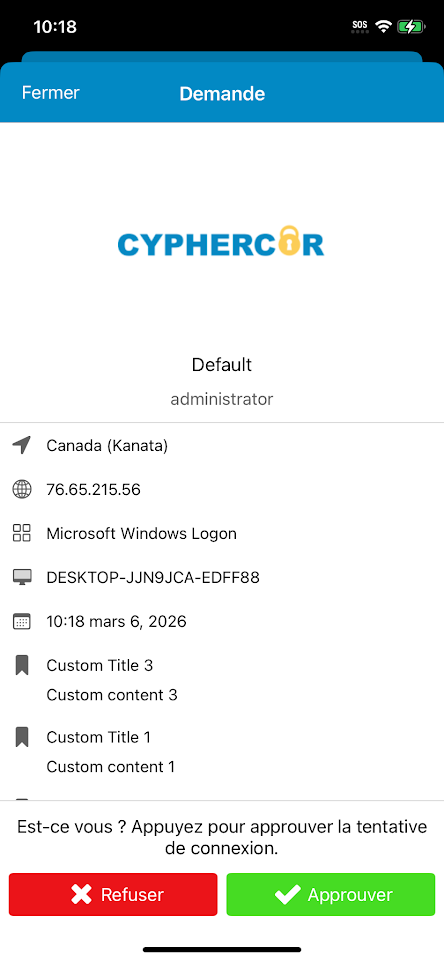
New Decide Screen in iOS
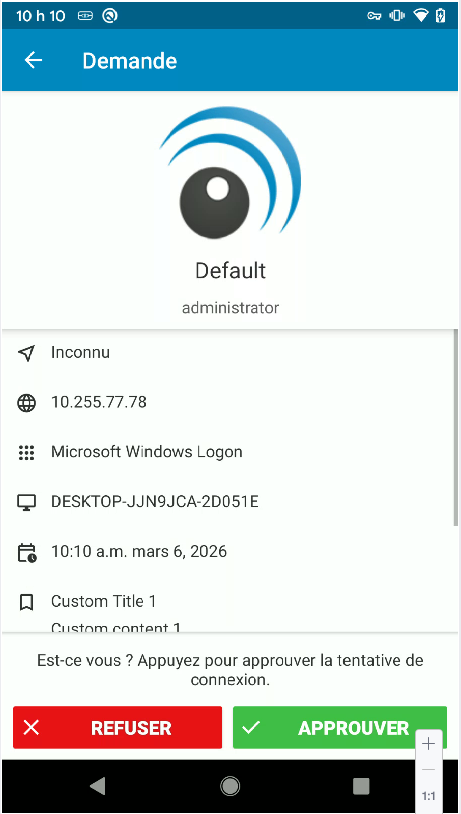
New Decide Screen in Android
These changes are consistent across both platforms.
What’s New: Configurable Attribute Display
Previously, the decide screen displayed a fixed set of contextual attributes with no administrator control over which fields appeared or how they were ordered. In 1.11.4, that changes.
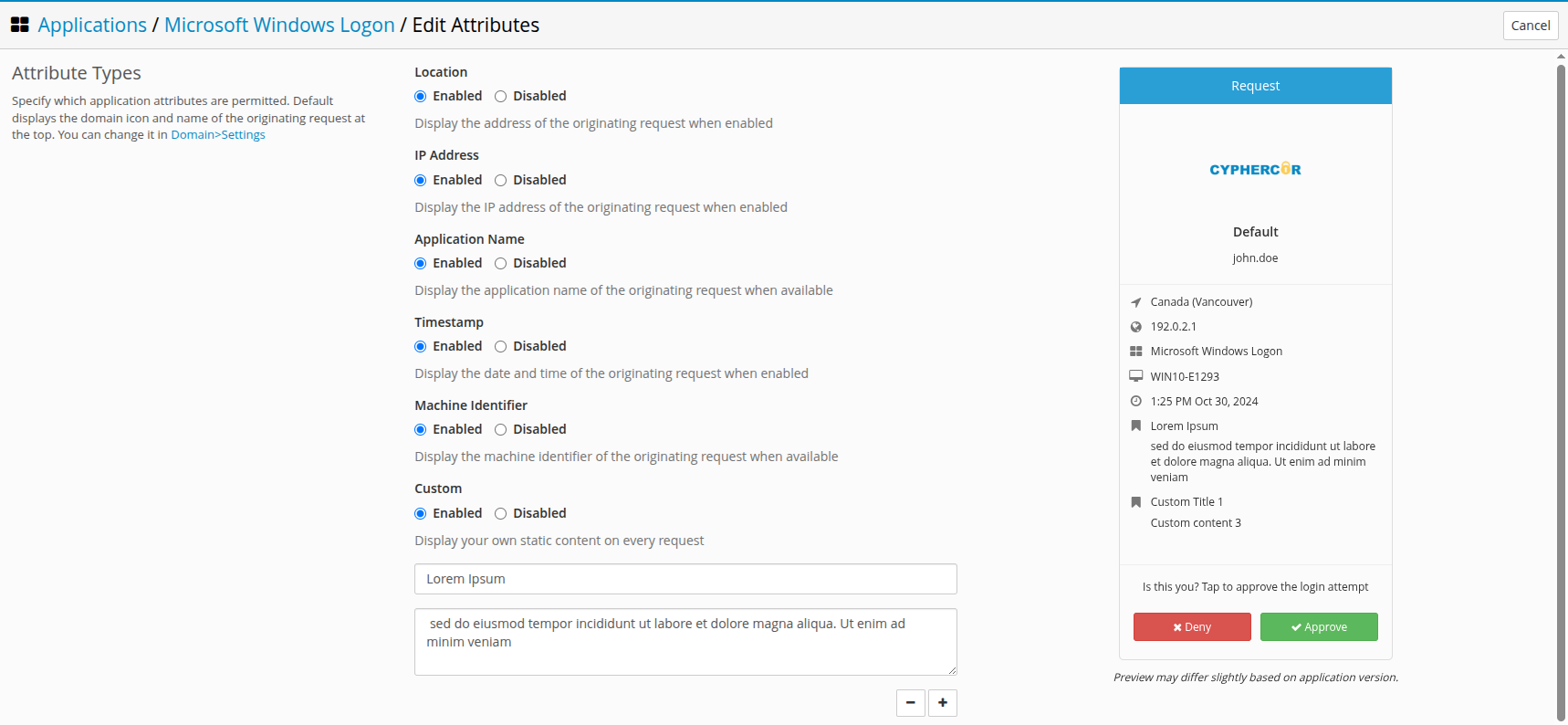
Administrators can now independently enable or disable the following attribute types for each application:
- Location — the geographic origin of the authentication request
- IP Address — the source IP of the request
- Application Name — useful in multi-application environments where context matters
- Timestamp — date and time of the request
- Machine Identifier — the device or workstation initiating the request
- Custom — static text you define, displayed on every request for that application
Ordering control is also included. Attributes can be arranged in the sequence that makes most sense for your users and your security model. For example, surfacing IP Address and Application Name at the top for environments where those are the most relevant risk signals.
How to Configure It
The new settings are accessible directly in the LoginTC Manager console:
- Navigate to Applications and select the application you want to configure.
- Open Edit Attributes from the application menu.
- Toggle each attribute type on or off using the Enabled / Disabled controls.
- For the Custom attribute, enter a static title and content string — this text will appear on every request for this application.
- Save your changes. The updated decide screen will take effect immediately for iOS and Android users.
A live preview of the decide screen is displayed in the right panel as you make changes, so you can verify the user experience before saving.
Why This Matters for Security
Push fatigue is a real and well-documented attack vector. When users reflexively approve authentication requests without reviewing context, the MFA layer loses much of its value. The decide screen is your primary mechanism for prompting deliberate review — but only if the information it surfaces is relevant and readable.
For high-sensitivity applications, the ability to surface exactly the right attributes in the right order gives users a clearer basis for making an informed decision. Showing application name alongside timestamp and IP address, for example, gives a user enough context to immediately recognize when a request doesn’t match their current activity.
The Custom attribute adds another layer of flexibility. Use it to display application-specific instructions, security reminders, or data classification notices directly in the authentication prompt.
Try It Now
If you’re an existing LoginTC administrator, the new Decide Screen attribute controls are available in your Manager console today. Head to Applications > [Your Application] > Edit Attributes to get started.
If your organization is still evaluating MFA options, LoginTC offers a straightforward deployment path with the administrative depth to meet enterprise security requirements. Sign up for a free trial or book a demo to see the full platform in action.