Last Updated: April 2, 2026
LoginTC adds multi-factor authentication to the RAWeb login page. After a user enters a valid username and password, they are prompted for LoginTC MFA authentication.
Subscription Requirement
Your organization requires the Business plan to use LoginTC for RAWeb. Explore Pricing Plans
LoginTC supports a wide range of authentication methods for RAWeb MFA.
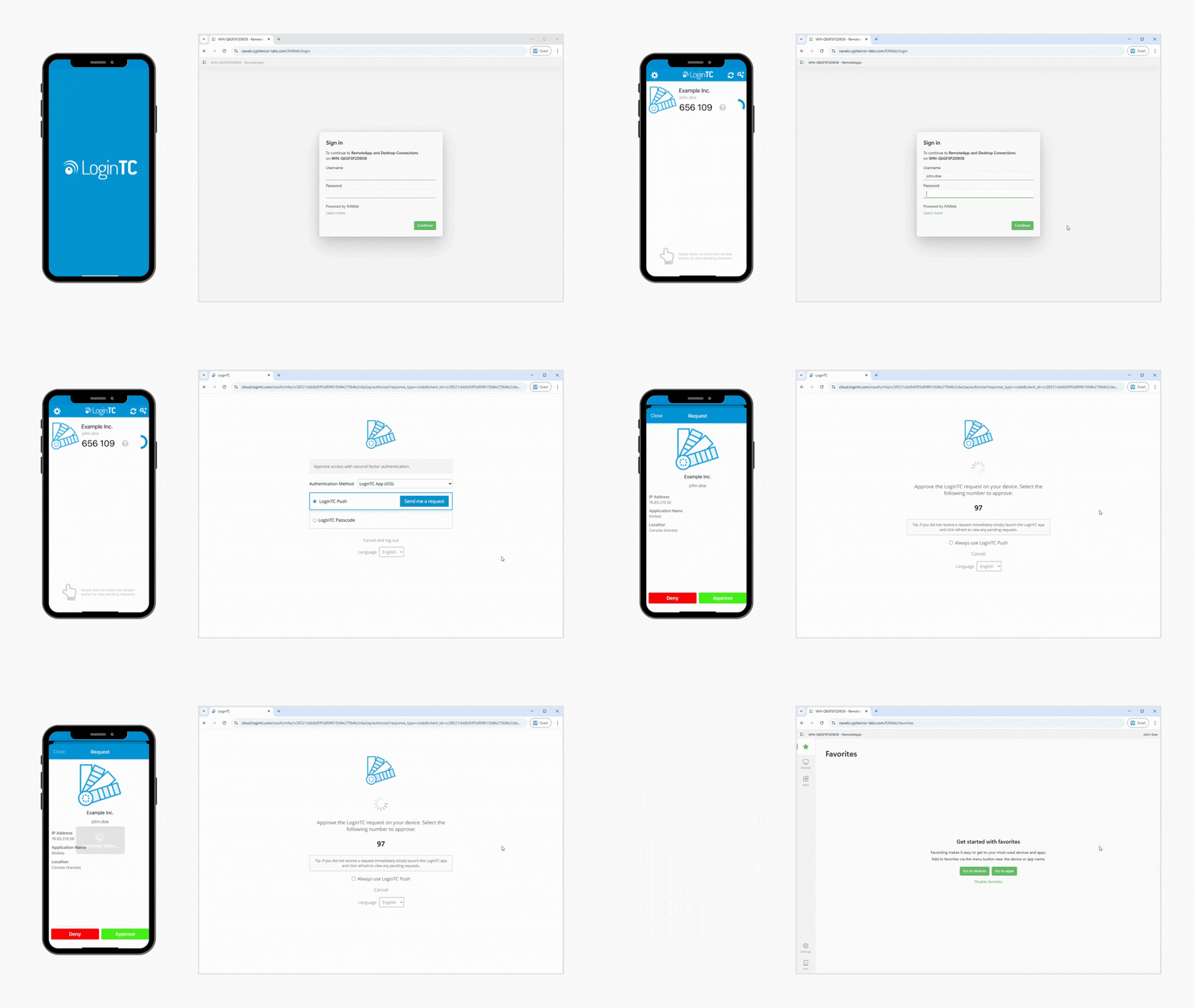
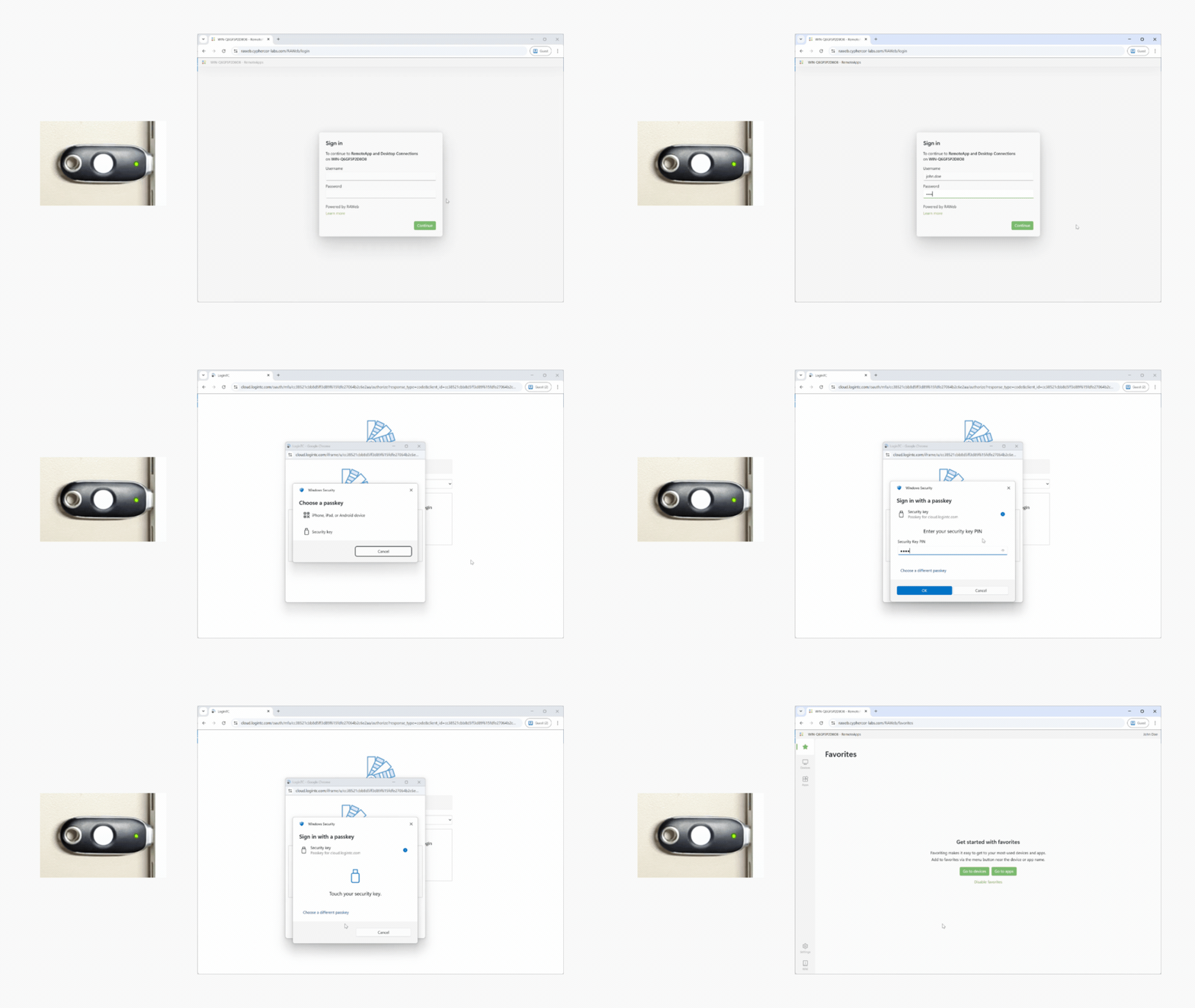
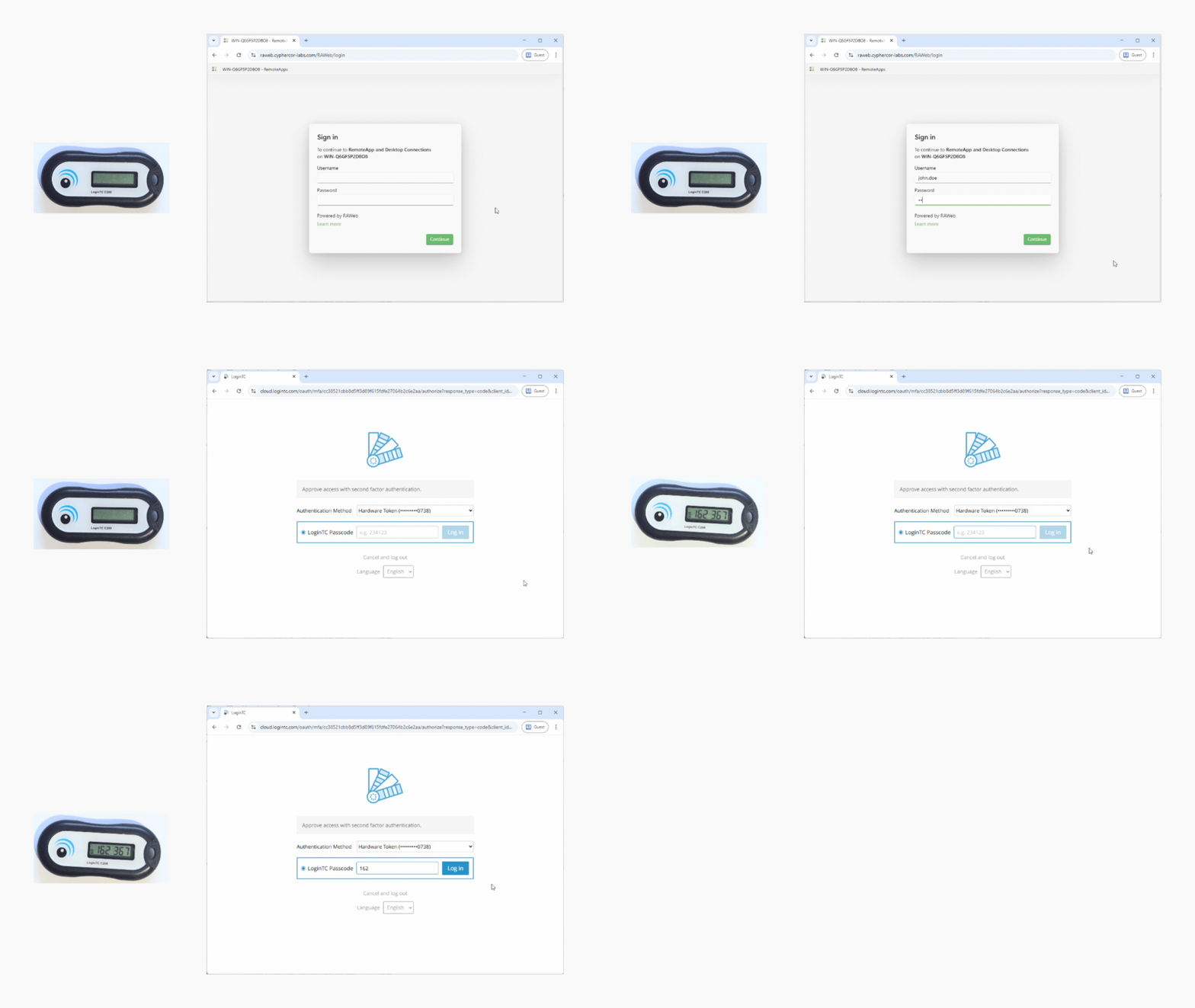
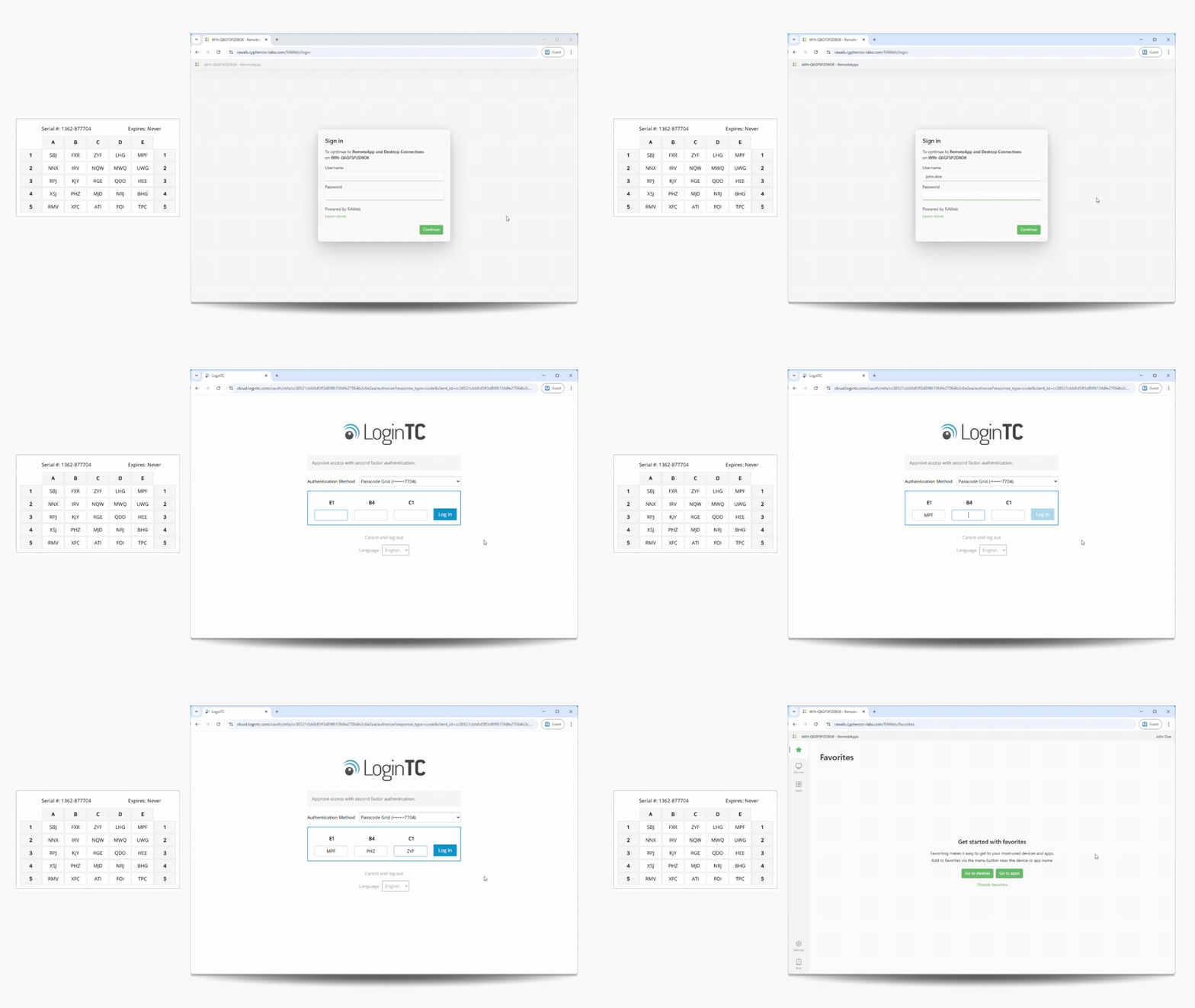
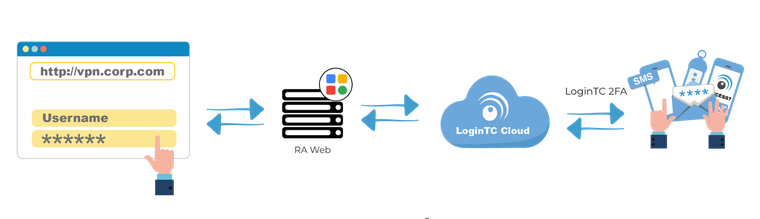
Authentication Flow
- A user attempts to access RAWeb from a browser with their username / password
- A Conditional Access policy redirects the user’s browser to LoginTC
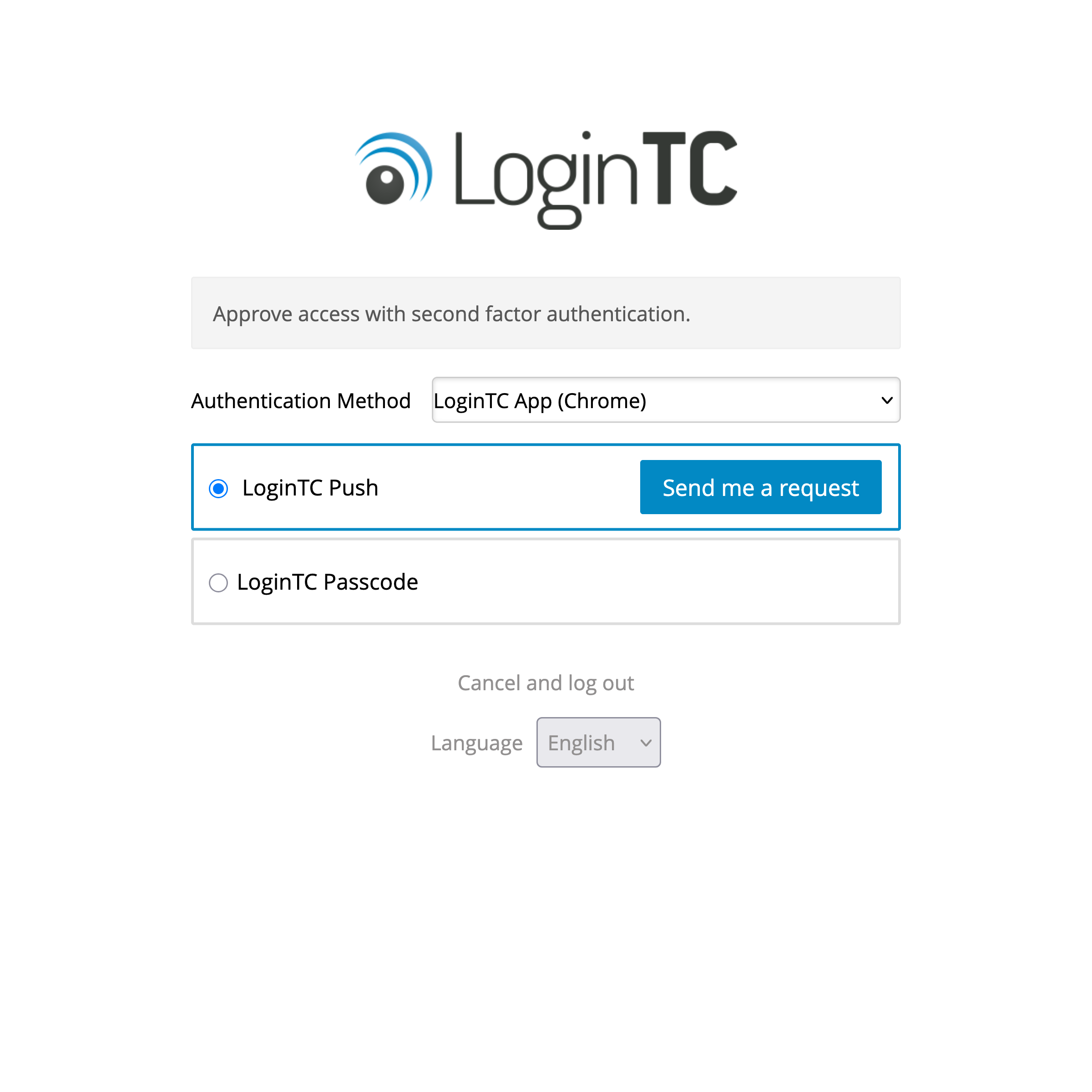
- The user is presented with LoginTC authentication methods
- An authentication request is made to LoginTC Cloud Services
- The user response (approval or denial of request) is sent to LoginTC Cloud Services
- The user approval is sent back to RAWeb
- RAWeb validates the response and redirects the user to the protected resource
Create a LoginTC account and RAWeb application:
- Create an account (or log in to an existing account) on LoginTC Cloud: https://cloud.logintc.com/
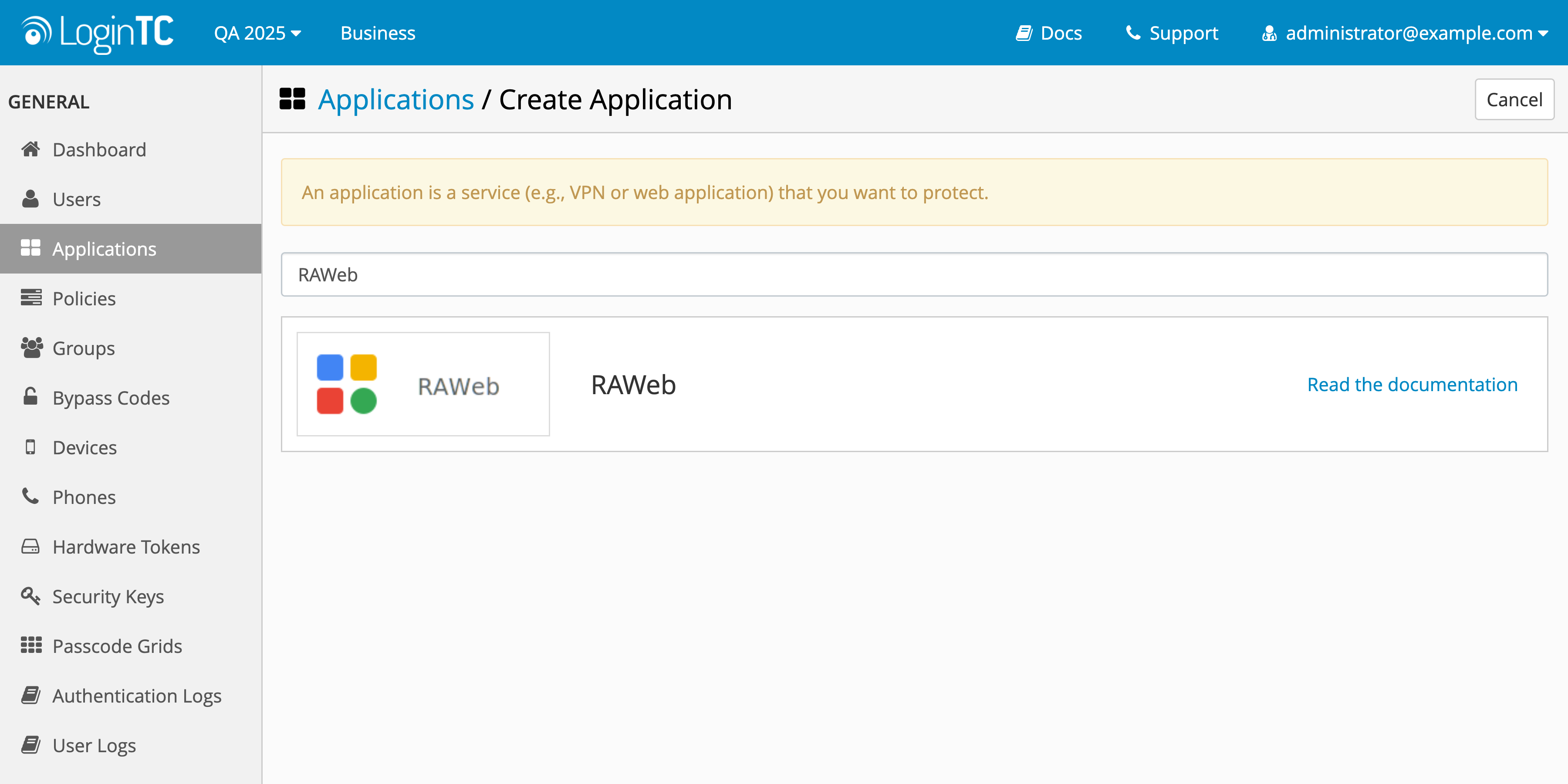
- Click on Applications in the menu
- Search for RAWeb and click on it:
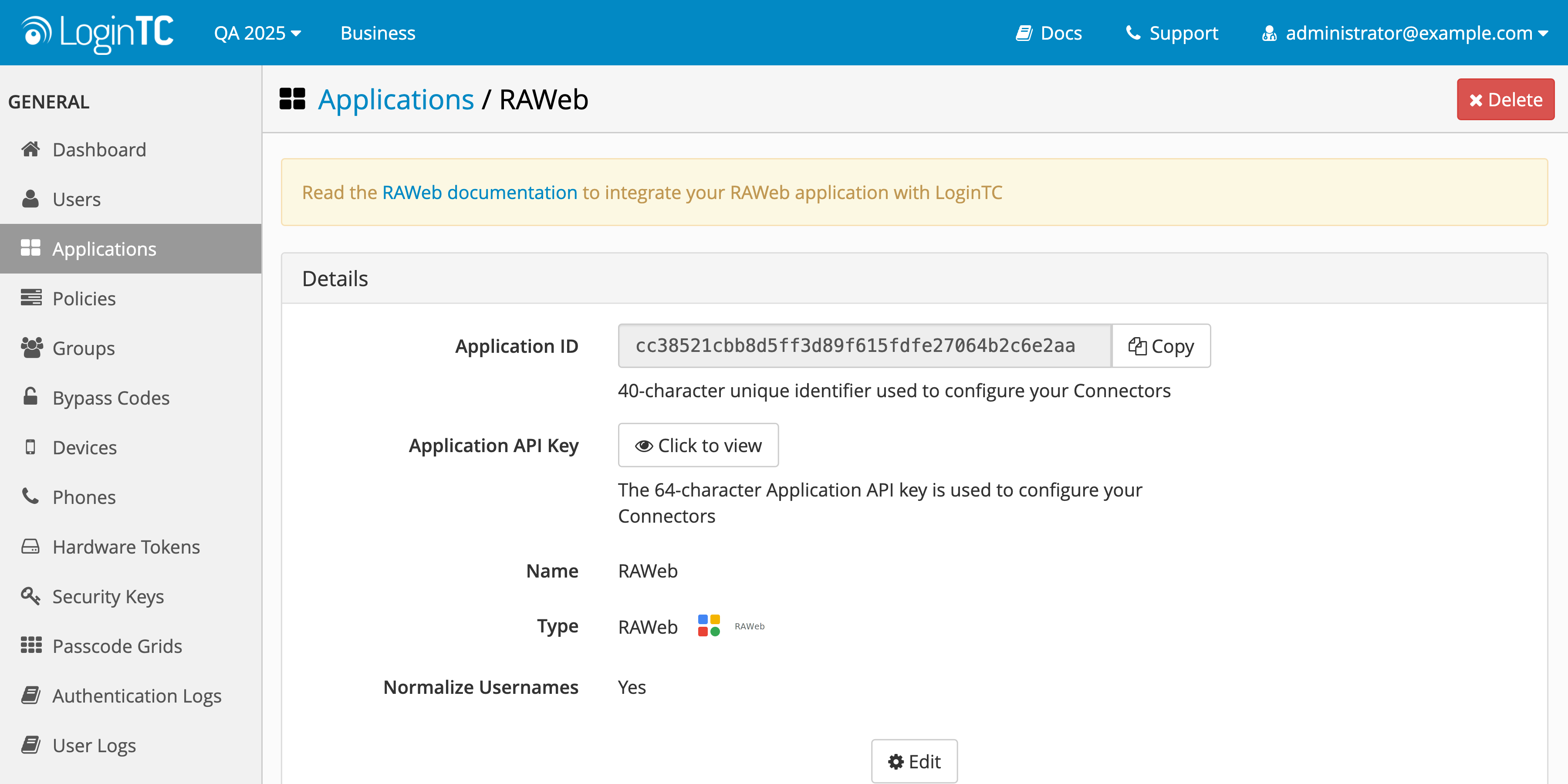
- Copy the Application ID and Application API Key:
Configure your RAWeb to use LoginTC MFA for authentication:
- Log in to RAWeb as an administrator
- Click on Policies:
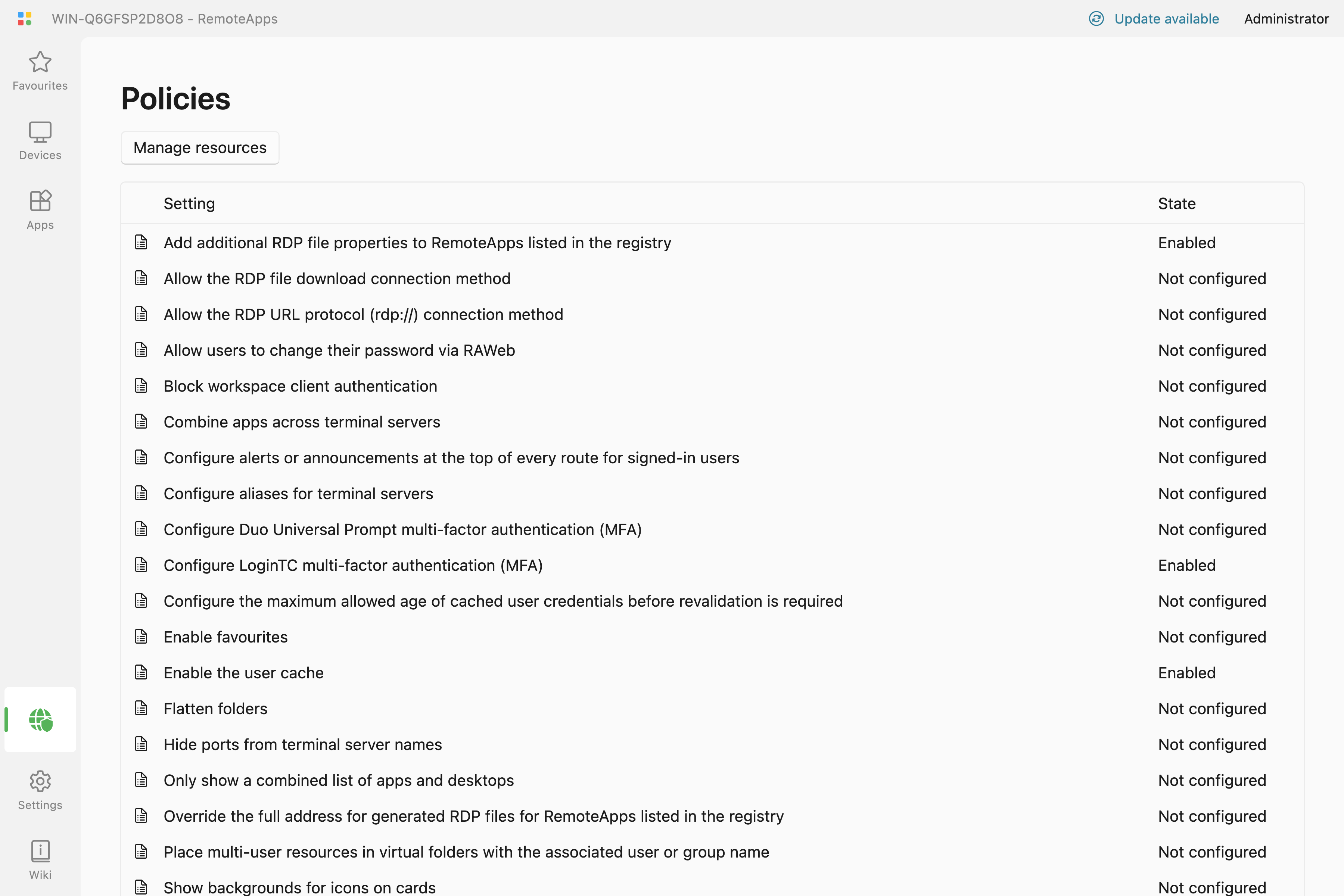
- Click on Configure LoginTC multi-factor authentication (MFA):
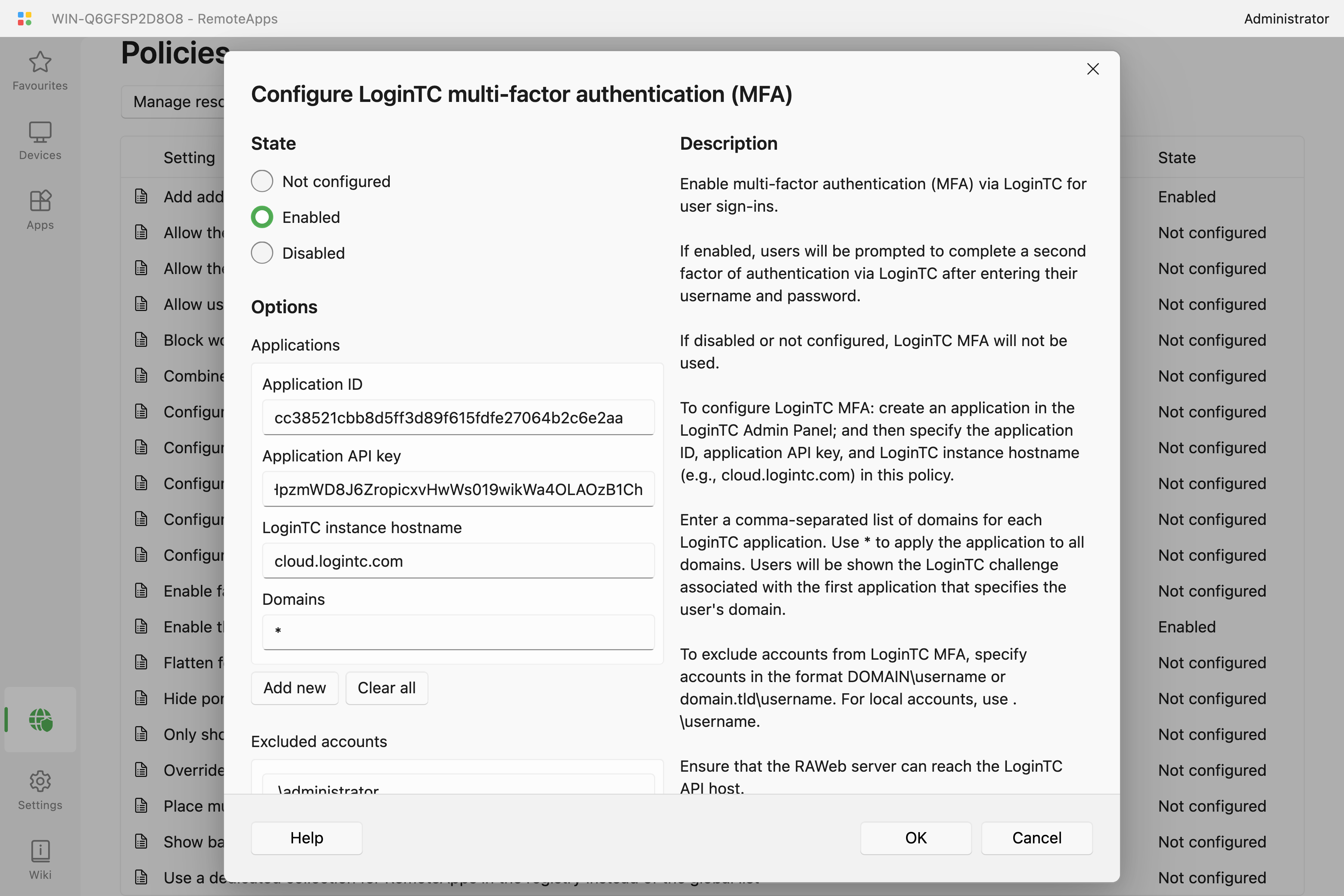
- Copy and paste the Application ID and Application API Key values from the LoginTC Admin Panel
- Specify the LoginTC instance hostname (e.g.,
cloud.logintc.comif using LoginTC cloud) - Specify an Active Directory domain (or
*) to enable LoginTC for all domains
Warning: Excluded accounts required
RAWeb currently requires an excluded account to be defined for the configuration form to be saved. If you do not wish to exclude an account, add a fake domain and user (e.g., domain/user)
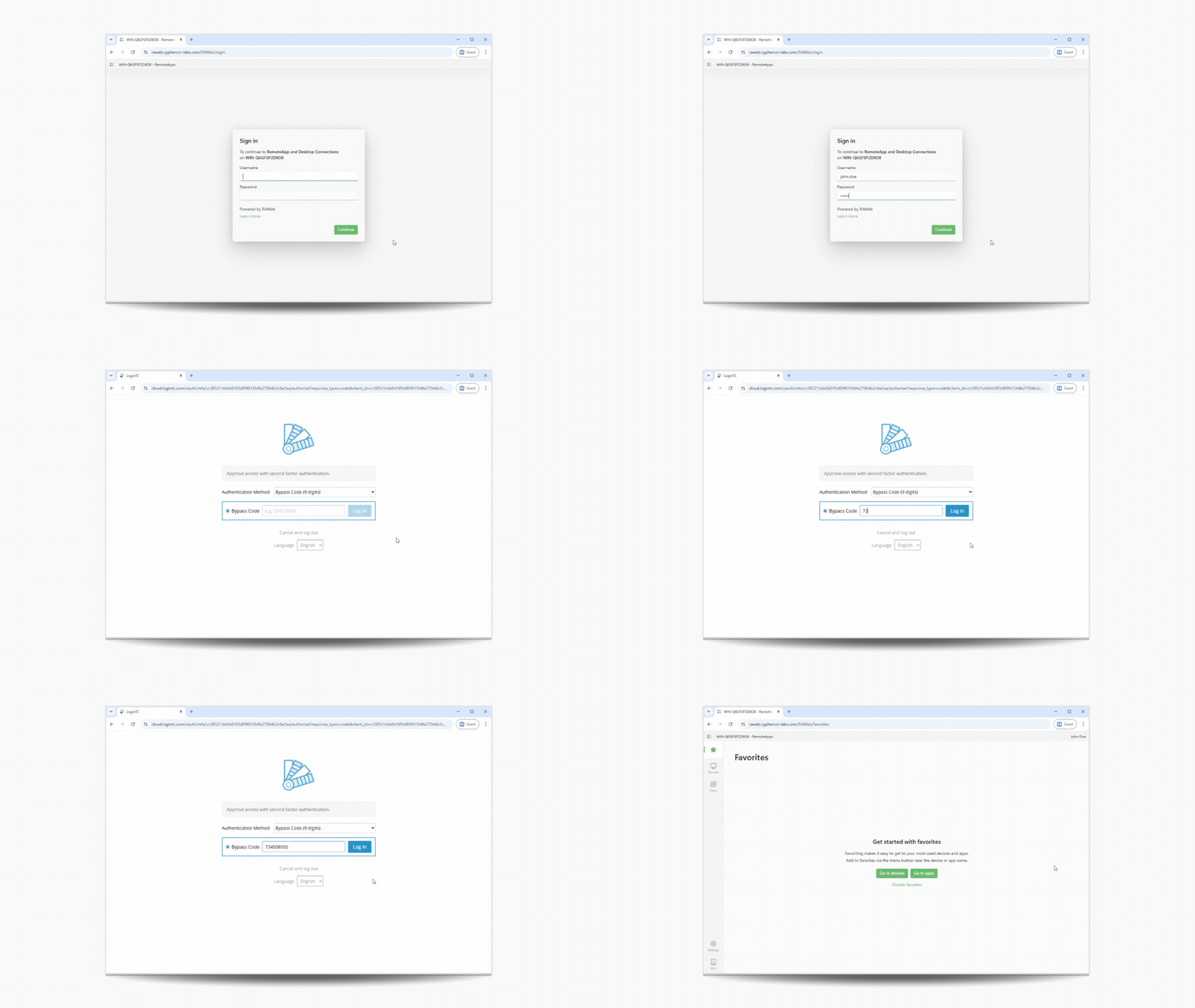
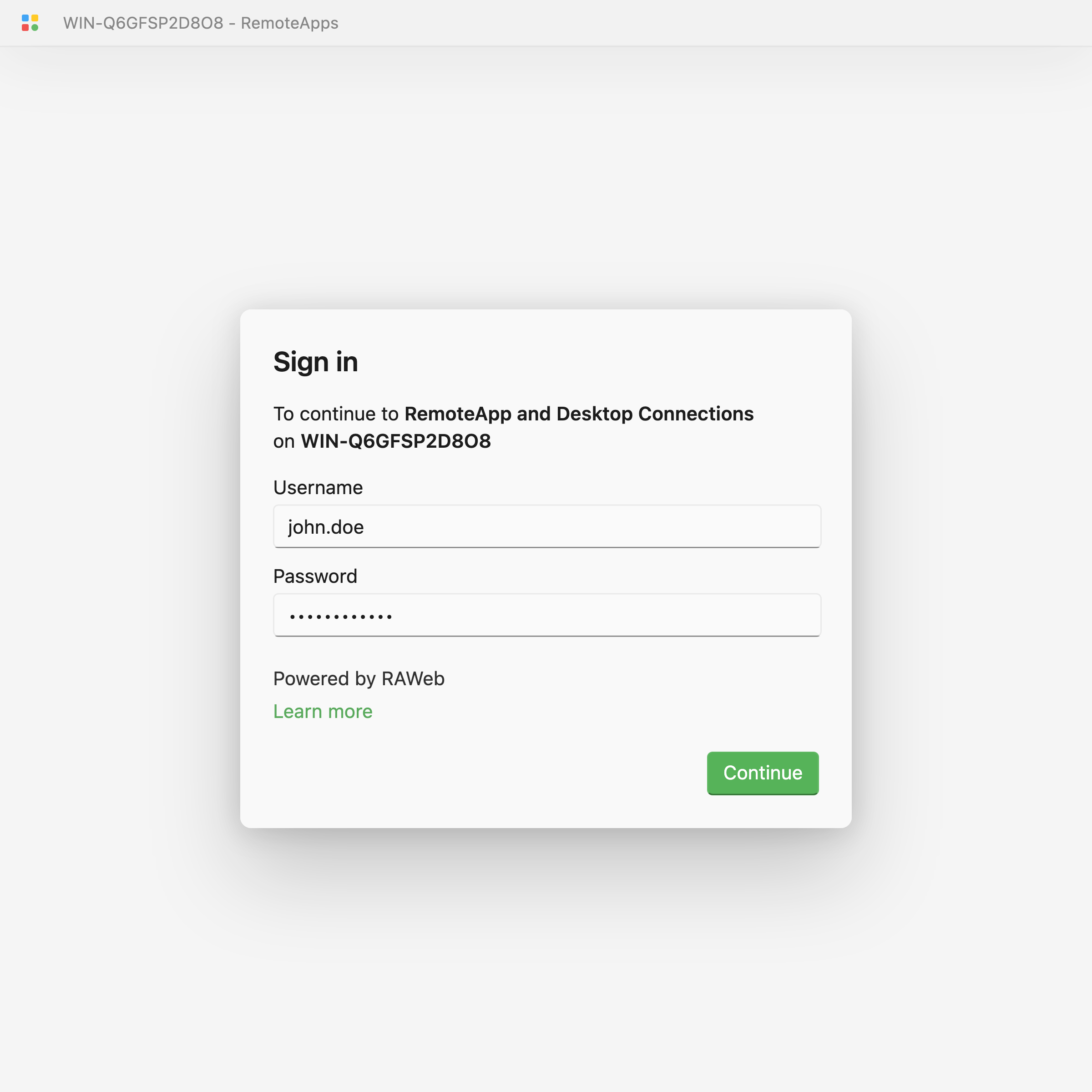
Users are prompted to perform LoginTC authentication after entering a valid username and password:
- Log in to RAWeb as a user
- Enter a valid username and password:
- User is redirected to LoginTC and prompted to perform authentication with LoginTC:
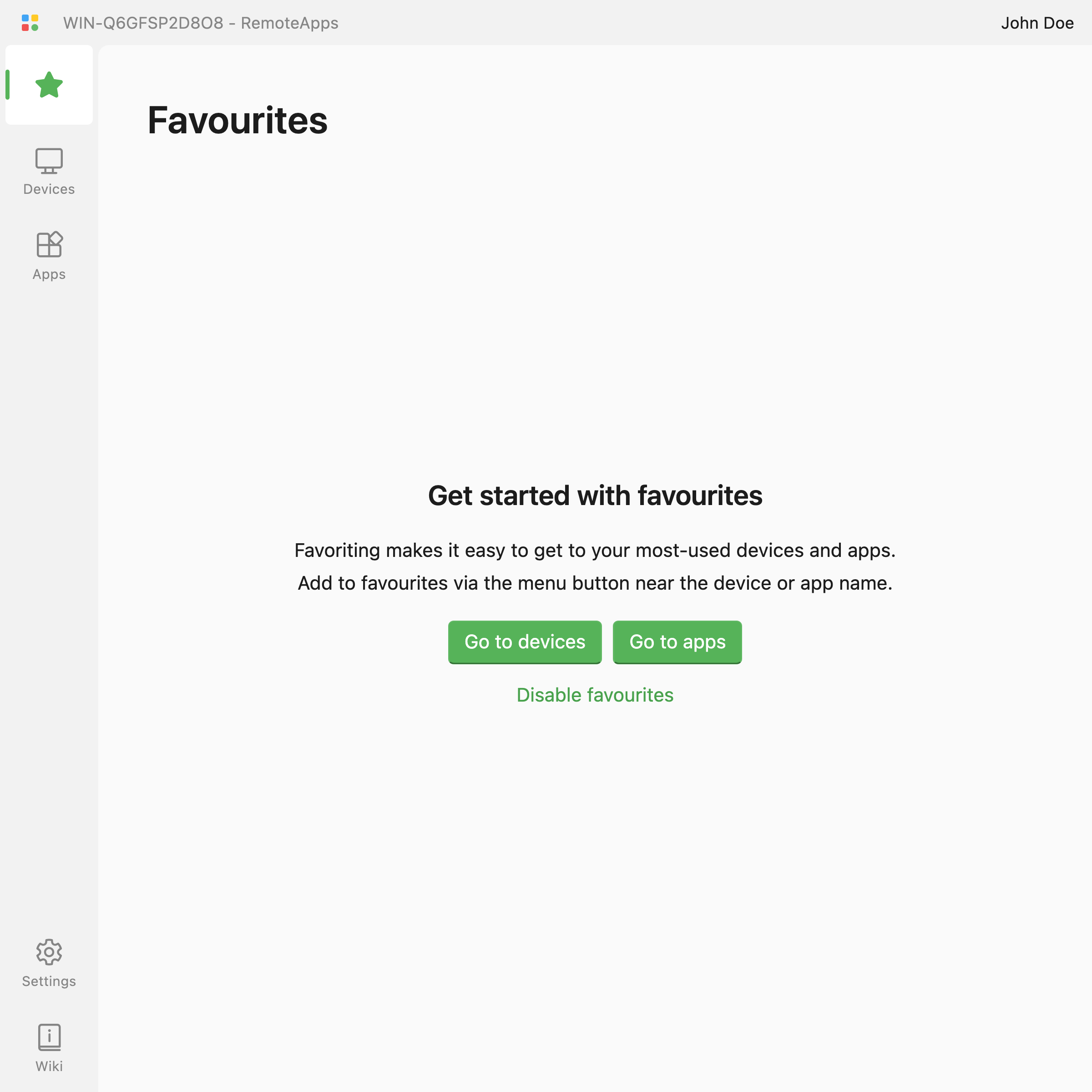
- User is redirected back to RAWeb:
Email Support
For any additional help please email support@cyphercor.com. Expect a speedy reply.