LoginTC Managed 2.1.14: Certificates, HOTP, German Language and More
August 28, 2026 •
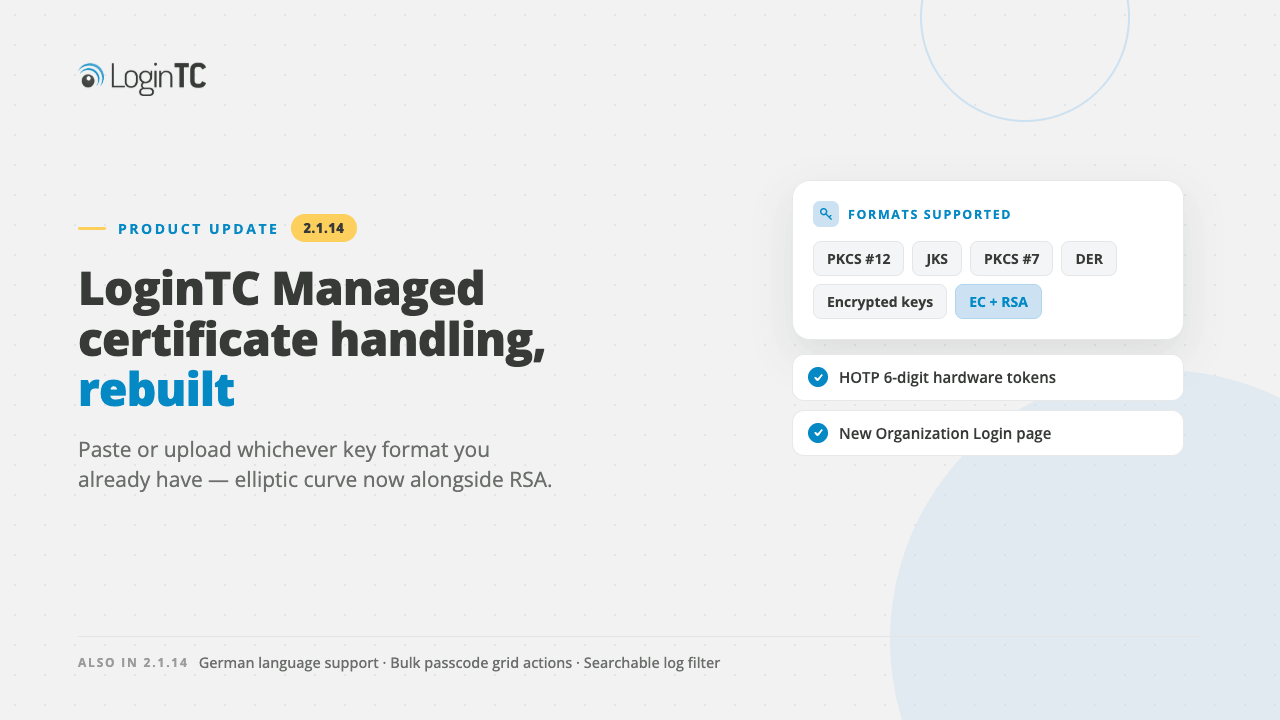
LoginTC Managed 2.1.14 rebuilds certificate and private key handling so administrators can paste or upload whichever format they already have, including PKCS #12, PKCS #7, DER and encrypted keys, with elliptic curve support alongside RSA. The release also adds HOTP 6-digit hardware tokens, German language support, bulk passcode grid actions, a searchable log filter, and a new Organization Login page for administrator sign-in settings.
Here is what changed in LoginTC Managed 2.1.14, released August 14, 2026, together with the LoginTC Admin Panel and management improvements that shipped alongside it.
Comprehensive certificate and key format support
You were required to copy and paste a certificate and private key to configure HTTPS access for your users and LoginTC connectors. Until now, that step assumed you already had a PEM-encoded certificate and an unencrypted RSA private key. If your certificate authority handed you a .pfx file, or the key was password protected, you were required to run OpenSSL or PowerShell commands to convert it first.
That conversion step is now gone. LoginTC Managed 2.1.14 accepts whichever format you have, in whichever way is easier for you: paste the text, or upload the file.
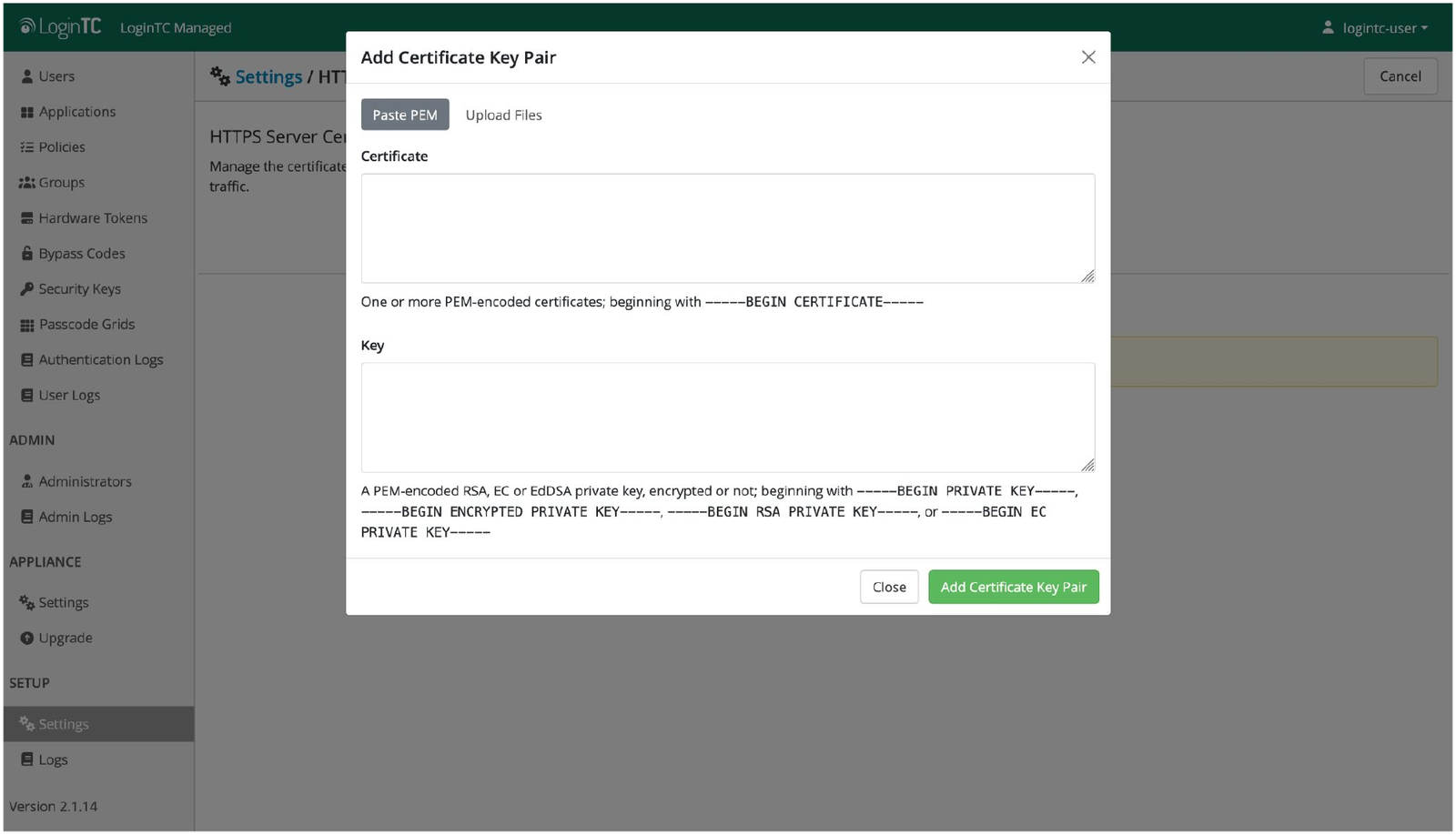
The Add Certificate Key Pair dialog under Settings, HTTPS Server Certificate. The Paste PEM tab accepts one or more PEM encoded certificates and a private key.
The Paste PEM tab now accepts an encrypted private key directly. Paste the key, enter the password that protects it, and LoginTC decrypts it for you.
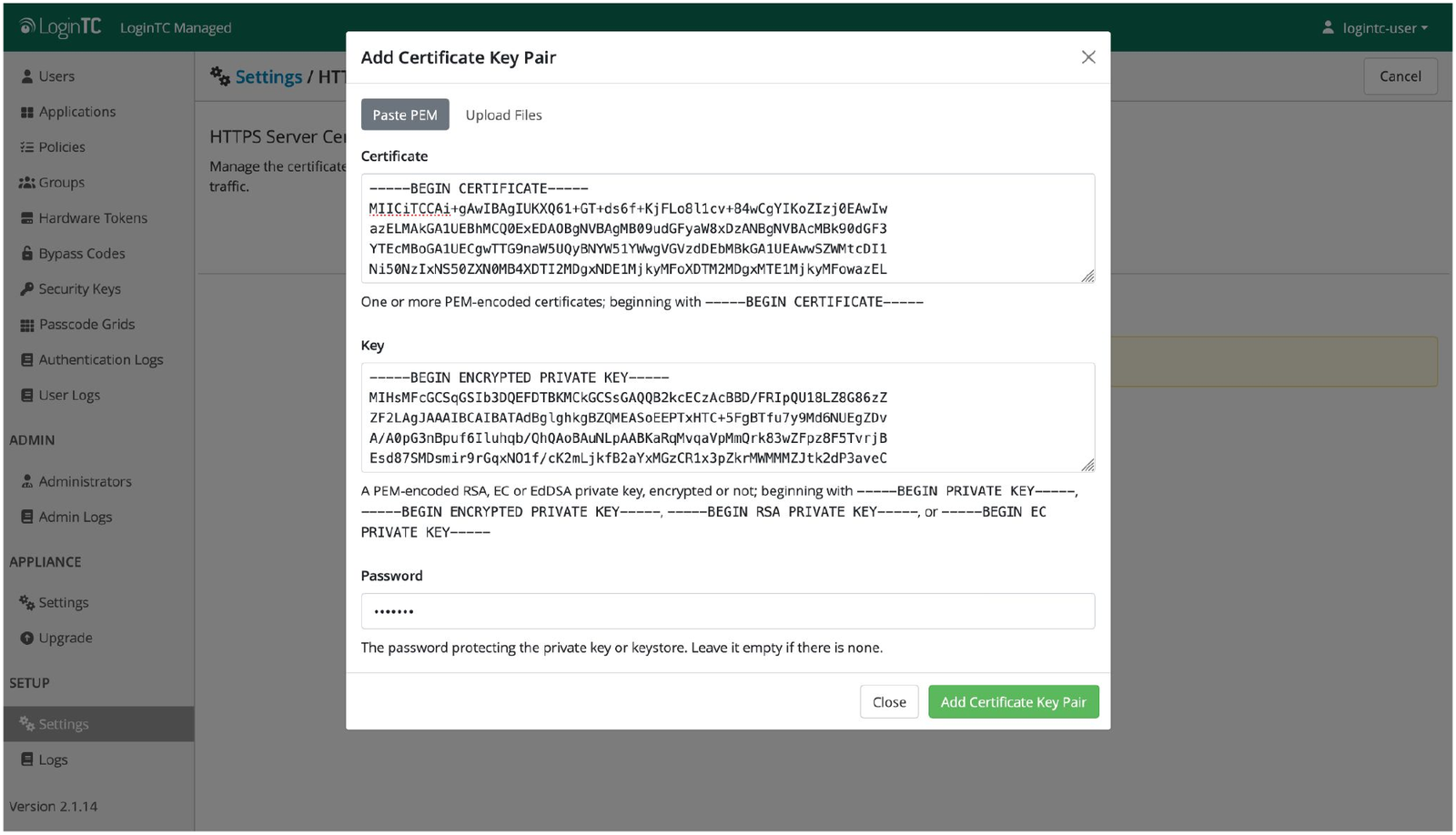
An encrypted PKCS #8 private key pasted alongside its certificate, with the protecting password entered below.
If your certificates or key material are in a binary format, you can upload them using the Upload Files tab.
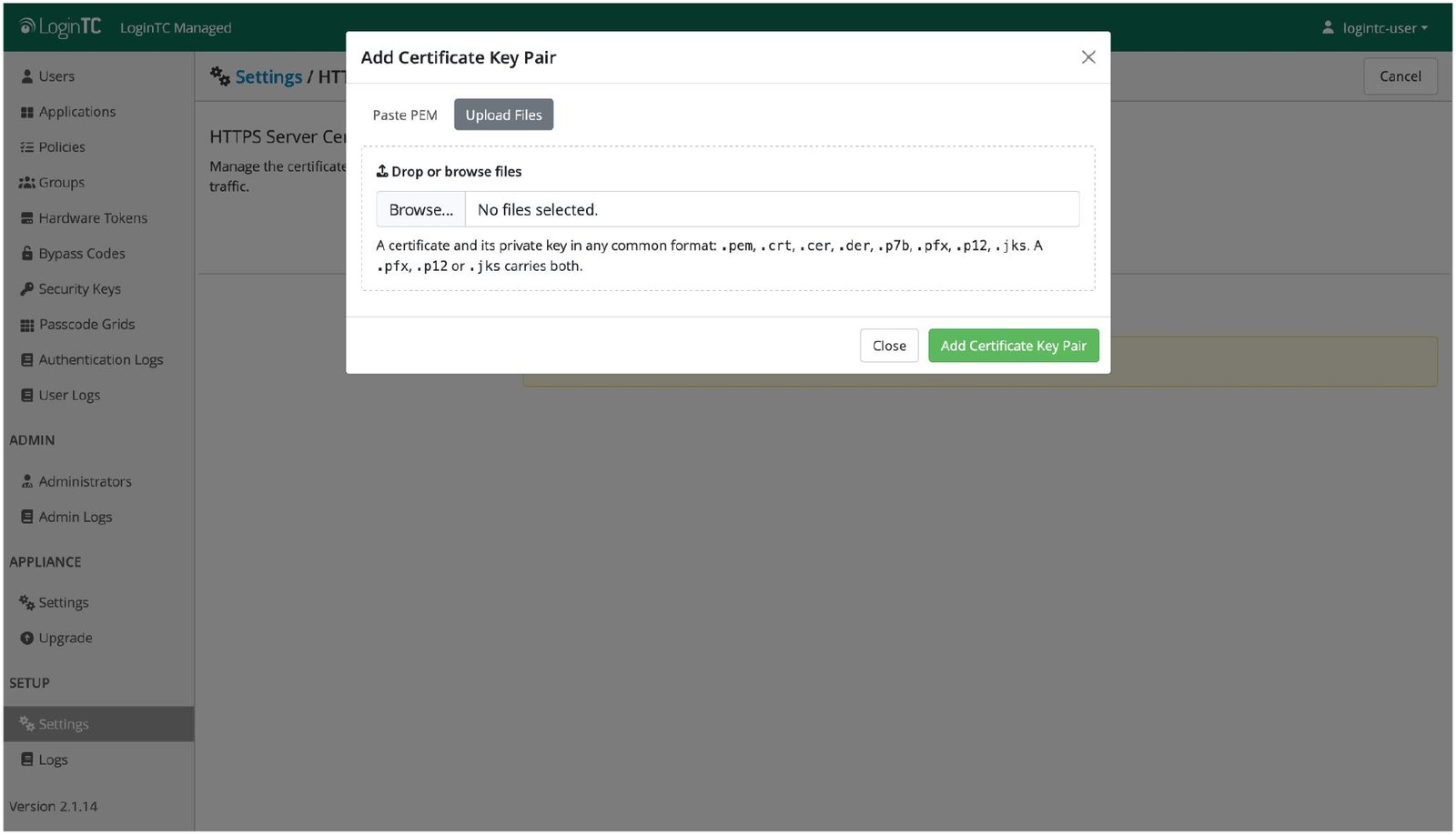
The Upload Files tab accepts .pem, .crt, .cer, .der, .p7b, .pfx, .p12, .jks. A .pfx, .p12 or .jks file carries both the certificate and its key.
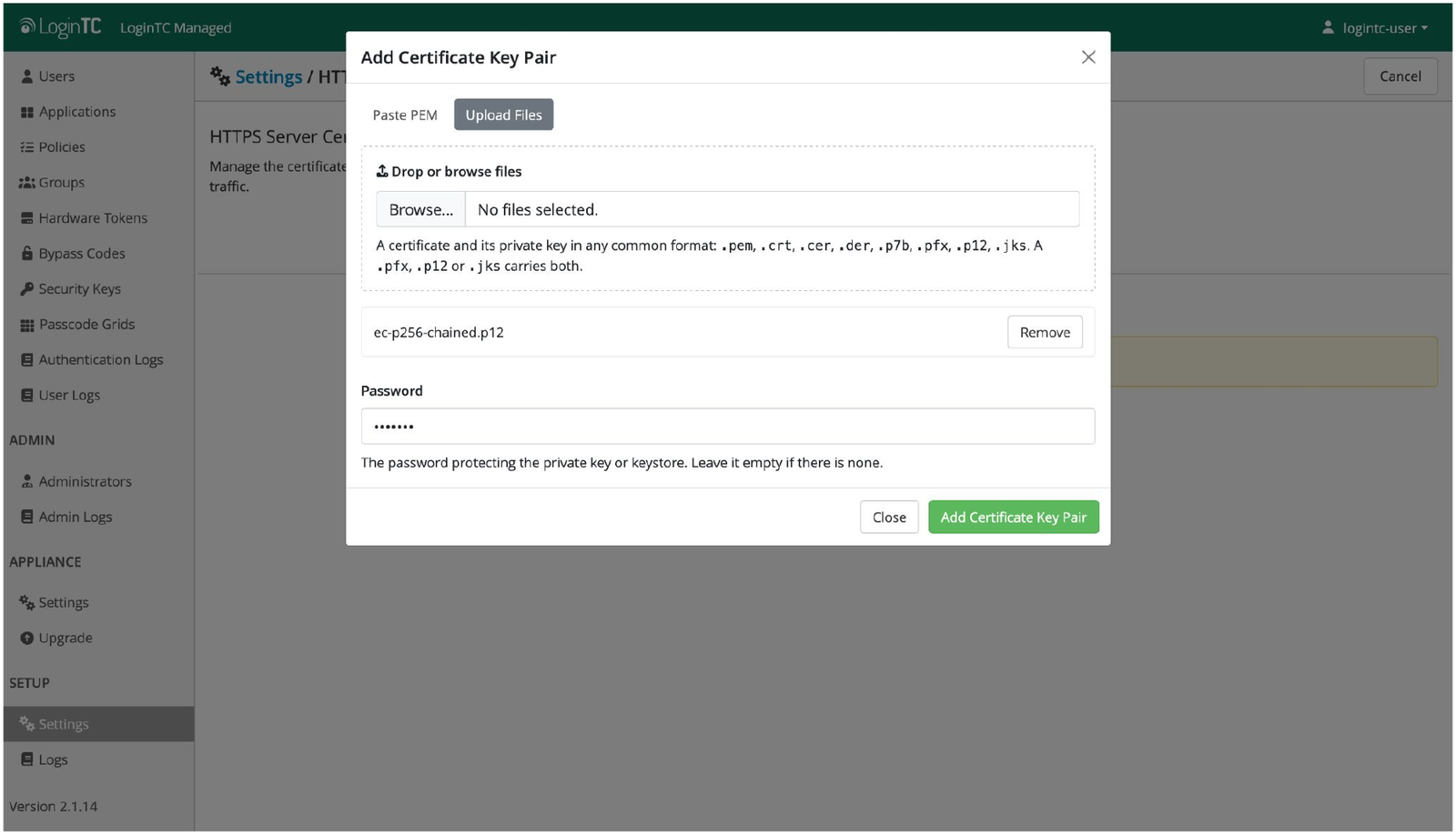
A single PKCS #12 file supplies the certificate, the chain and the private key. Enter the keystore password, or leave it empty if there is none.
Elliptic curve keys, not just RSA
Earlier versions supported RSA only. LoginTC Managed 2.1.14 supports RSA and EC (ECDSA).
HOTP 6-digit hardware tokens
LoginTC Managed 2.1.14 adds a new hardware token type: HOTP 6-Digit. HOTP is counter-based rather than time-based, which is what makes it useful in a specific and fairly common situation.
Many hardware security keys already in circulation support HOTP alongside FIDO2. Comparatively few support TOTP, because a time-based token needs a battery to keep a clock running. If your organisation has already bought security keys for passwordless sign-in, there is a good chance those same keys can produce HOTP codes for the systems that still expect a one-time passcode, with no new hardware purchase.
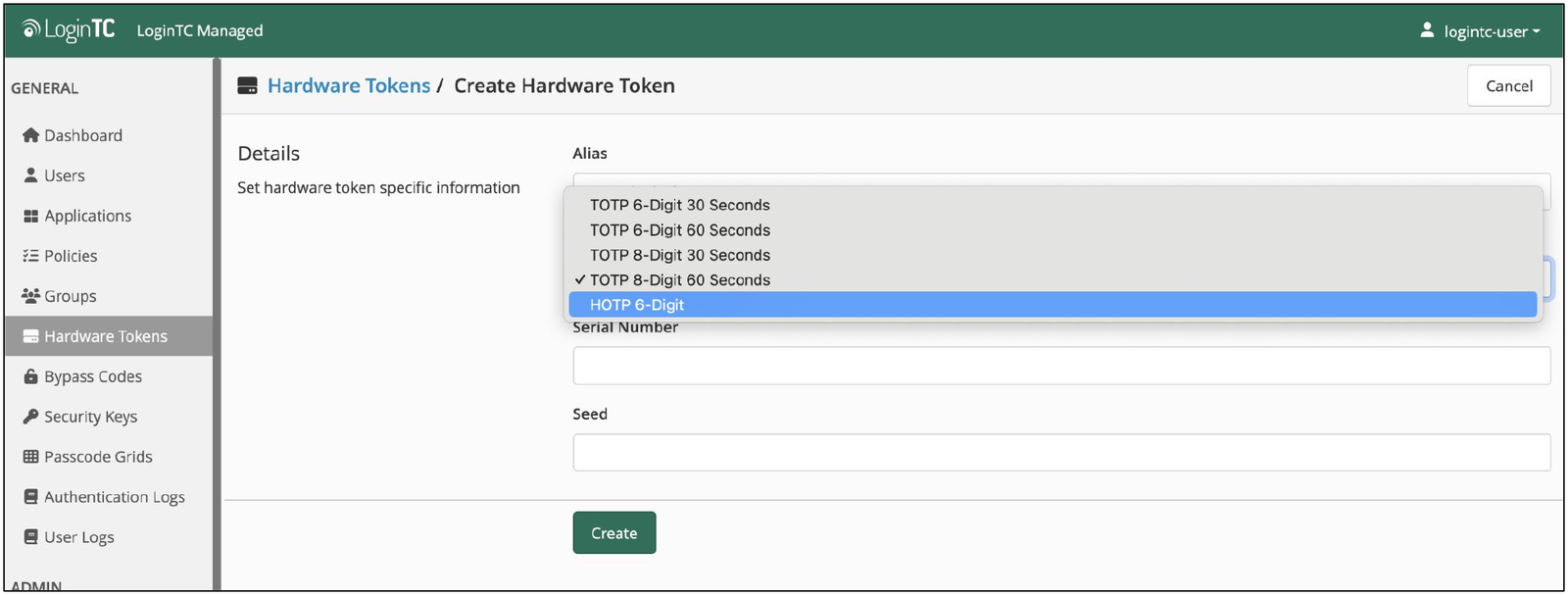
Hardware Tokens, Create Hardware Token. HOTP 6-Digit joins the existing TOTP 6 and 8 digit types at 30 and 60 second intervals.
Because HOTP counts events rather than seconds, a token and the server can drift apart if the token’s button gets pressed while it is loose in a bag. Every HOTP token now shows a Sync State, and an out of sync token can be brought back in line by entering three consecutive codes.
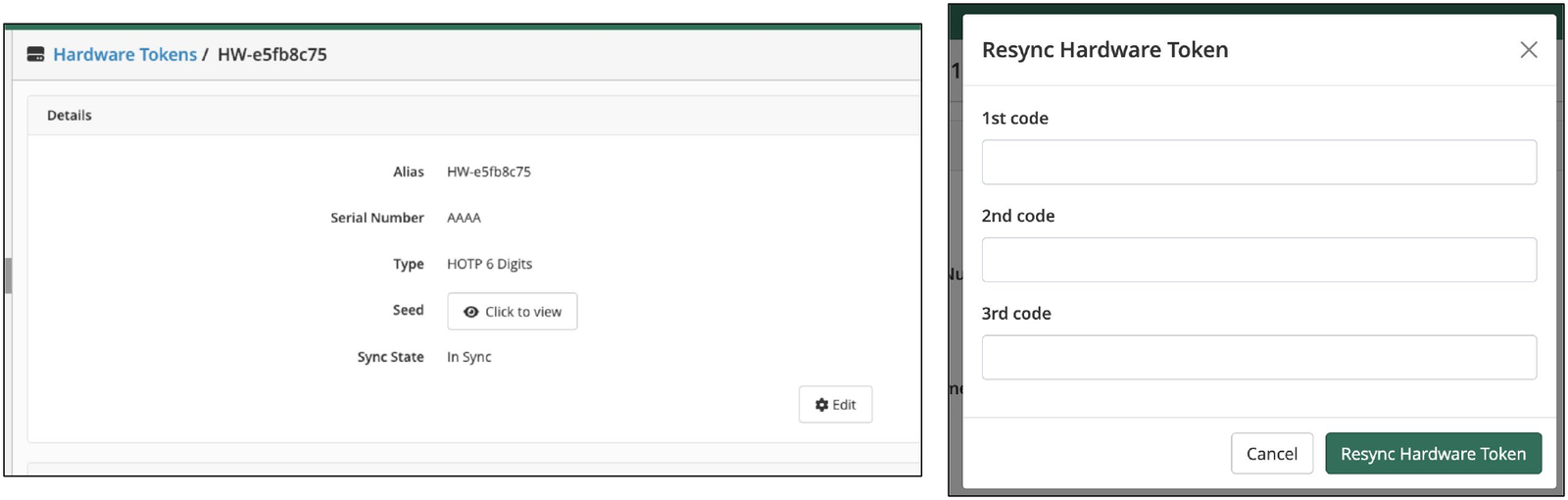
The token detail page reports Sync State. The Resync Hardware Token dialog takes three consecutive codes from the token to re-establish the counter.
The drift setting has been renamed to reflect that it now covers both token types. Settings, One-Time Passcode (OTP) Drift Tolerance holds two values: Time Steps, the number of time steps allowed for clock drift when validating TOTP tokens, and Counter Events, the number of counter events allowed ahead of the current value when validating HOTP tokens. Both default to 10. Higher values are more forgiving but less strict.
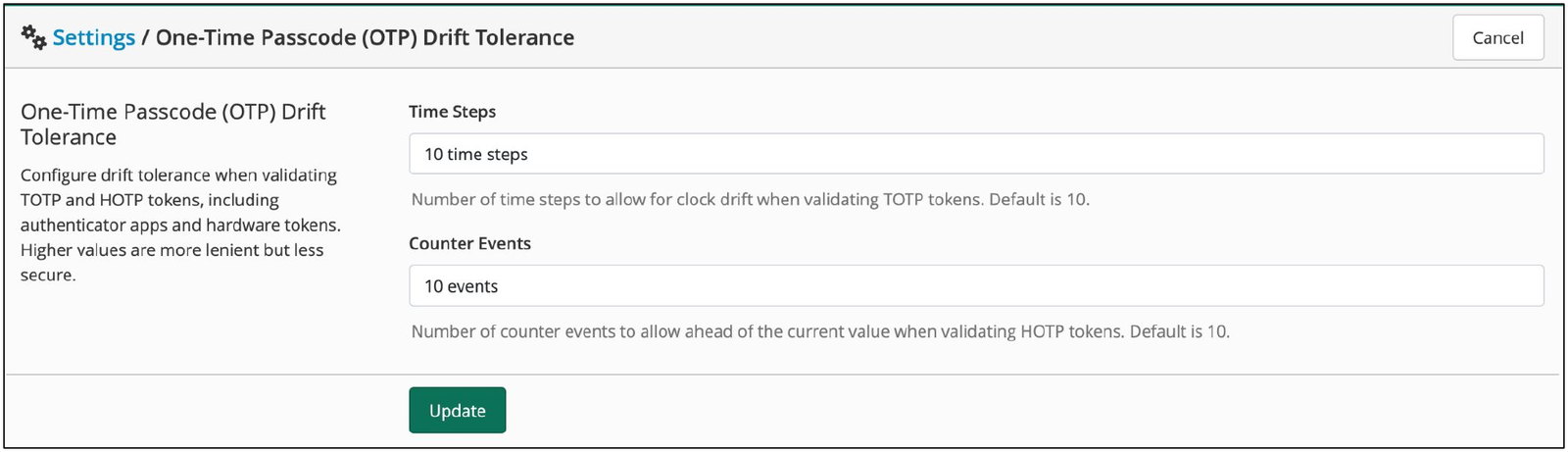
One-Time Passcode (OTP) Drift Tolerance now configures TOTP time steps and HOTP counter events in one place. Both default to 10.
If you want the background on how counter-based codes work and where they fit, we wrote it up when HOTP support first landed: HOTP authentication and hardware tokens.
German language support
German joins the set of user-facing languages. Administrators choose which languages appear in the authentication iframe under Policies, Organization Policy, in the Iframe Display section. English, French, Spanish, Danish and German are selectable. At least one must be enabled, and if more than one is enabled a language dropdown appears in the iframe so the user can choose.
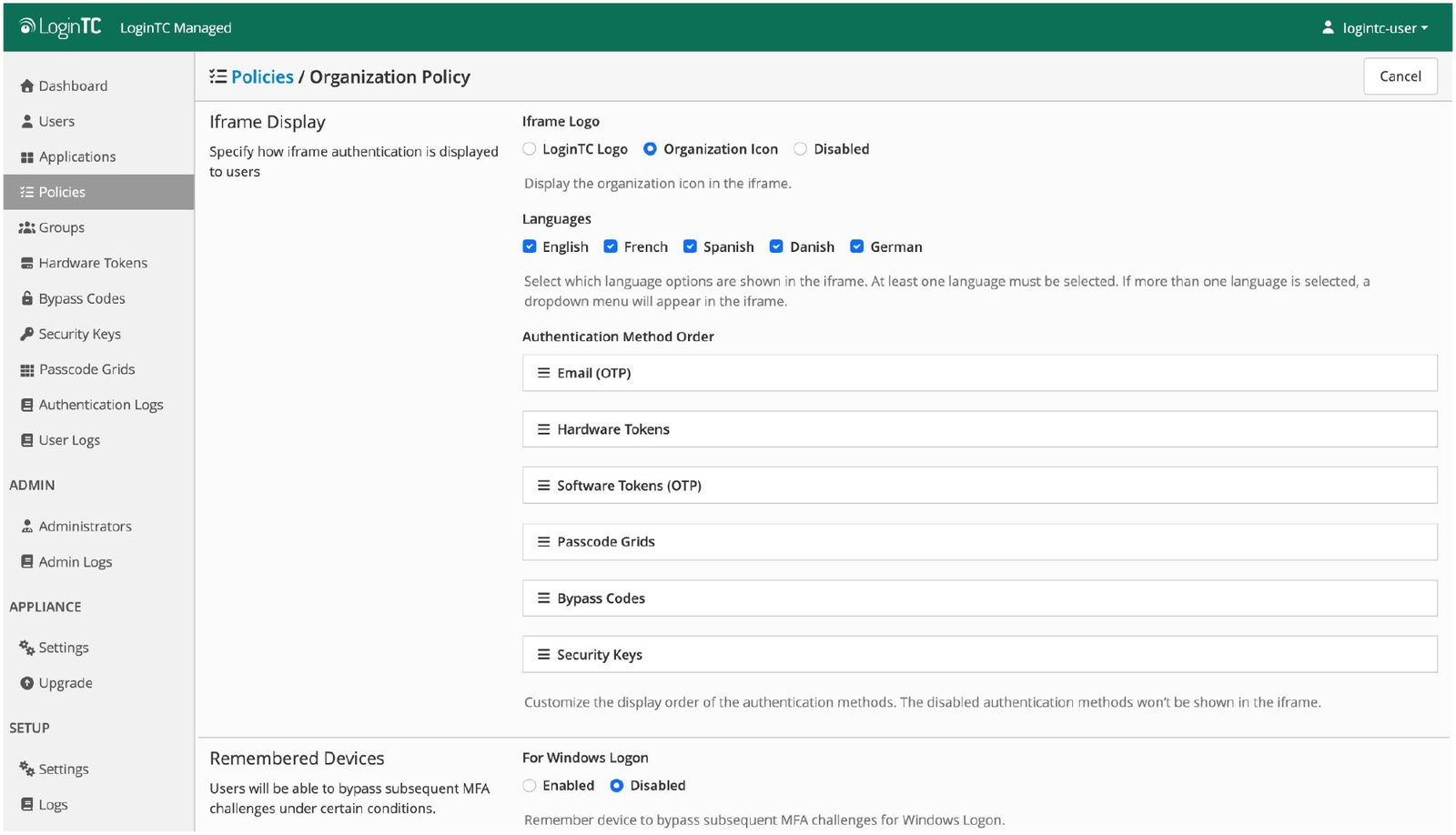
Policies, Organization Policy. German is now selectable alongside English, French, Spanish and Danish. The same section controls the iframe logo and the order authentication methods are offered in.
Danish arrived in 2.1.13 and German arrives here. If your workforce needs a language that is not on this list, tell us which one, because this list is driven by customer requests.
Administrator sign-in panel improvements
The Admin Panel sign-in screen now uses the same authentication iframe that protects your applications. On the surface it looks similar. Underneath, it means administrator sign-in inherits the iframe’s authentication framework, which is the groundwork for offering administrators the same range of second factors that end users already have.
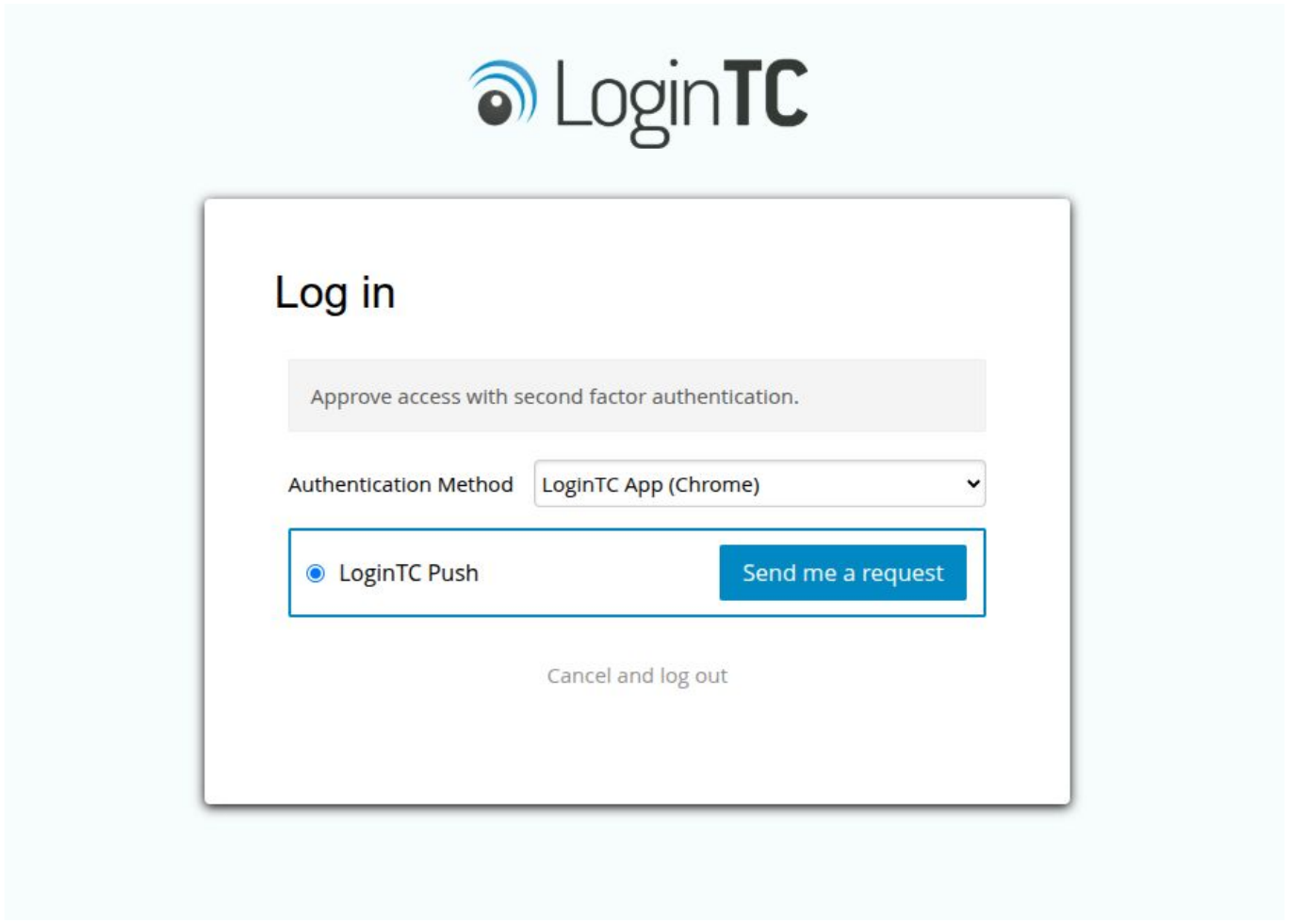
Push number matching carries over to administrator sign-in. When it is enabled, the sign-in screen displays a number and the administrator has to select the matching number in the LoginTC app to approve. That turns a one-tap approval into a deliberate one, which is the standard defence against push fatigue attacks, where an attacker fires repeated requests at someone hoping one gets approved by reflex.
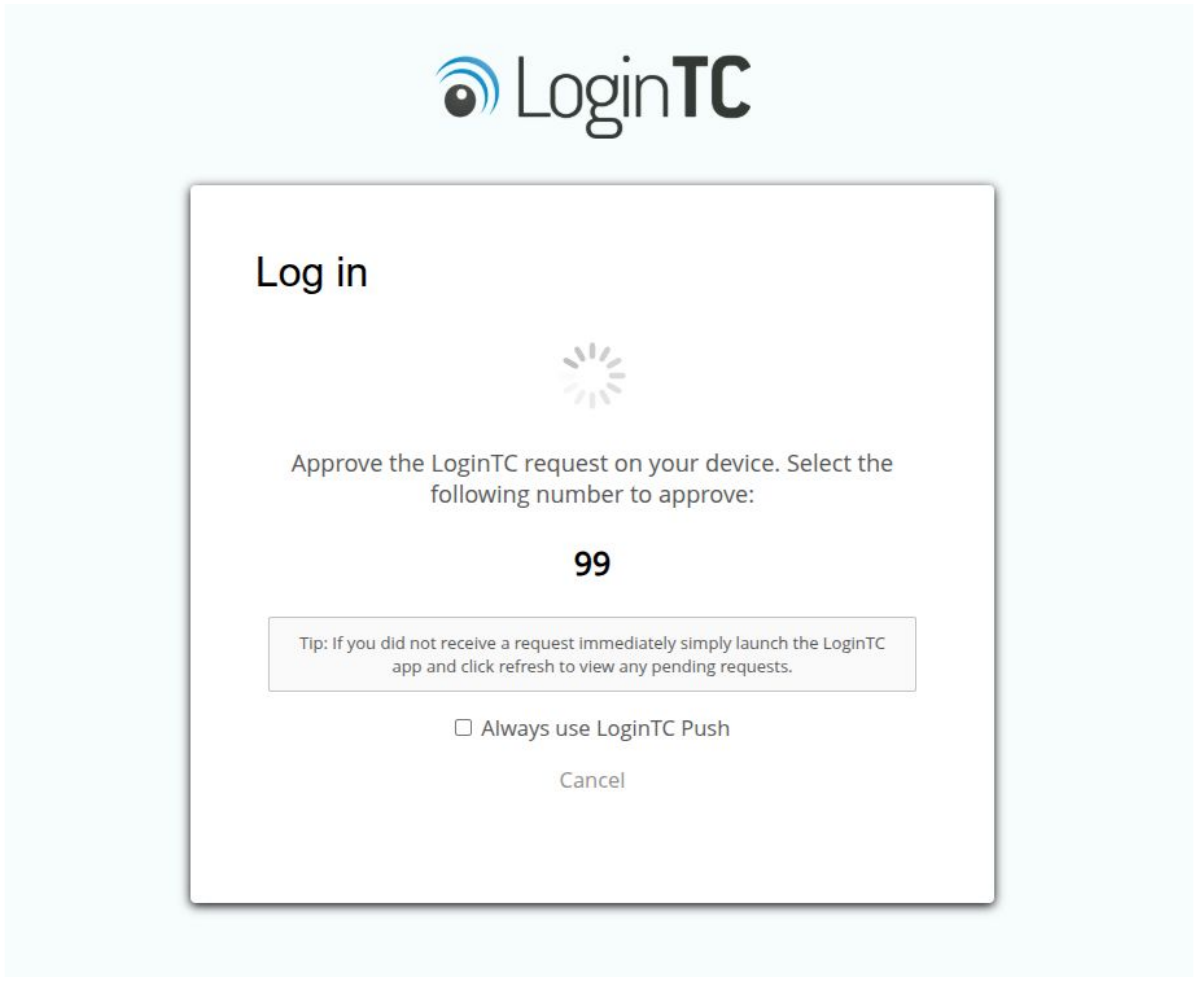
With push number matching enabled, the administrator must select the displayed number in the LoginTC app rather than simply approving which adds additional security.
The settings that govern administrator sign-in now live together in a new Organization Login section on the Settings page, making it easier to access.
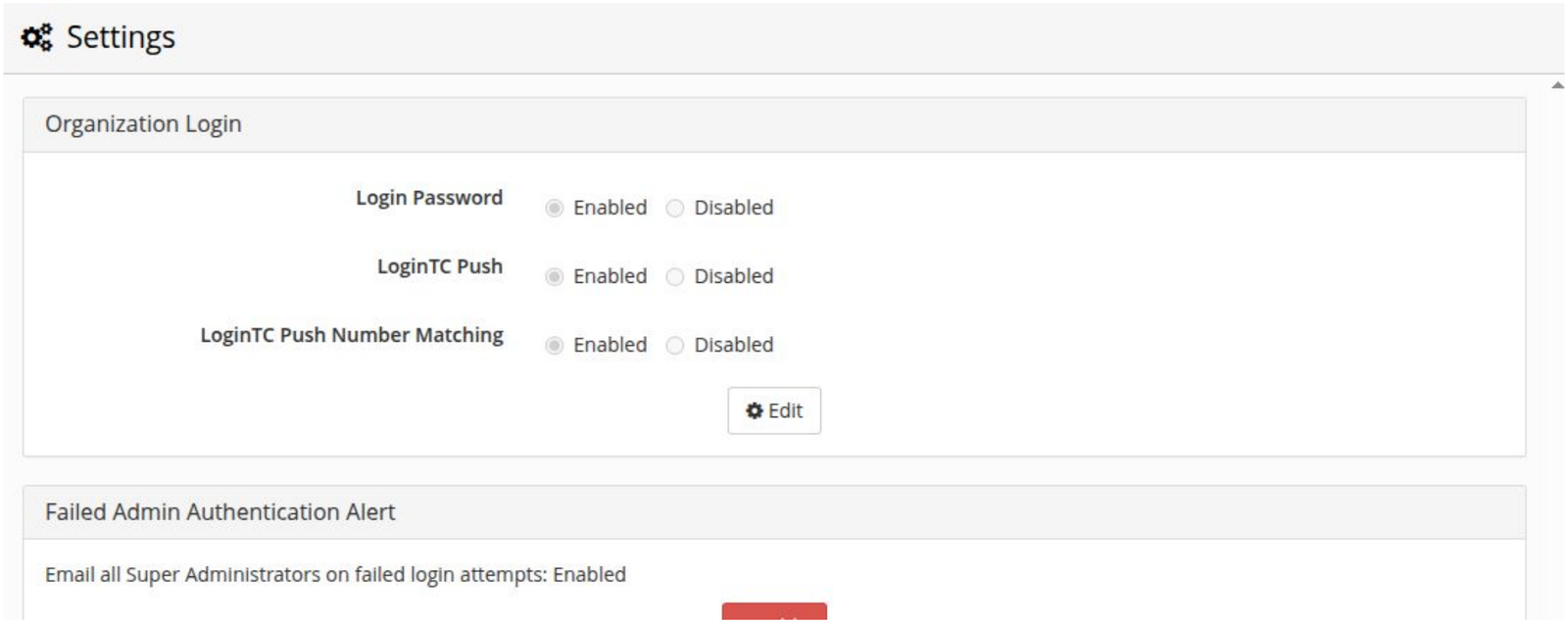
The new Organization Login section on the Settings page, above the existing Failed Admin Authentication Alert setting.
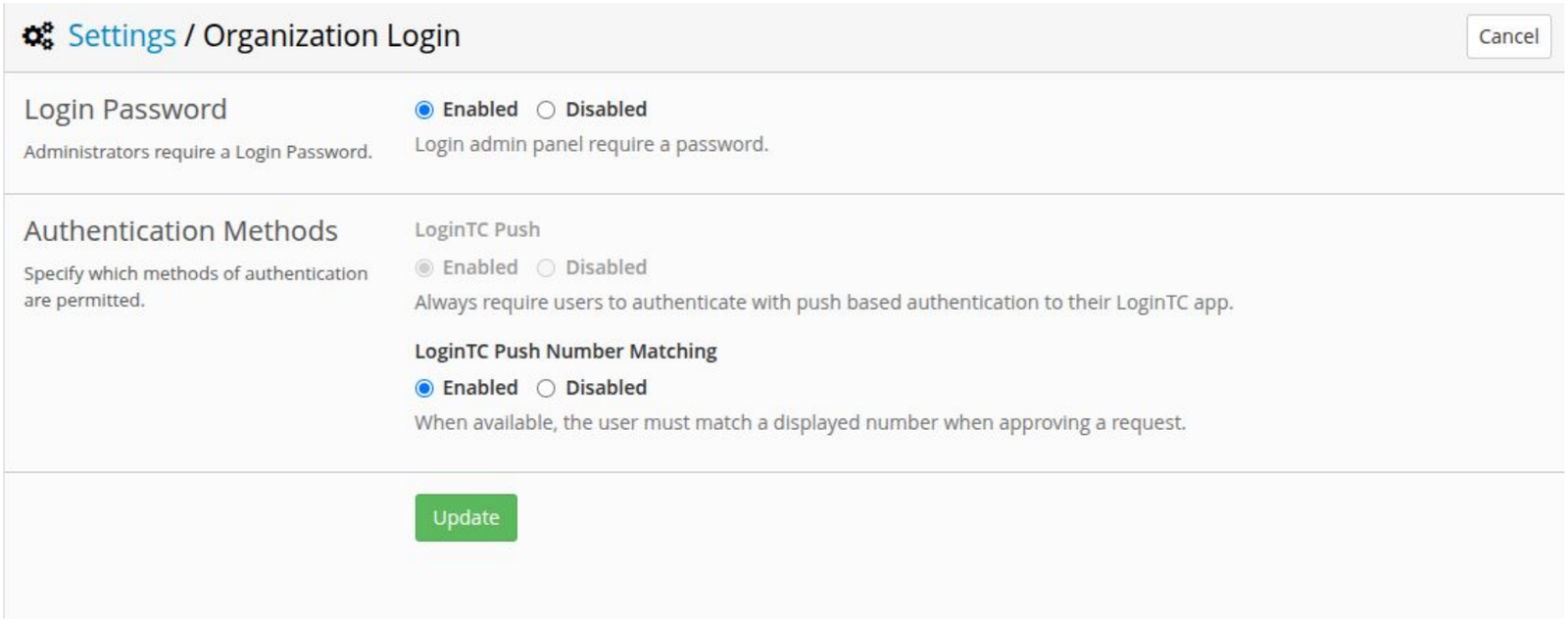
Settings, Organization Login. Login Password controls whether administrators are required to enter a password, and the Authentication Methods block controls push and push number matching.
Recommended action: open Settings, Organization Login after you upgrade and confirm both Login Password and LoginTC Push Number Matching are enabled. Read alongside the Login Controls lockout added in 2.1.13, that gives you a password requirement, a phishing resistant approval step, and a brute-force lockout on the same interface.
Bulk passcode grid actions
Passcode grids are the fallback factor for users with no phone and no token, which makes them common in shift work, manufacturing floors, classrooms and secure facilities. Issuing them one user at a time did not scale.
The Domain Members page now carries bulk actions. Filter to the users you want, select them, and act on all of them at once: send enrollment emails, issue tokens without email, revoke tokens, generate new passcode grids, disassociate passcode grids, or remove members from the domain. The filters added in the previous phase of this work sit at the top of the same page, including a Passcode Grid filter, so you can select exactly the population you mean.
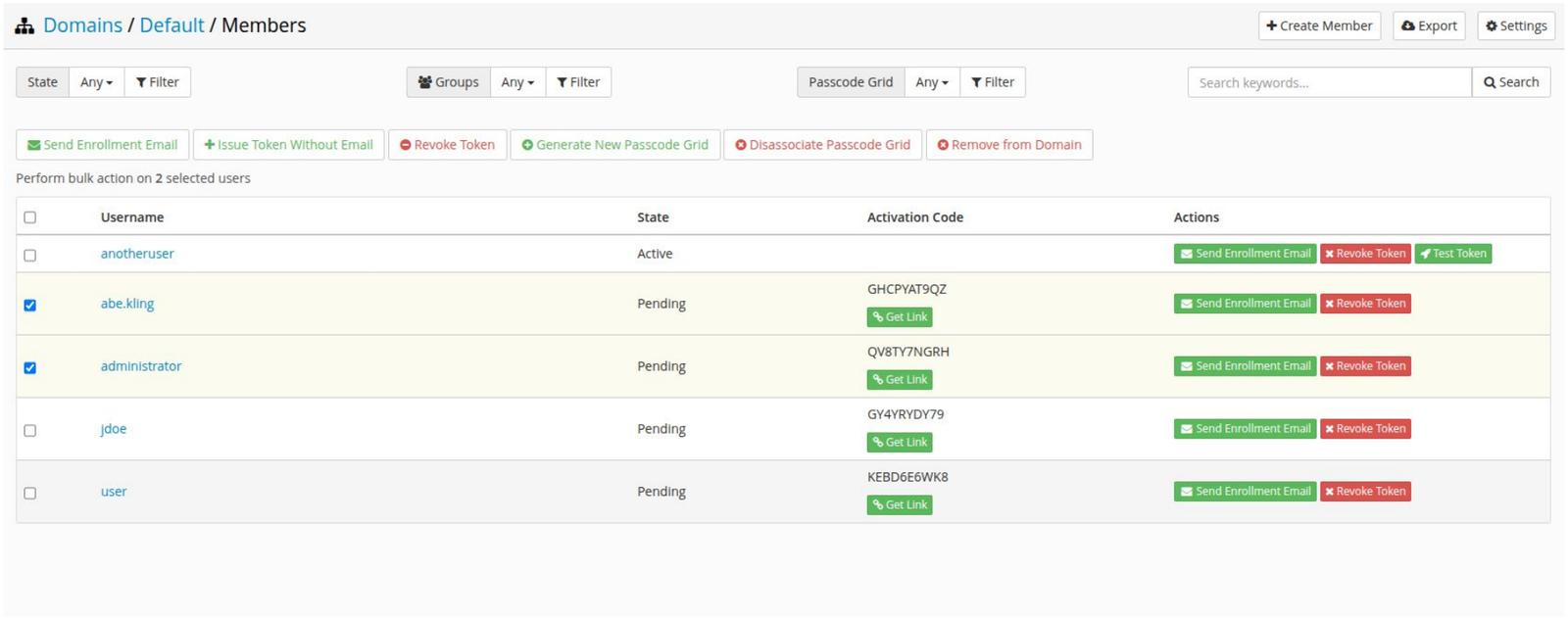
Domain Members with two users selected. The bulk action row confirms how many users the action will apply to, and the State, Groups and Passcode Grid filters narrow the list first.
Both passcode grid actions confirm before they run, and the confirmation is explicit about what will happen. Generating grids skips users who already have one, so re-running it across a domain tops up the gaps instead of replacing everyone’s grid. You also set the expiry at that moment.
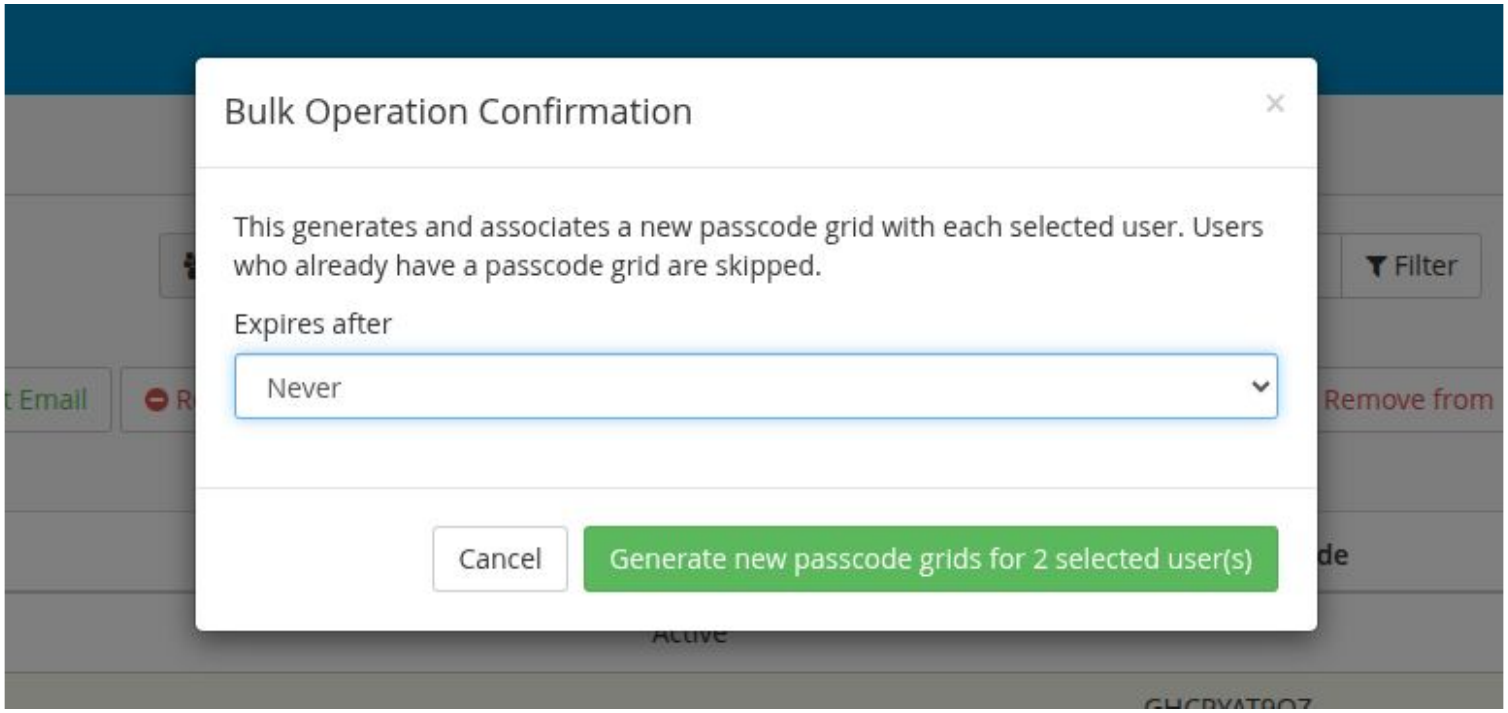
Generating grids in bulk. Users who already have a passcode grid are skipped, and the expiry applies to the grids being created.
Log filters are much easier to use
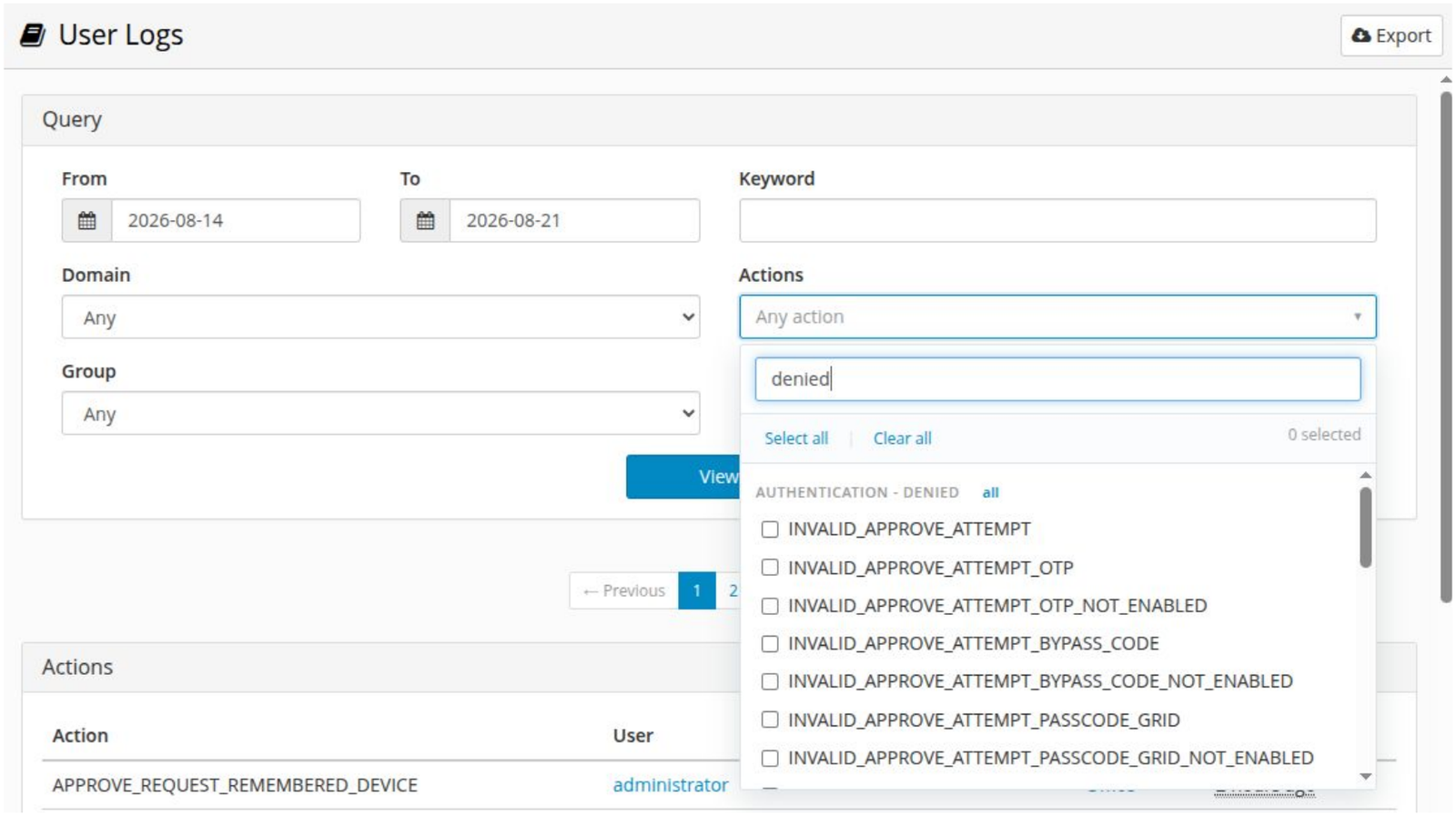
The User Logs, Admin Logs and Authentication Logs pages all filter by action type. The old control was a plain multi-select list showing four or five entries at a time, with dozens of action names in a fixed order. Finding every denial required scrolling and control-clicking, and it was easy to lose a selection.
It has been replaced with a purpose-built control. Collapsed, it reads “Any action” and takes up one line.
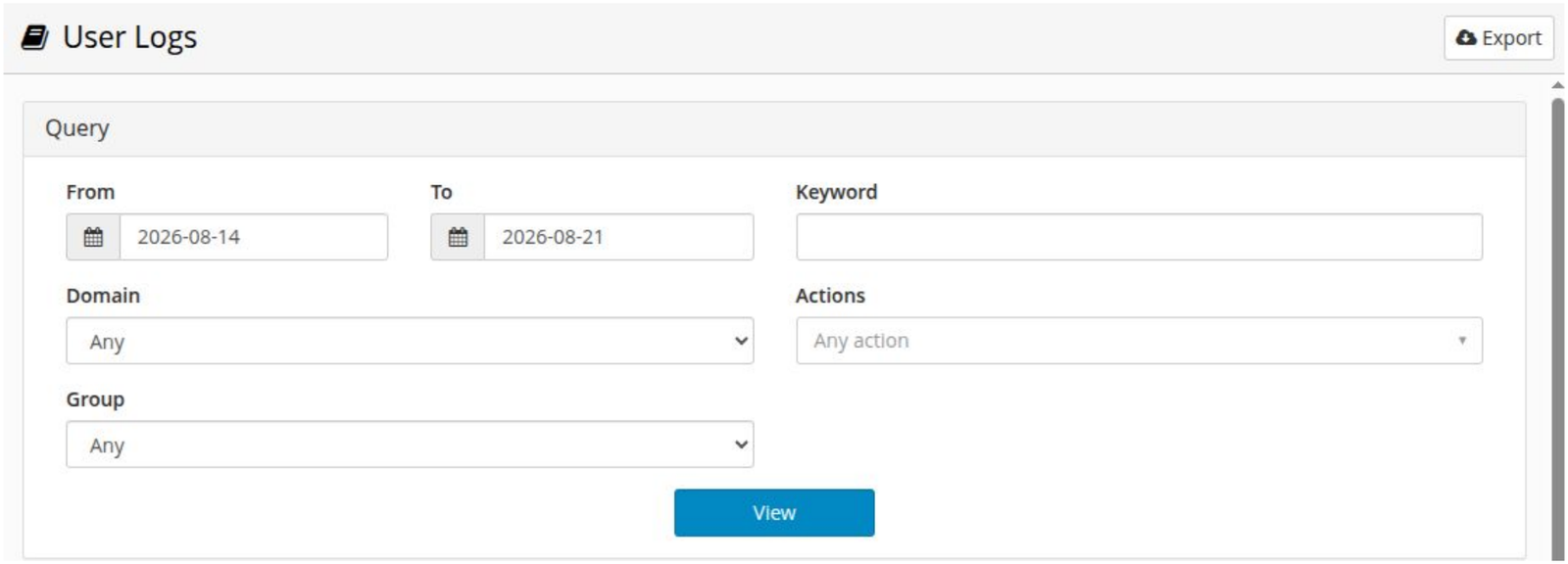
Open it and you get a search box, Select all and Clear all, a running count of what is selected, and actions grouped into categories with an “all” shortcut on each group heading. Typing “denied” narrows the list to the denial events, and the group shortcut selects the whole category at once.
Quality-of-life updates for Admins
The rest of the release is the accumulation of smaller fixes all aimed to make administration easier, faster, and more enjoyable.
- Bulk import accepts commas in names. Importing users whose names contain a comma no longer breaks the import.
- Clearer feedback for suspended users. Users who cannot authenticate because their account is suspended now get a message that says so, instead of a generic failure. Fewer support tickets that turn out to be a suspended account.
- Unknown user attempts are visible in the logs. Second factor authentication attempts for users who do not exist are now displayed correctly in the logs, and the associated application error was corrected. Useful when you are looking at a spray of attempts against invented usernames.
- Software token modal copy. The wording of the inline software token modal has been rewritten to be clearer at the point of enrollment.
- Enrollment link expiry in the members export. The Domain Members CSV export now includes enrollment link expiration, so you can find the invitations that are about to lapse without opening each user.
- Software token QR code from the user detail page. Administrators can generate a software token QR code directly from a user’s details.
- Filters keep your place. Applying a Domain Member filter returns you to the page you were on rather than jumping back to page one.
- Interface polish. Very long application names no longer overflow the attribute preview, a phantom tooltip has been removed, a label filter typo is fixed, the custom attributes preview has been updated, and the enrollment portal language toggle now works on an invalid session.
- Billing and email accuracy. Price formatting is now consistent across payment emails, and Ontario HST is calculated at the correct rate.
- Updated geolocation data. The MaxMind GeoIP database has been refreshed, which keeps Geo policies accurate as IP allocations change.
- Refreshed front end packages and system package security updates. Front end dependencies were upgraded, and the underlying operating system packages in 2.1.14 fix 174 CVEs. The full list is in the LoginTC Managed release notes.
How to update
Existing LoginTC Managed customers upgrade through the standard update workflow in the Admin Panel, under Appliance, Upgrade. The full technical release notes, including the CVE list, are on the LoginTC Managed release notes page.
If you are on LoginTC Cloud rather than a LoginTC Managed appliance, some of the administration improvements above are already live in your tenant and require no action from you. Contact support if you want confirmation of what is available in your environment today.
Three things worth doing right after you upgrade:
- Open Settings, Organization Login and confirm Login Password and LoginTC Push Number Matching are enabled for administrator sign-in.
- Enable German under Policies, Organization Policy if any of your users need it.
- Check your existing certificate at Settings, HTTPS Server Certificate. If you have been putting off a certificate rotation because of the format conversion, that reason is gone.
Frequently asked questions about LoginTC Managed 2.1.14
What certificate and key formats does LoginTC Managed 2.1.14 accept?
Certificates in X.509 PEM and DER, PKCS #7 bundles, PKCS #12 (.p12 and .pfx), JKS and JCEKS keystores, and bare base64 DER. Private keys in PKCS #8, PKCS #1, SEC1, PKCS #12, JKS, JCEKS, and bare base64 DER PKCS #8. Encrypted keys and keystores are decrypted using the password you supply. You can paste the text or upload the file.
Does LoginTC support elliptic curve certificates?
Yes. LoginTC Managed 2.1.14 adds support for EC (ECDSA) in addition to existing support for RSA.
What is an HOTP 6-digit hardware token?
HOTP is a counter-based one-time passcode. Each press of the token’s button produces the next 6-digit code in the sequence, and the server validates it against its own counter. Unlike TOTP it does not depend on a clock, so it does not need a battery. Many hardware security keys support HOTP alongside FIDO2, which means keys you already own may work as HOTP tokens.
How do I fix an out of sync HOTP token?
Open the token in Hardware Tokens and use Resync Hardware Token, then enter three consecutive codes from the token. You can also raise the tolerance globally under Settings, One-Time Passcode (OTP) Drift Tolerance, where Counter Events sets how far ahead of the server’s counter a code will still be accepted. The default is 10.
Which languages does LoginTC support for end users?
English, French, Spanish, Danish and German. Administrators choose which of these appear in the authentication iframe under Policies, Organization Policy. If more than one is enabled, users get a language dropdown in the iframe.
How do I issue passcode grids to many users at once?
On the Domain Members page, filter to the users you want, select them, and choose Generate New Passcode Grid. You set the expiry in the confirmation dialog. Users who already have a passcode grid are skipped, so you can run it across a whole domain to fill in the gaps.
How do I update to LoginTC Managed 2.1.14?
Existing LoginTC Managed customers upgrade through the standard update workflow under Appliance, Upgrade in the Admin Panel. Full technical release notes are on the LoginTC docs site under Release Notes.
Are there any breaking changes in LoginTC Managed 2.1.14?
No breaking changes to existing configuration. Existing certificates, tokens and policies continue to work, and the new features are additive.
Want LoginTC Managed 2.1.14 in your environment?
Existing customers can upgrade today through the standard update workflow. Not a customer yet? Talk to us about LoginTC Managed for fully on-premises MFA.