What to do if my user loses their smartphone? And other common MFA questions
April 02, 2026 •
Every IT admin who has deployed multi-factor authentication has faced the same moment: a user calls in a panic because they can’t log in, and you need an answer fast. Whether it’s a lost smartphone, a new device, an offline laptop, or a user who simply never had a smartphone to begin with, these are the common MFA questions that land in your helpdesk queue every single week. This guide answers every one of them — systematically, practically, and with specific solutions using LoginTC MFA. The core message is simple: no matter what situation your users find themselves in, there is always a path forward.
Why IT Admins Need Clear Answers to Common MFA Questions Before Problems Happen
MFA adoption is accelerating fast. Over 90% of Microsoft Azure Active Directory administrators now have MFA enabled, up from just 11% in 2020 [Source: Microsoft Security Intelligence Report]. That growth is a win for security, but it also means more users, more edge cases, and more support tickets when something goes wrong.
The problem isn’t that MFA is fragile — it isn’t. The problem is that most IT teams deploy MFA without a documented playbook for common failure scenarios. When a user loses their phone at 7 AM on a Monday and has a board meeting at 9 AM, the last thing you want to be doing is searching documentation for the first time. An MFA solution that locks people out permanently is is a liability you can’t afford. LoginTC is built with this reality in mind: every common failure scenario has a specific, administrative control to resolve it.
In this blog post, we take a look at a few common MFA questions that administrators often have, and how LoginTC can help with each of them.
What Do I Do If a User Loses Their Smartphone?
This is the single most common MFA support request in any organization. A user loses their phone, or it is stolen, and suddenly their second factor is gone. Here is exactly how to handle it.
Issue a Bypass Code Immediately
LoginTC allows administrators to generate a bypass code — a one-time-use or time-limited passcode that lets a user authenticate without their enrolled device. This is the immediate fix. The user gets access to their workstation or VPN right now, without waiting for a replacement device or re-enrollment.
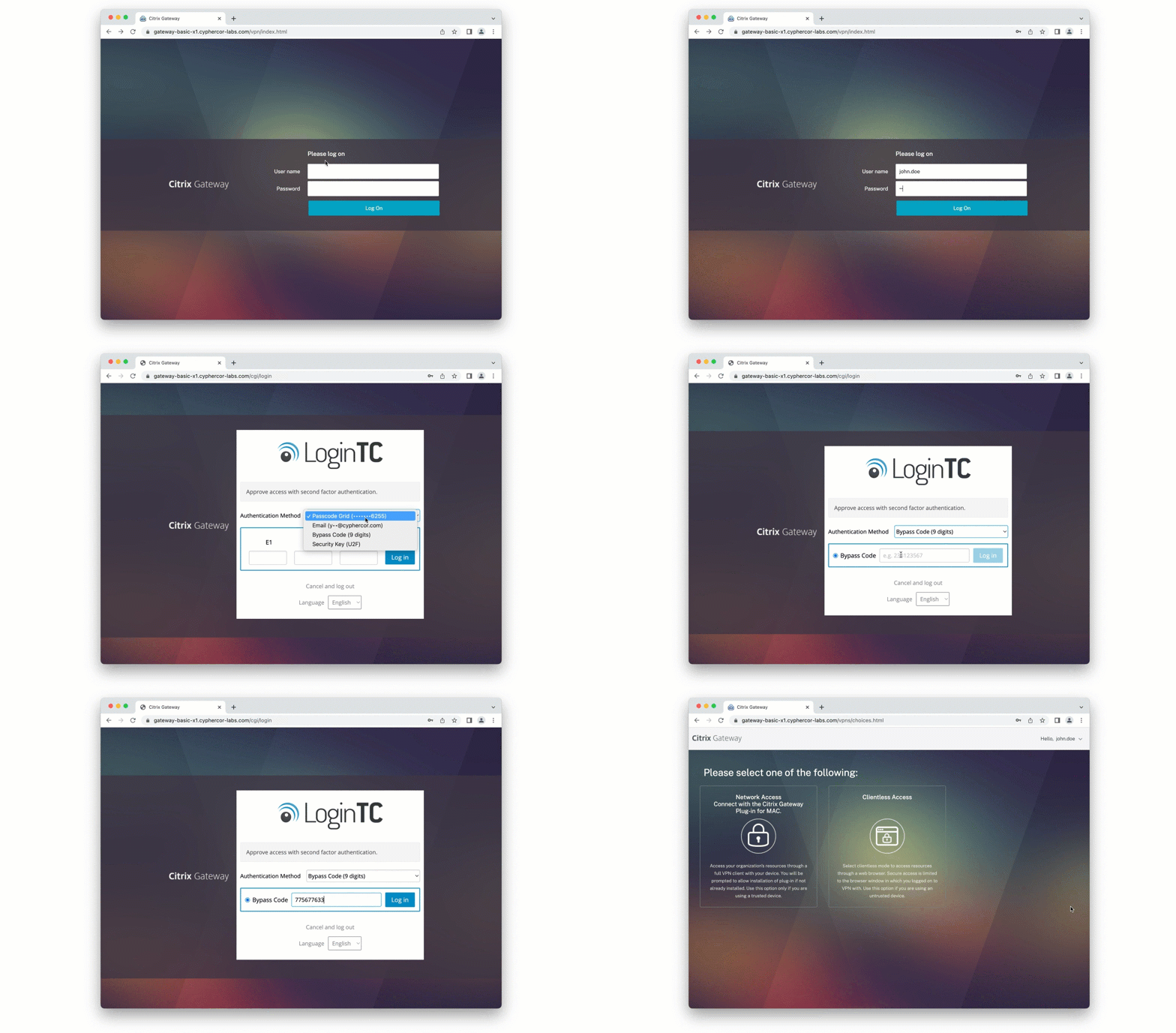
To issue a bypass code in the LoginTC Admin Panel:
- Navigate to the user’s profile in the LoginTC Admin Panel.
- Select the relevant application.
- Generate a bypass code and deliver it to the user through a verified secondary channel (phone call, separate email address, or in-person).
Bypass codes in LoginTC can be single-use and time-limited, ensuring they cannot be reused or exploited if intercepted. Once the user is back online, you revoke the bypass and re-enroll them on their new device.
Revoke the Lost Device Immediately
Security comes first. As soon as a user reports a lost or stolen phone, revoke the token associated with that device in the LoginTC Admin Panel. This ensures no one who finds or steals the phone can approve an authentication request. Revoking a token takes less than ten seconds and takes effect immediately.
What Do I Do When a User Gets a New Smartphone?
A new phone is a planned transition, which makes it easier to manage — but it still requires deliberate action. When a user upgrades their device, their old LoginTC token does not automatically transfer to the new phone. The solution is straightforward: re-enroll the user on their new device.
The Re-Enrollment Process
- In the LoginTC Admin Panel, navigate to the user’s token for the relevant application.
- Revoke the existing token linked to the old device.
- Send the user a new enrollment link via email or have them scan a new QR code.
- The user installs or opens the LoginTC app on their new phone and completes enrollment in under two minutes.
This process is clean, auditable, and fast. There is no lingering risk from the old device because its token has been explicitly revoked. If your organization processes a lot of device upgrades at once — for example, during a hardware refresh cycle — LoginTC supports bulk token revocation and re-enrollment notifications, so you are not handling each user one at a time.
Pro tip for IT admins: Pair your device refresh policy with a LoginTC re-enrollment reminder in the same communication. If a user knows they need to re-enroll before they wipe their old phone, you eliminate the support ticket entirely.
What If a User Doesn’t Have a Smartphone?
This is one of the most important common MFA questions in enterprise environments, and it is more common than many admins expect. Not every employee carries a personal smartphone. Some organizations prohibit personal devices on-site. Some users — particularly in manufacturing, logistics, or field operations — simply do not use smartphones as part of their workflow.
LoginTC does not require a smartphone. It supports multiple authentication methods so every user, regardless of their device situation, can enroll and authenticate securely.
Authentication Methods Beyond the Smartphone App
- Hardware tokens: LoginTC supports OATH-compatible hardware tokens. A user carries a small key fob that generates a time-based one-time password (TOTP). No smartphone required, no data connection required.
- Email OTP: A one-time passcode is delivered to the user’s email address. This works on any device with email access.
- SMS OTP: A passcode is delivered via text message to any mobile phone, including basic phones without smartphones or data plans.
- LoginTC Passcode Grid: A printed grid card that functions as a physical token — ideal for environments where personal devices are prohibited entirely.
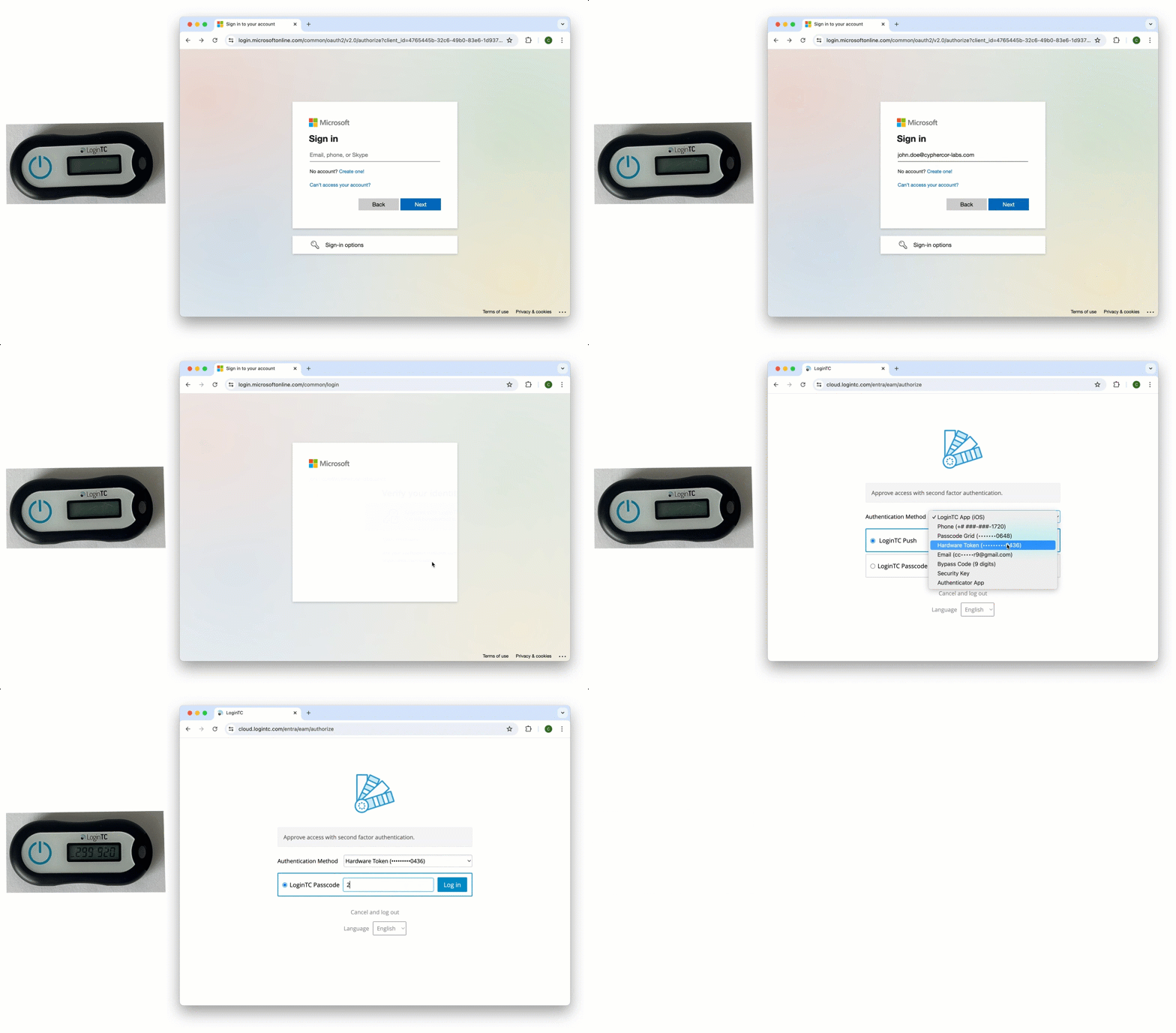
Every user in your organization can be enrolled in MFA, regardless of whether they own or use a smartphone. This means LoginTC can be deployed universally without requiring exceptions for non-smartphone users, which is a common vulnerability in organizations using app-only MFA solutions.
What If a User’s Laptop Is Offline?
This scenario trips up many MFA deployments. A user is traveling, working from a remote location, or simply has no network connectivity. Standard push-based MFA requires an internet connection to send and receive the authentication request. So what happens when the laptop itself is offline?
LoginTC’s Offline Authentication Capability
LoginTC’s Windows Logon connector supports comprehensive offline authentication. This means that even when a device has no network connection, the user can still complete MFA using a locally cached credential and a TOTP code generated by the LoginTC app — which works entirely offline on the smartphone.
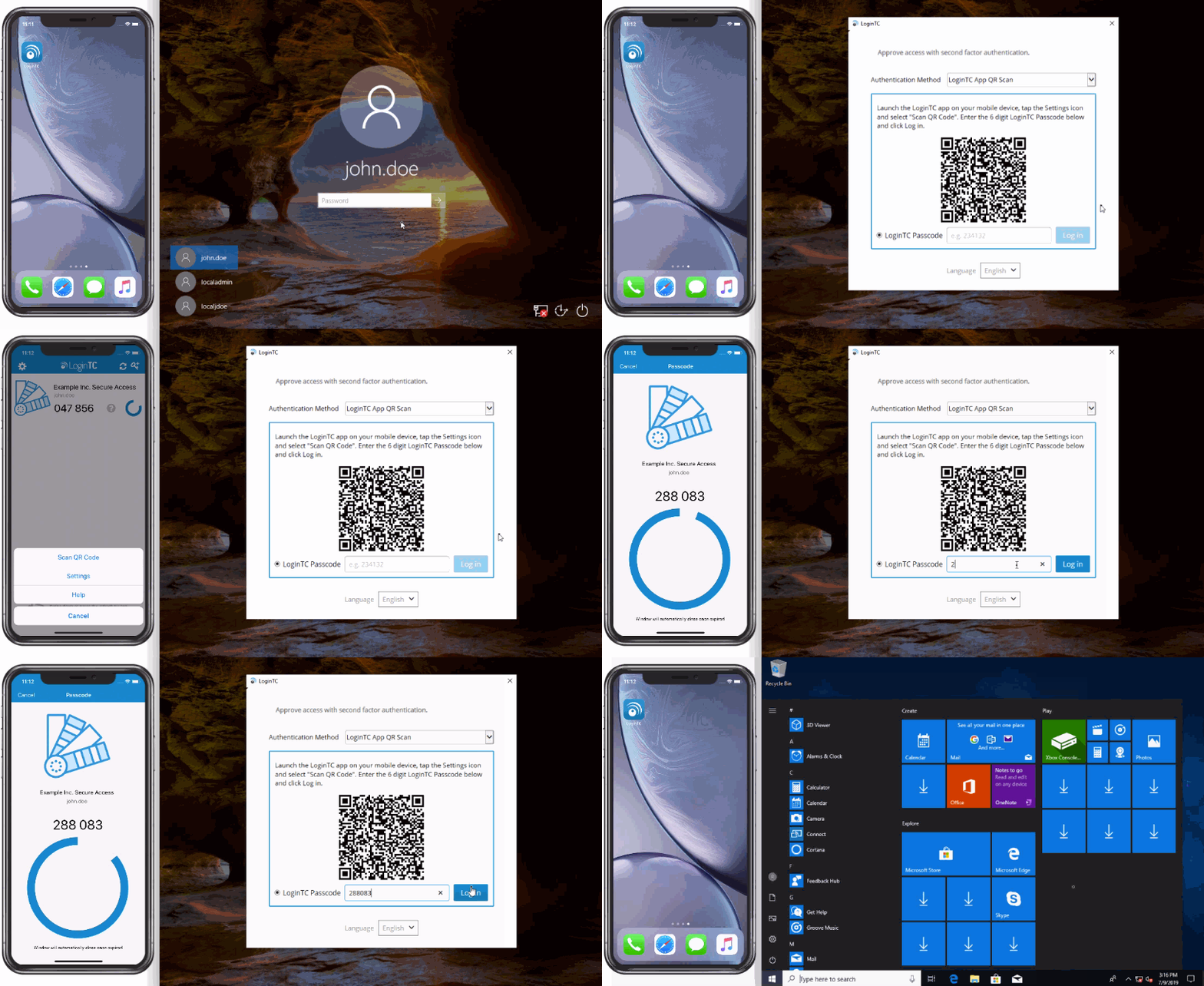
The LoginTC app generates valid TOTP codes with no internet connection because the code is derived from a shared secret and the current time, not from a live server request. As long as the user’s phone has the LoginTC app installed and enrolled, they can generate a valid code without any connectivity.
Auto-Enrollment for Windows Logon
LoginTC’s Windows Logon connector also supports auto-enrollment, which simplifies deployment significantly. Rather than requiring an IT admin to manually enroll each user, the connector can automatically trigger enrollment for a user the first time they log into their Windows workstation. The user receives an enrollment notification and completes the process in real time — no pre-staging required.
Auto-enrollment reduces the administrative overhead of MFA deployments by eliminating the need to manually provision tokens for every user before go-live. This is particularly valuable for large-scale rollouts or distributed workforces where centralized enrollment is impractical.
How Do I Bypass LoginTC When Something Isn’t Working?
There are legitimate scenarios where an IT admin needs to temporarily exempt specific users from MFA. A critical application integration is misbehaving. A service account needs temporary access. An executive is traveling internationally and experiencing connectivity issues. These situations require a controlled, auditable bypass mechanism — not a workaround that compromises the entire deployment.
LoginTC provides two distinct bypass mechanisms that give administrators precise, accountable control.
Bypass Codes for Individual Users
As covered in the lost-phone scenario above, bypass codes are the right tool for individual, time-limited exceptions. Generate a bypass code for the affected user, set an expiration window, and the user is unblocked. The bypass is logged, auditable, and automatically expires — no manual cleanup required.
Bypass Groups
For broader or more persistent bypass needs, LoginTC supports bypass groups. Here is how it works:
- In your LoginTC connector configuration, define one or more Active Directory groups as bypass groups.
- Any user who is a member of a designated bypass group will have MFA bypassed automatically when logging into Windows.
- To bypass a user, simply add them to the group. To restore MFA enforcement, remove them from the group.
This is exceptionally powerful for IT admins because it integrates with your existing Active Directory group management workflow. You do not need to touch the LoginTC Admin Panel for every individual exception — you manage it where you already manage users. Service accounts, break-glass accounts, and temporary contractor accounts can all be handled through group membership.
Bypass groups ensure that MFA exceptions are managed through your existing identity infrastructure, maintaining a clean audit trail without creating one-off workarounds.
What Do I Do When Something Changes? Supporting Users Through MFA Transitions
MFA is not a set-it-and-forget-it deployment. Users change phones, change roles, change locations, and change workflows. IT infrastructure changes — new VPNs, new remote desktop environments, new cloud applications. Here is how to think about ongoing MFA administration with LoginTC.
User Lifecycle Changes
- New hire: Use auto-enrollment (where supported) or send an enrollment email during onboarding. LoginTC tokens can be pre-provisioned so the user is enrolled before their first day.
- Role change or new application access: Enroll the user in the relevant LoginTC application. Each application in LoginTC is managed independently, so adding a user to a new app does not disrupt their existing enrollments.
- Offboarding: Revoking all of a departing user’s LoginTC tokens is a single action in the Admin Panel. This immediately and irrevocably removes their MFA access across all enrolled applications.
Infrastructure and Connector Updates
When your underlying systems change — a new VPN appliance, a new RADIUS server configuration, a Windows Server upgrade — LoginTC’s connectors are designed to be re-configured without re-enrolling users. The enrolled tokens remain valid. Only the connector-side configuration needs to be updated. User tokens are portable across connector reconfiguration, meaning a VPN upgrade does not force a full MFA re-enrollment.
Communicating Changes to End Users
The most underestimated part of MFA administration is change communication. When you update connector settings, change authentication policies, or add a new application to MFA enforcement, users need to know what to expect. A brief email explaining “starting Monday, logging into [Application X] will require your LoginTC approval” dramatically reduces helpdesk calls. LoginTC’s admin infrastructure also supports enrollment reminder emails, so users who have not completed enrollment receive automated nudges without manual follow-up from IT.
Frequently Asked Questions
What is the fastest way to unblock a user who is locked out of MFA?
The fastest resolution is to issue a bypass code from the LoginTC Admin Panel. Navigate to the user’s profile, select the application, and generate a single-use bypass code. Deliver it to the user through a verified secondary channel and they can authenticate immediately, typically within two to three minutes of your receiving their call.
Can LoginTC MFA work without an internet connection?
Yes. LoginTC supports offline authentication for Windows Logon scenarios. The LoginTC mobile app generates TOTP codes that work without any internet connection, using a time-based algorithm. The Windows Logon connector caches the necessary information locally to validate these codes even when the device is not connected to the network.
What if a user refuses to use their personal smartphone for MFA?
LoginTC supports multiple authentication methods that do not require a personal smartphone, including hardware OATH tokens, SMS OTP to any mobile number, email OTP, and physical LoginTC Grid Cards. You can assign the most appropriate method for each user without forcing smartphone use.
How do I prevent MFA from blocking a service account or a specific admin group?
Use LoginTC’s bypass group feature within the Windows Logon connector configuration. Add the relevant Active Directory group to the bypass list, and any member of that group will skip MFA enforcement automatically. This is managed entirely through Active Directory group membership and leaves a clean audit trail.
What happens to MFA enrollment when a user gets a new phone?
The user’s existing LoginTC token is tied to their old device and must be revoked. An administrator revokes the old token in the Admin Panel and issues a new enrollment link or QR code. The user installs or opens the LoginTC app on their new device and completes enrollment in under two minutes. The old device’s token is immediately invalidated upon revocation.
Is there a way to automatically enroll users in LoginTC without manual provisioning?
Yes. LoginTC’s Windows Logon connector supports auto-enrollment, which triggers the enrollment process automatically the first time a user logs into their Windows workstation after MFA enforcement is enabled. The user receives an enrollment prompt in real time and completes the process without requiring pre-staging by an IT administrator.
No Matter What Happens, LoginTC Has a Solution
The common MFA questions covered in this guide — lost phones, new devices, no smartphones, offline laptops, bypass needs, and user lifecycle changes — represent only a sliver of real-world scenarios that IT admins encounter. What makes LoginTC different is that none of these scenarios are dead ends. Every situation has a specific, administrative control: bypass codes for immediate access, token revocation for security, hardware tokens for non-smartphone users, offline TOTP for disconnected devices, bypass groups for Active Directory-managed exceptions, and auto-enrollment for scalable deployments.
A well-deployed MFA solution should never be the reason a user cannot get their work done. LoginTC is built on that principle. Security and usability are not at odds — they just require the right tools and a clear playbook.
If you are evaluating MFA solutions or troubleshooting your current deployment, start a free LoginTC trial or review the LoginTC documentation to see exactly how each of these scenarios is configured.