LoginTC Managed 2.1.13: Admin Lockout, Danish Language, and More for Account Admins
July 30, 2026 •
LoginTC Managed 2.1.13 introduces Login Controls, which lock administrator accounts in the LoginTC Admin Panel after a configurable number of failed login attempts. This blocks brute-force attacks against administrator credentials. The release also adds Danish language support for user-facing prompts, improves audit logging around invalid logins, and includes several quality-of-life fixes for account admins. Existing LoginTC Managed customers can upgrade using the standard LoginTC Managed upgrade package.
Every LoginTC Managed release brings something for customers running fully on-premises MFA. This release focuses on hardening the LoginTC Admin Panel itself, expanding language coverage, and clearing up a handful of the small friction points that account admins hit during day-to-day management.
Here is what changed in 2.1.13.
Login Controls for the Admin Panel
Administrator accounts are the highest-value target in any MFA deployment. An attacker who gains access to the LoginTC Admin Panel does not just compromise one user, they can potentially reconfigure policies, disable factors, or issue bypass codes. That is why we have added Login Controls.
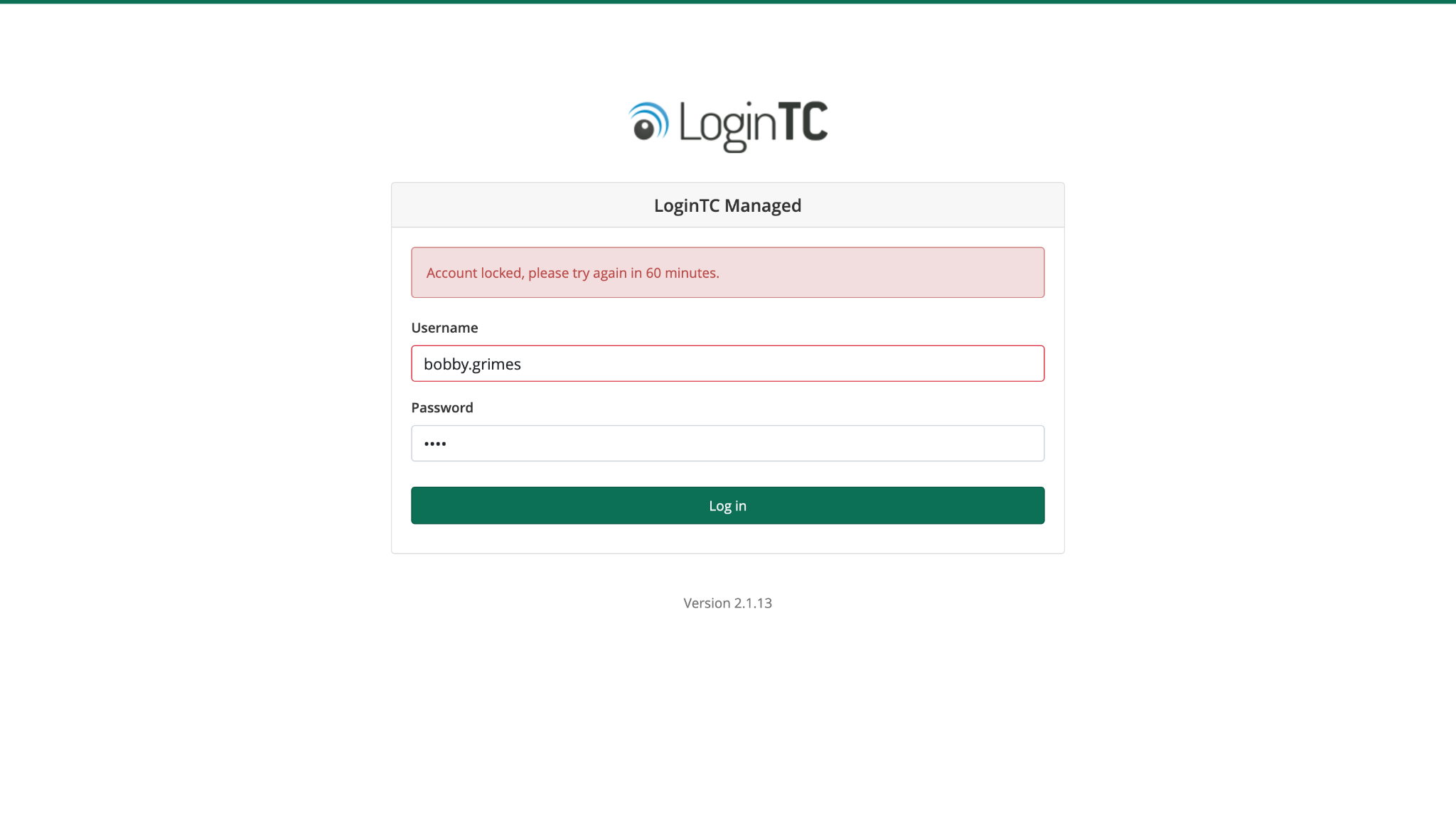
Login Controls locks an administrator account in the LoginTC Admin Panel after a configurable number of failed login attempts. Once the threshold is reached, the account is locked and cannot be logged in to until it is unlocked, blocking a brute-force attempt in its tracks.
This is the kind of feature that pairs naturally with our existing MFA enforcement on the Admin Panel. MFA protects the second factor. Login Controls protects against sustained credential-testing on the first factor. Together, they give admins a much stronger posture against automated password-guessing attacks.
Recommended action: enable Login Controls as soon as you upgrade. Choose a threshold that matches your team’s normal login behavior, high enough that legitimate typos are not disruptive, low enough that automated credential-testing is blocked quickly.
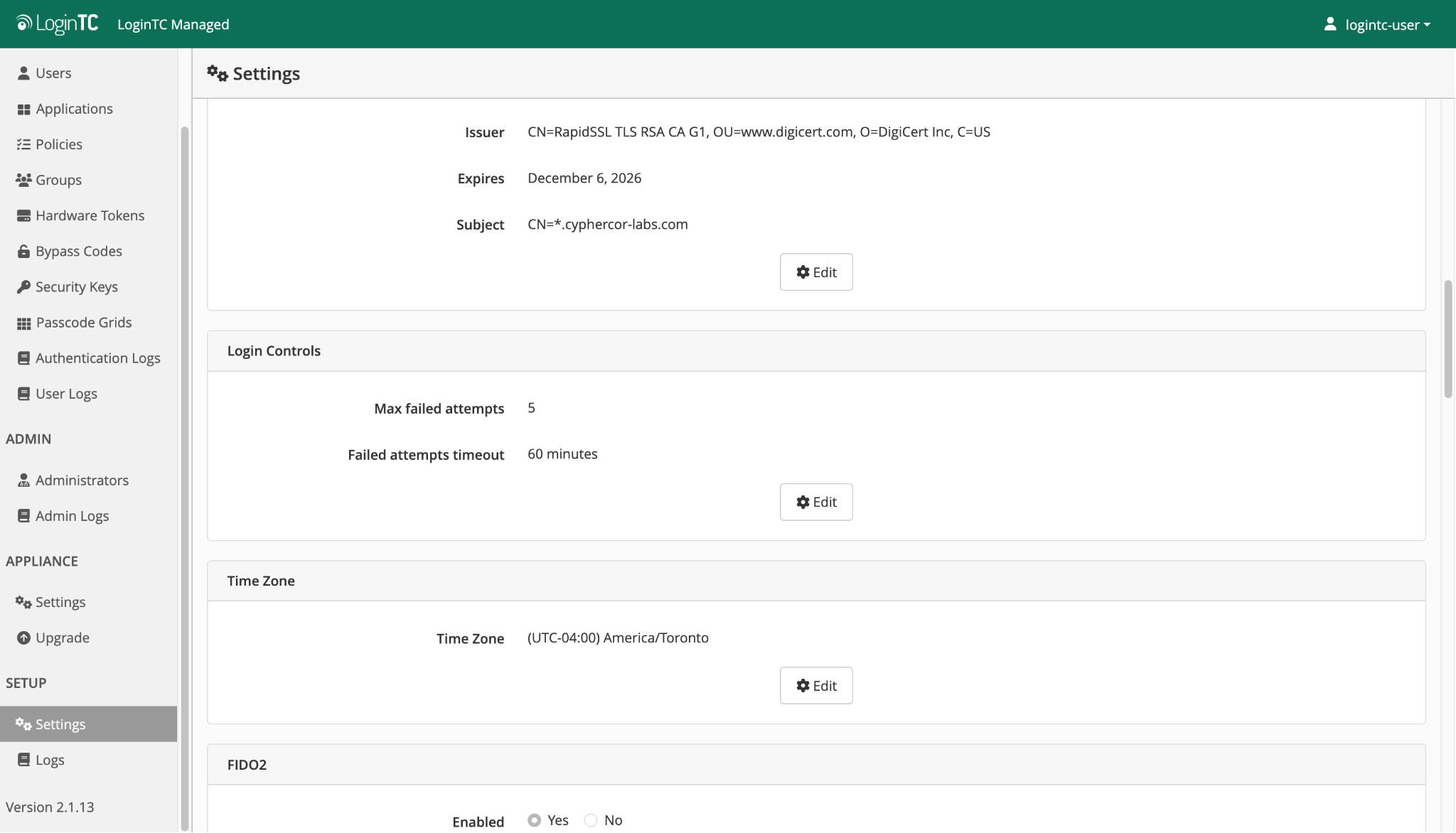
Login Controls settings can be accessed on the Settings page. When enabled, the max failed attempts can be set from 3 attempts to 10 attempts and the failed attempts timeout can be set from one of: 3 minutes, 5 minutes, 10 minutes, 15 minutes, 20 minutes, 30 minutes, 60 minutes. 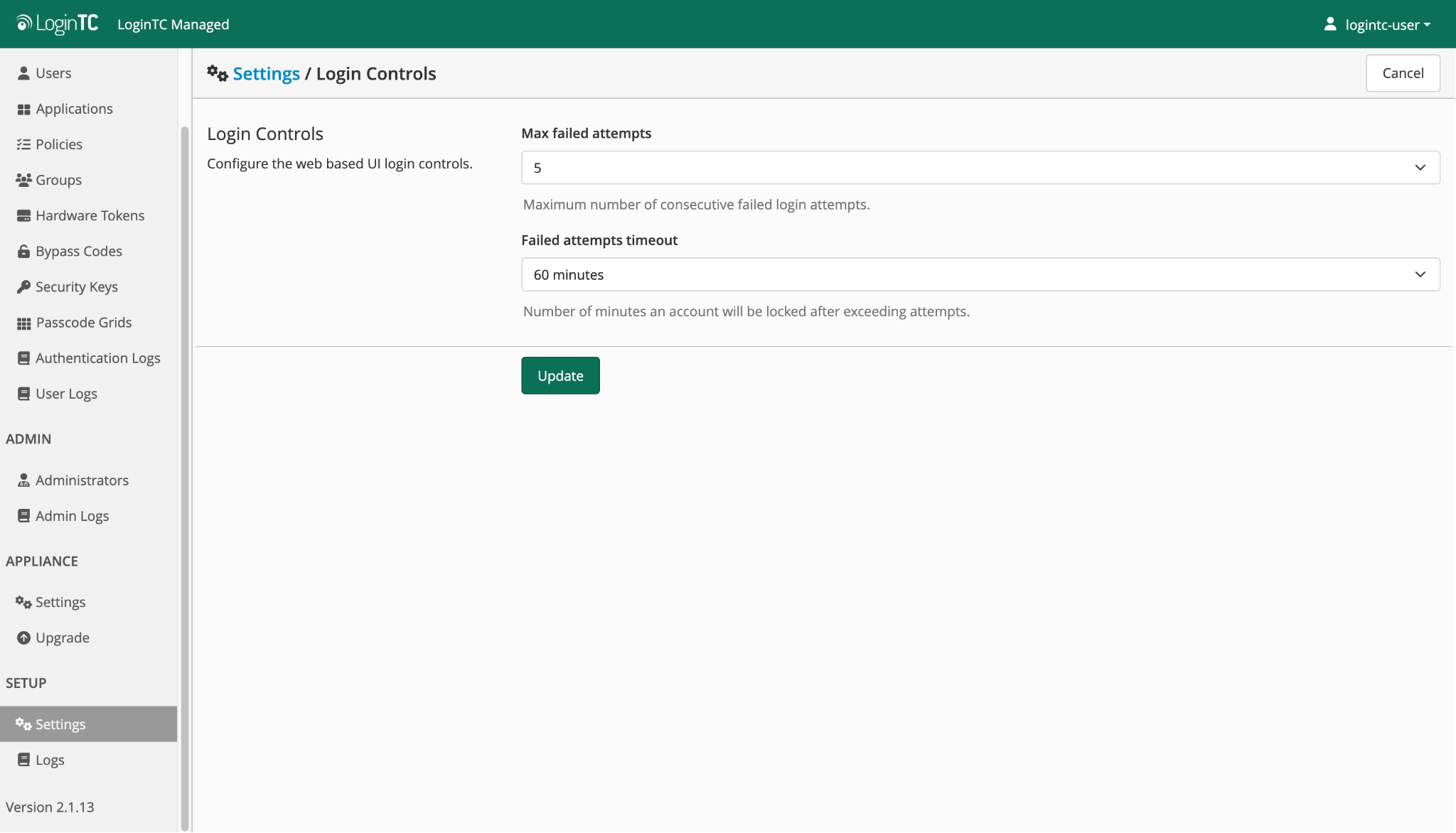
Better audit visibility with logged invalid logins
Alongside Login Controls, 2.1.13 improves the Admin Panel’s audit logging around failed login attempts. Invalid logins are now recorded in the audit log, giving admins the raw data needed to spot patterns before an account is locked.
Combined with Login Controls, this gives you both prevention (the lockout itself) and detection (the audit trail showing where and when the attempts came from). If you notice a spike of failed logins from an unexpected source, you can investigate immediately rather than finding out only when a lockout triggers.
Danish language support
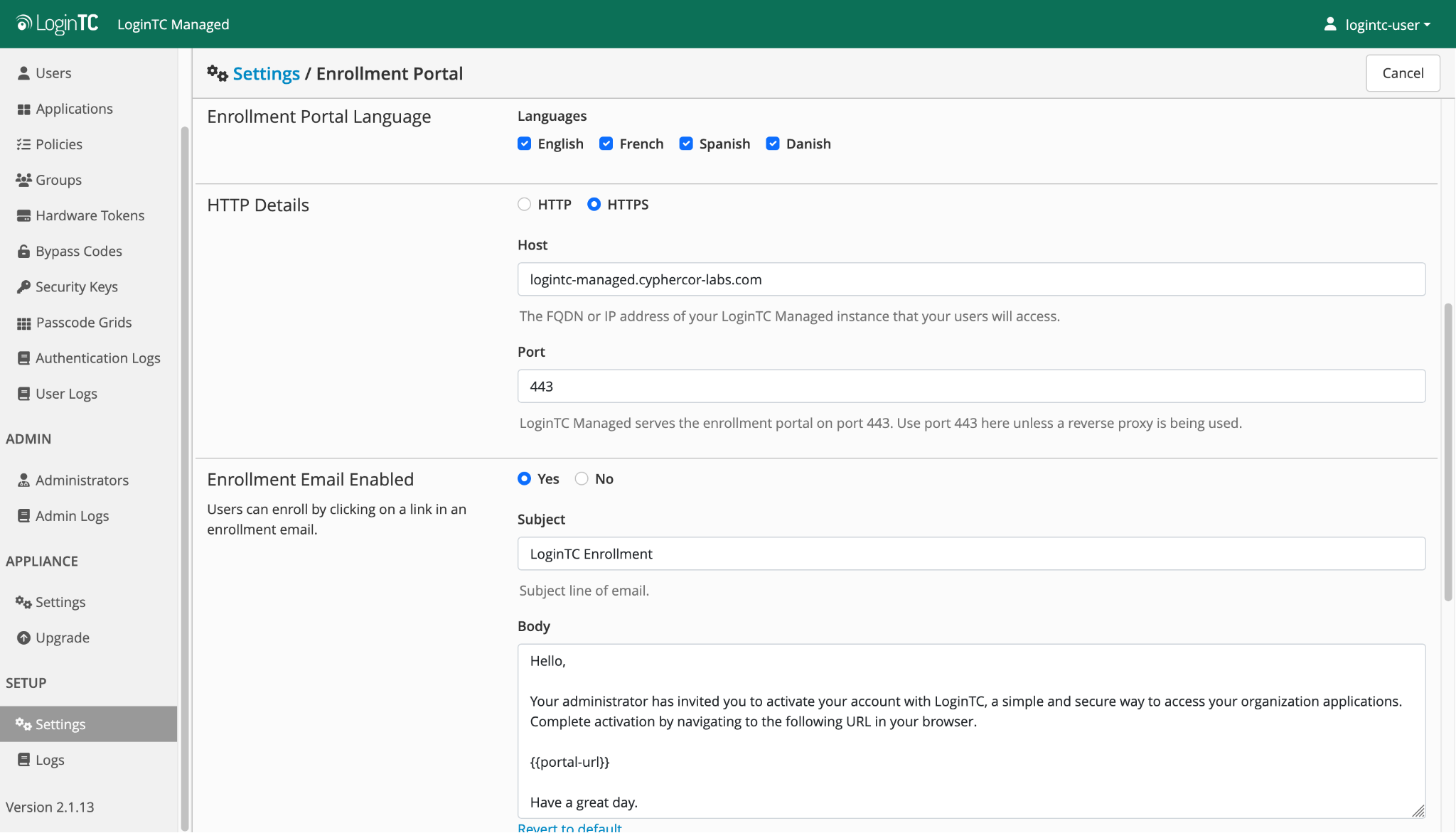
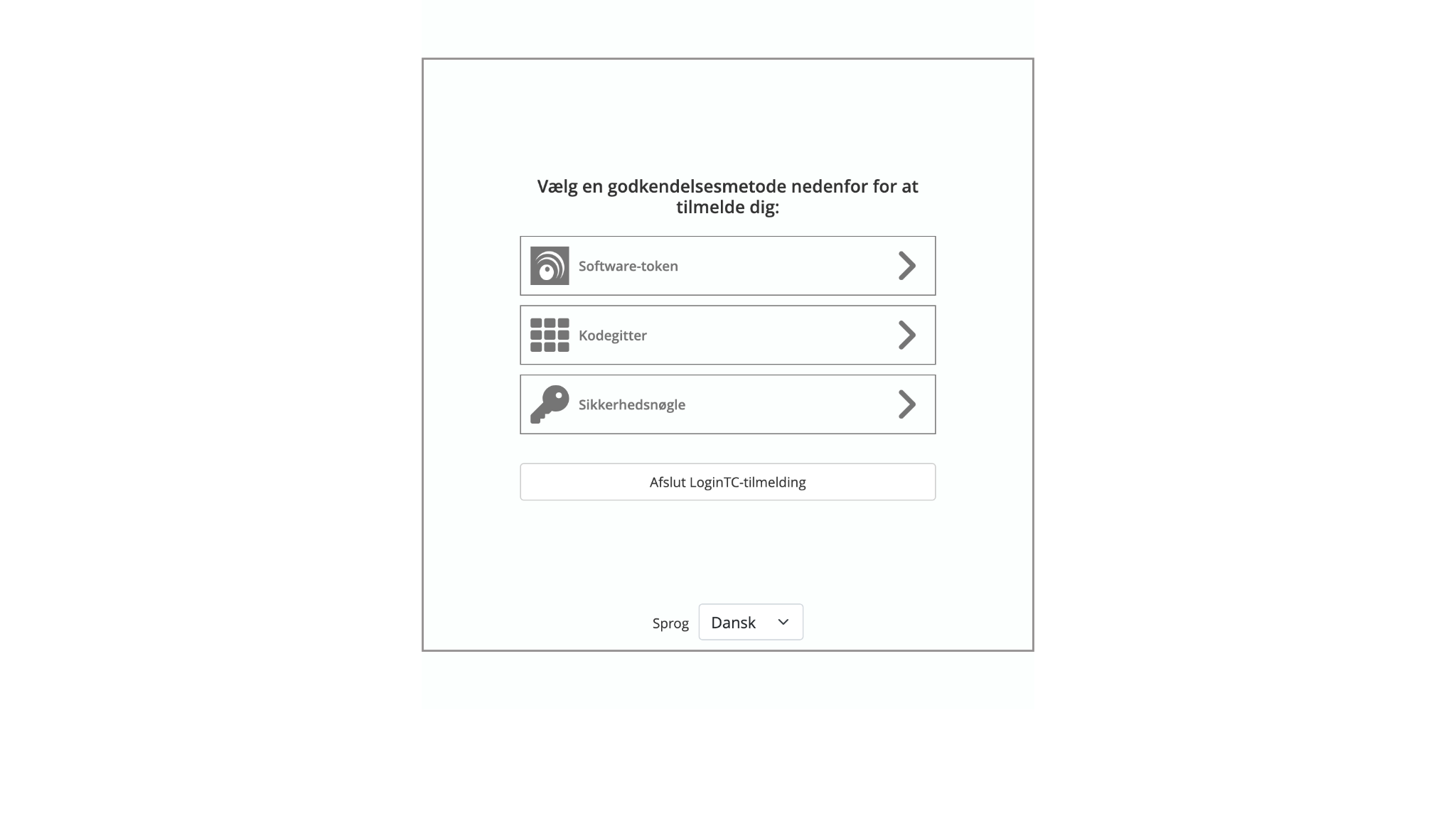
LoginTC Managed 2.1.13 adds Danish as a supported user-facing language. Administrators can enable Danish through the Admin Panel language settings, and users configured to use it will see prompts, error messages, and confirmations in Danish.
Danish joins the existing set of supported languages for LoginTC user prompts. Language support has been a recurring request from customers with employees across multiple regions, and 2.1.13 continues that expansion.
Hardware token search by user alias
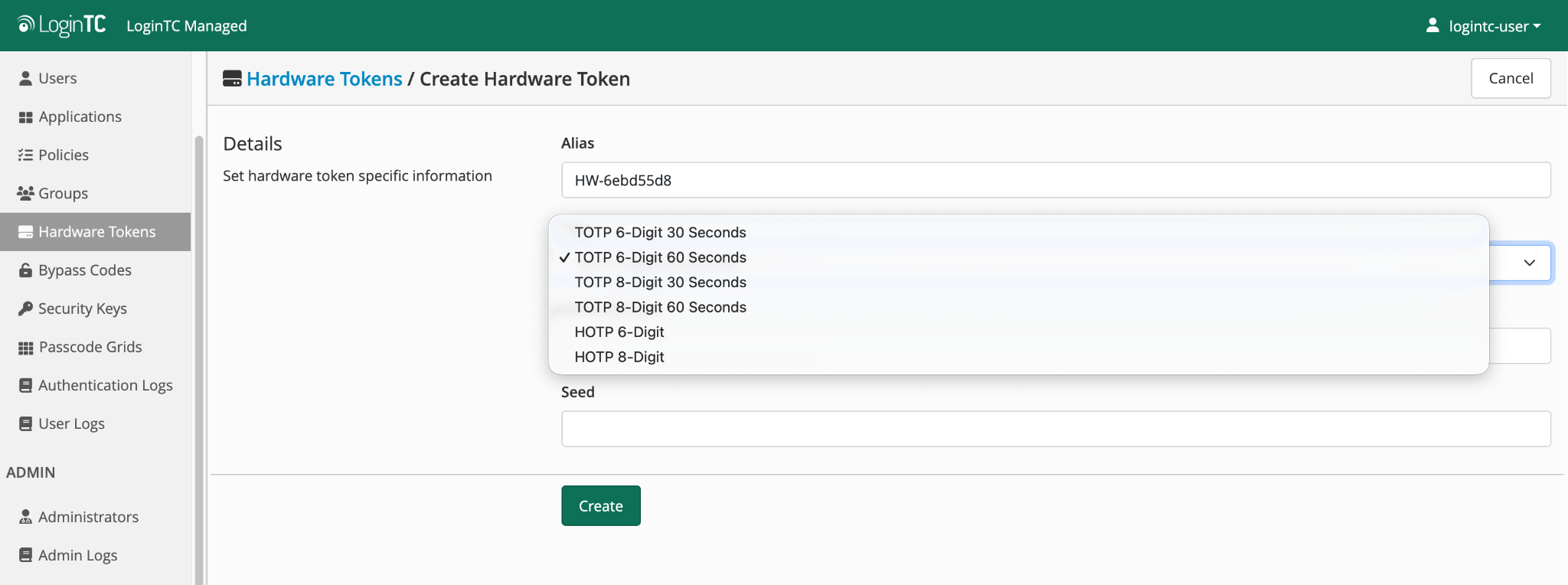
The hardware token list is now searchable by user alias, not just by serial number. If you manage a large user base and know the alias but not the token serial, this speeds up token lookups considerably.
Frequently asked questions about LoginTC Managed 2.1.13
What are Login Controls in LoginTC Managed?
Login Controls lock an administrator account in the LoginTC Admin Panel after a configurable number of failed login attempts. Once locked, the account cannot be logged in to until it is unlocked. This blocks brute-force attacks against administrator credentials in the Admin Panel.
How does Login Controls protect against brute-force attacks?
Brute-force attacks work by repeatedly testing password combinations until one succeeds. Login Controls stop the attempt after a small number of failures, so the attacker never gets enough attempts to succeed. Combined with the new logging of invalid logins, admins get both prevention (the lockout itself) and detection (the audit trail).
How do I enable Danish for my users in LoginTC Managed?
Administrators enable Danish through the LoginTC Admin Panel language settings. Once enabled, users configured to use Danish will see LoginTC prompts, error messages, and confirmations in Danish.
How do I update to LoginTC Managed 2.1.13?
Existing LoginTC Managed customers can upgrade to 2.1.13 through the standard update workflow. Full technical release notes are on the LoginTC docs site under Release Notes.
Does LoginTC Managed 2.1.13 change how existing policies work?
Existing Geo policies and Time-of-Day policies continue to work as before. The interaction with remembered devices has been refined in some edge cases, but existing tenants do not need to reconfigure their policies.
Want LoginTC Managed 2.1.13 in your environment?
Existing customers can upgrade today through the standard update workflow. Not a customer yet? Talk to us about LoginTC Managed for fully on-premises MFA.