Windows Logon Connector 2.0.0: Air-Gapped Ready, Upgrades in Place
September 24, 2026 •
Key takeaways
- 2.0.0 is a full rebuild rather than a patch release. The sign-in prompt is modernised and loads faster.
- It works in air-gapped and disconnected networks with no special build, no offline mode to enable and no extra preparation.
- The two manual registry edits earlier versions needed, DisableRootAutoUpdate and CertificateRevocation, are gone.
- The outbound firewall exception for certificate revocation list endpoints is gone with them.
- Upgrades run in place. Your configuration and every user’s offline enrolment carry over, including from 1.4.x.
- A default upgrade, in the wizard or silently from the command line, needs no internet connection.
- ARM64 hosts on 1.4.x need one uninstall and reinstall to reach 2.0.0. In-place upgrades apply from there on.
Windows Logon Connector 2.0.0, released 29 July 2026, is a ground-up rebuild of the LoginTC Windows Logon and RDP Connector. It works natively in air-gapped environments with no registry changes, no additional firewall exceptions, and no reinstall required when upgrading from an older version.
This is not a patch release. It is a full rebuild, and it resolves several friction points that affected admins running restricted or disconnected Windows environments. If you manage Windows desktops or servers with LoginTC MFA, keep reading.
What changed in 2.0.0
A complete rebuild, not an incremental update
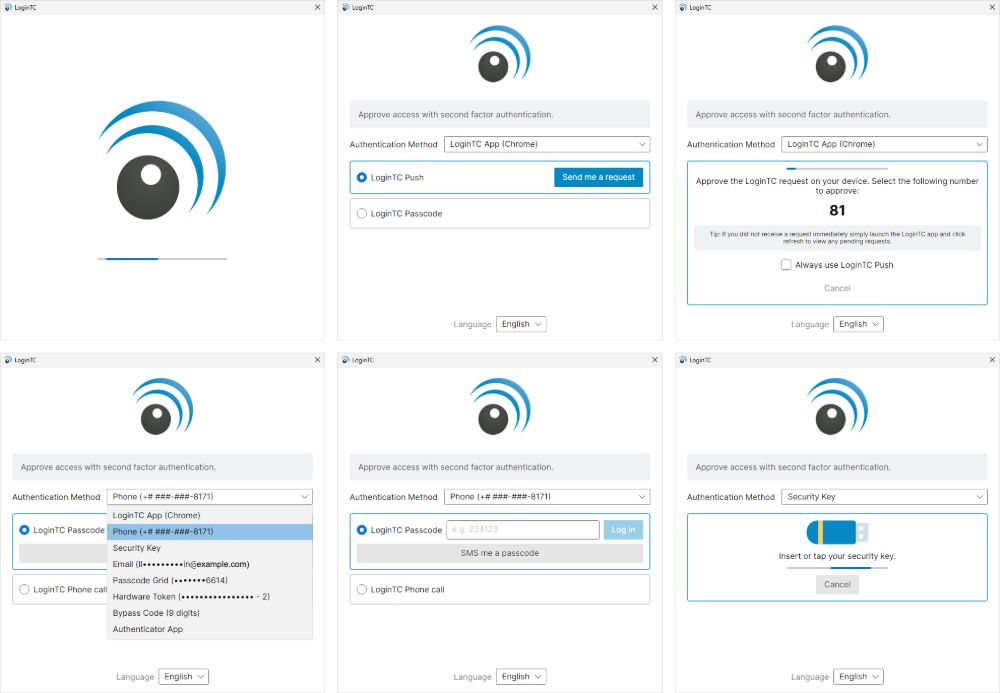
The 2.0.0 sign-in prompt is a native Windows application
Version 2.0.0 is a ground-up rewrite of the connector. Earlier releases accumulated workarounds to address air-gapped or restricted environments over time. This release restores the ease of deployment our products are known for, and is built to current development standards throughout. You will notice the difference at the Windows sign-in screen: the UI is modernised and load times are faster. Beyond the look, the internals are cleaner, which is what makes the other changes below possible.
Nothing was dropped along the way. Every authentication method and every enforcement option you relied on in 1.x is still there.
Native air-gapped support, no extra steps
The LoginTC Windows Logon Connector 2.0.0 works in air-gapped environments without any special build or configuration. There is no offline mode to enable and no additional preparation required before deployment. Everything the authentication window needs in order to render and operate ships inside the installer: the interface, the fonts, the graphics, and the logic that generates and validates offline challenges. The connector makes one kind of outbound connection, and it is to the LoginTC host you configured. Paired with an on-premises LoginTC deployment, that host sits inside your own network, so the connector never needs to reach the internet at all.
Offline authentication rounds this out. When a machine has no connectivity whatsoever, a laptop in the field, a server on a segregated network, or a workstation during an outage, users can still complete MFA with QR scan, passcode grid, security key, hardware token, authenticator app, or an offline bypass code. The one prerequisite is unchanged: a user must have signed in online at least once so their offline access can be provisioned.
For a broader look at air-gapped MFA architecture, see our air-gapped MFA overview and the longer guide to securing isolated networks. If you are deciding where the LoginTC service itself should sit, the LoginTC Managed guide covers an on-premises deployment, and cloud versus on-premises MFA compares the two models.
No firewall exceptions for certificate revocation checks
Earlier versions of the connector could require outbound firewall access on TCP port 80 so that Windows could reach external certificate trust and revocation endpoints while the authentication window loaded. In practice that meant allowlisting ctldl.windowsupdate.com for the Windows certificate trust list, along with crl3.digicert.com and crl4.digicert.com for revocation lists. When those checks could not complete on a locked-down network, the LoginTC window opened blank or showed “Timeout loading the authentication methods, close this window to try again”, which looked like a broken product rather than a firewall rule.
That requirement is gone in 2.0.0. The connector no longer depends on those certificate checks in order to display its authentication window. There are no certificate trust list or revocation hosts to allowlist and no port 80 exceptions to justify to your network team. If you have rules in place today purely to satisfy the old connector, you can retire them once the upgrade is complete.
No registry changes required
Version 2.0.0 removes the manual registry editing step that earlier versions required for disconnected or air-gapped deployments. Two values had to be created by hand on every machine:
- DisableRootAutoUpdate, a DWORD (32-bit) set to 1, under HKEY_LOCAL_MACHINE\SOFTWARE\Policies\Microsoft\SystemCertificates\AuthRoot
- CertificateRevocation, a DWORD (32-bit) set to 0, under HKEY_LOCAL_MACHINE\SOFTWARE\Policies\Microsoft\Windows\CurrentVersion\Internet Settings
Both existed to stop Windows attempting certificate trust and revocation lookups that an isolated machine could never complete. They were system-wide settings that reached well beyond LoginTC, which is exactly why some administrators, quite reasonably, did not want them applied to a domain controller. New installations on 2.0.0 never need those edits. Existing deployments that already applied them do not have to remove the keys immediately, because 2.0.0 no longer uses them, so you can clean them up on your own schedule.
To be clear about what has not changed: the connector’s own settings, such as challenge and bypass groups, are still configured through the registry under HKEY_LOCAL_MACHINE\SOFTWARE\Cyphercor\LoginTC Windows Logon Connector, and that remains fully supported. As of 2.0.0 those same settings can also be applied centrally with Group Policy, so enforcement scope and the challenge and bypass lists can be managed from one place across your whole fleet instead of machine by machine.
In-place upgrades now work
You can upgrade from an older version by running the 2.0.0 installer on a machine that already has the connector installed. Follow the prompts and you are done. There is no uninstall-then-reinstall process. Also, as of version 1.4.6 the installer no longer requires a restart on completion, and that continues to apply.
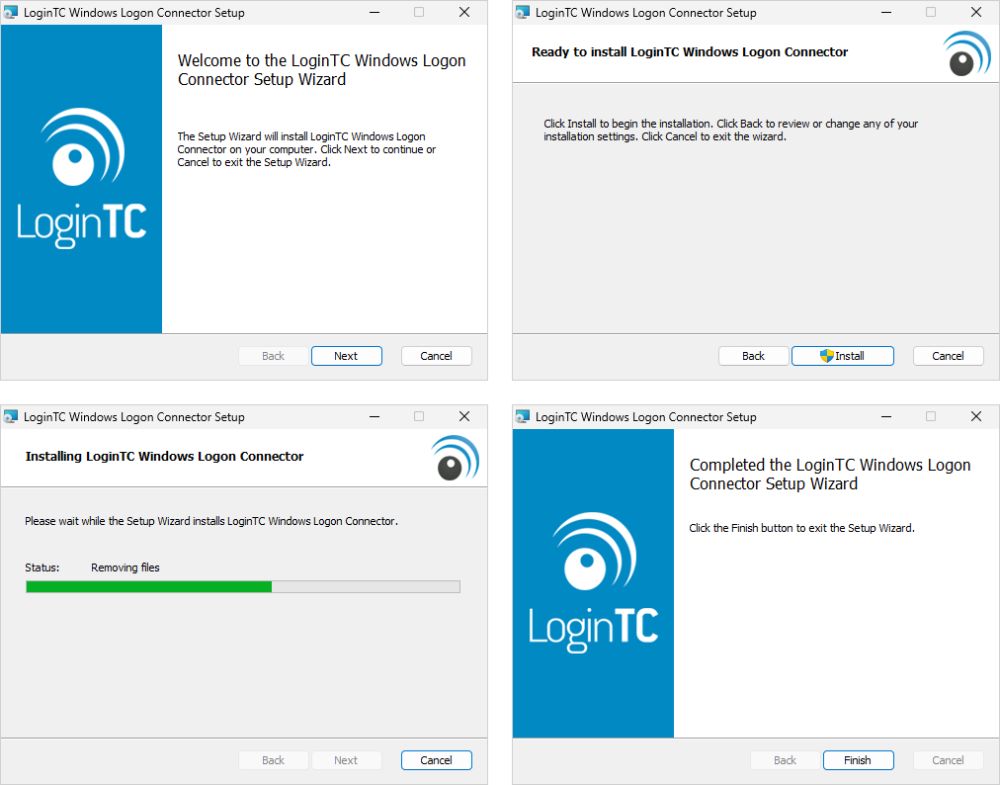
The 2.0.0 installer upgrading over an existing installation. No uninstall, no restart.
Your users’ offline enrolment survives the upgrade. This is the part that matters most if you have laptops in the field or servers on isolated networks. Under 1.4.x, upgrading meant uninstalling first, and the uninstall cleared every user’s offline authentication data. Each of those users then had to sign in online again before offline authentication would work for them, on exactly the machines least likely to see the network. That is why a lot of deployments simply stayed on an old version. In 2.0.0 the upgrade runs in place, and both your configuration and every user’s offline enrolment carry over, including when you are coming from 1.4.x.
There is one exception to plan for. ARM64 machines running a 1.4.x build still need an uninstall and reinstall to reach 2.0.0, because 2.0.0 is the first release with a dedicated native ARM64 installer. Because that single hop involves an uninstall, users on those hosts will need one online sign-in afterwards to restore their offline access. From 2.0.0 onward, ARM64 hosts upgrade in place like every other machine.
The upgrade is also built to be safe when something goes wrong. Your existing configuration and offline data are protected throughout, and if the installer cannot verify a configuration change you have asked for, it stops before modifying anything, leaving your working installation intact rather than a half-configured one.
Should you upgrade?
Yes. We recommend upgrading every deployment.
Every change above applies to every installation, not to a particular kind of environment. The upgrade is a single step, it preserves your configuration and your users’ offline enrolment, and it does not require a restart. There is no deployment we would advise to stay on 1.4.x.
What the upgrade involves
Run the installer on your existing host. Double-clicking it gives you a short wizard with nothing to re-enter: no license screen, no configuration dialogs, and no re-typing your Application ID and API Key. In this default mode the installer preserves your existing configuration and data without re-checking it, which means the machine does not need an internet connection to complete the upgrade. A disconnected host can be upgraded by running the installer on it, exactly as you would on a connected one.
There is one case where connectivity is needed. If you pass configuration parameters on the command line, such as a new Application ID or API Key, the installer validates them against the LoginTC API, and that validation needs a route to the LoginTC service.
For a fleet, use the command line rather than visiting each host. The installer accepts properties such as LOGINTC_APPLICATION_ID and LOGINTC_APPLICATION_API_KEY and can be driven from a script or a Group Policy software deployment, so you can upgrade many machines in one pass instead of one at a time. Anything you specify on the command line is applied, and anything you leave out stays exactly as it was. The command line installation section of the connector documentation lists the available properties, and the rest of the connector documentation covers full installation and configuration.
Both x64 and ARM64 installers are published for this release. The connector supports Windows 10 version 1607 or later, Windows 11, and Windows Server 2016, 2019, 2022 and 2025.
Release notes and downloads
The full changelog is in the connector release notes. Downloads for both architectures are available from your LoginTC Admin Panel. Version 2.0.1 followed on 10 September 2026 with bug fixes, so install the latest available build rather than 2.0.0 itself.
If you are using LoginTC FIDO2 authentication alongside Windows Logon, security keys remain one of the offline methods described above. For the method-by-method walkthrough, see how to use offline MFA for Windows logon and RDP, and the product overview lives on the MFA for Windows Logon and RDP page.
Frequently asked questions about Windows Logon Connector 2.0.0
How do I upgrade from version 1.4.x to 2.0.0?
Download the latest installer from your LoginTC Admin Panel and run it on the machine that already has the older connector installed. The installer handles the upgrade in place and you do not need to uninstall the previous version first. Match the installer to the machine architecture, x64 or ARM64. Your configuration and your users’ offline enrolment are preserved.
Does the upgrade need an internet connection?
Not in the default mode. Running the installer by double-clicking it, or silently from the command line with no arguments, preserves your existing configuration and data without re-checking it, so the upgrade completes on a machine with no connectivity at all. Connectivity is only required if you pass configuration parameters on the command line, such as a new Application ID or API Key, because the installer validates those against the LoginTC API.
Will my users have to re-enrol for offline authentication after upgrading?
No. Both your configuration and every user’s offline enrolment are preserved through an in-place upgrade, including upgrades from 1.4.x. This is a change from earlier versions, where upgrading required an uninstall, and the uninstall cleared offline authentication data, forcing every user to sign in online again before offline access worked.
Does the in-place upgrade work on ARM64 machines?
From version 2.0.0 onward, yes. ARM64 is the one exception on the way there: a machine running a 1.4.x build on ARM64 hardware needs a single uninstall and reinstall to reach 2.0.0, because 2.0.0 is the first release with a dedicated native ARM64 installer. Because that hop involves an uninstall, users on those hosts will need one online sign-in afterwards to restore offline access. Every upgrade from 2.0.0 onward runs in place like any other host.
Can I upgrade many machines at once?
Yes. The installer can be run from the command line and driven by a script or a Group Policy software deployment, so a fleet can be upgraded in one pass rather than host by host. Anything you specify on the command line is applied and anything you leave out stays exactly as it was. The command line installation section of the connector documentation lists the available properties.
Do I need to restart the machine after upgrading?
No restart is required. As of version 1.4.6 the LoginTC Windows Logon and RDP Connector installer no longer requires a restart on completion, and that continues to apply to the 2.0.0 upgrade. You can upgrade and return the machine to service without scheduling a maintenance window for a reboot.
Do I need to remove the registry keys that were set for earlier versions?
No. Version 2.0.0 does not use the DisableRootAutoUpdate and CertificateRevocation values that earlier air-gapped deployments needed, so you do not have to remove them before or after upgrading. They are simply ignored. If you prefer a clean machine you can remove them on your own schedule, and it will not affect connector behaviour either way.
Which versions of Windows does the connector support?
The LoginTC Windows Logon Connector 2.0.0 supports Windows 10 version 1607 or later, Windows 11, and Windows Server 2016, 2019, 2022 and 2025. Both x64 and ARM64 installers are available. Earlier Windows versions are not supported.