FIDO2 for Windows: How Security Key Login Works Online and Offline
September 18, 2026 •
Key takeaways
- FIDO2 Windows login uses a hardware security key as the second factor at the Windows sign-in screen, after the Active Directory password.
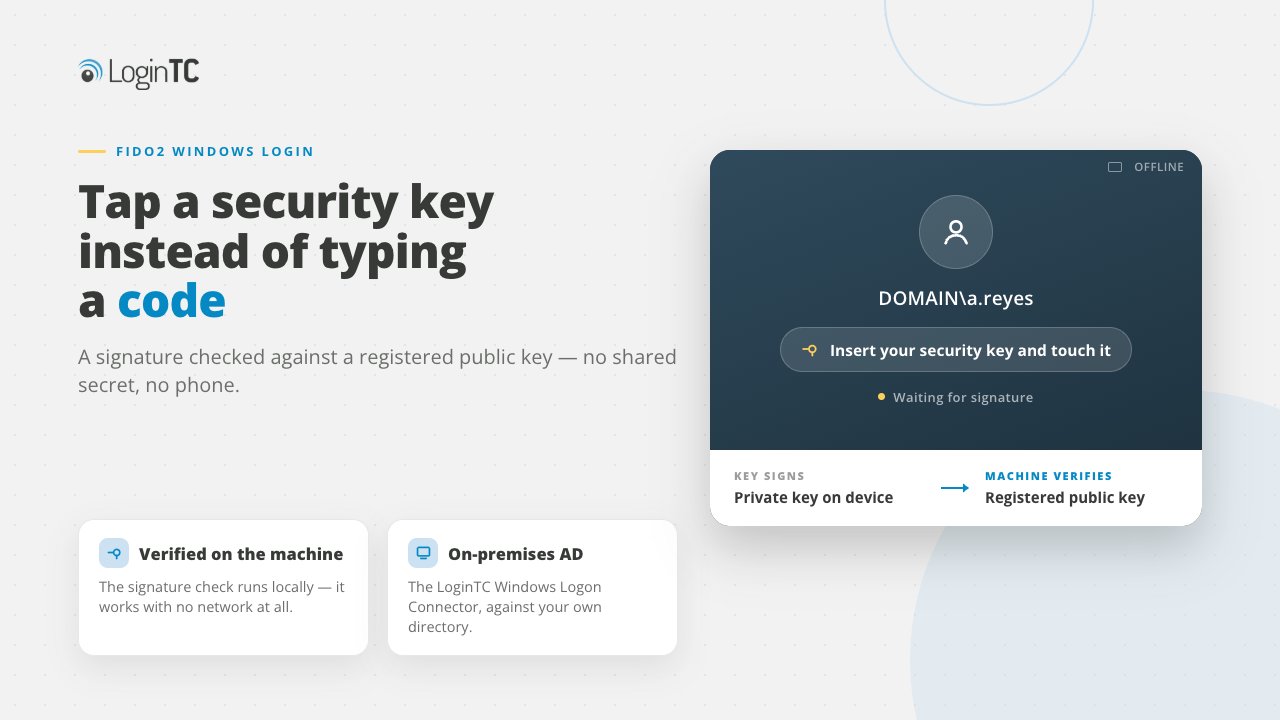
- It works with no network because a FIDO2 signature is checked against a registered public key, and that check can be performed on the machine itself.
- Microsoft’s own FIDO2 Windows sign-in does not support on-premises-only Active Directory. It requires Microsoft Entra joined or Entra hybrid joined devices.
- A third-party Windows credential provider adds the security key against existing on-premises Active Directory, with no cloud identity and no directory changes.
- Biometric FIDO2 readers work the same way, with a fingerprint replacing the PIN. Multiple enrolled fingerprints do not create multiple identities.
- It is multi-factor authentication, not passwordless. The password is still required.
If you have ever tried to put a hardware security key in front of the Windows sign-in screen, you have probably run into one of these two obstacles. The first is that the built-in Windows path for FIDO2 sign-in expects a cloud identity. The second is that most multi-factor authentication products treat the security key as a browser feature, which means it disappears the moment a user is looking at a Windows credential prompt rather than a web page.
This post explains how to avoid these obstacles by setting out what actually happens when a FIDO2 key authenticates a Windows login, why that process keeps working when the machine has no network, and where the common approaches might fail.
Our first release of FIDO2 for the Windows Logon and RDP Connector was in November 2023, announced in FIDO2 authentication with Windows Logon and RDP is here. What follows is the current state, three years and several releases later. If you want the step-by-step setup instead, that is covered in how to add MFA for Windows logon, and the protocol basics are on the FIDO2 authentication page.
What is FIDO2 Windows login?
FIDO2 comprises two core standards: WebAuthn, which serves as the application interface for requesting assertions, and CTAP, the protocol enabling the computer to communicate with the hardware authenticator (typically a USB key, NFC device, or smart card). WebAuthn achieved W3C Recommendation status in 2021, and its Level 3 specification advanced to full W3C Recommendation on 25 August 2026, solidifying it as an established industry standard.
What makes FIDO2 phishing resistant is that the credential is a private key that is designed to be non-exportable from the authenticator, and the signature it produces is bound to the specific relying party that asked for it. There is no authentication shared secret held by both server and authenticator, no code to read out over the phone, and there is no remote push approval to accept, eliminating the push-fatigue approval pattern. CISA has been unambiguous about this since its 2022 phishing-resistant MFA fact sheet, which states that “the only widely available phishing-resistant authentication is FIDO/WebAuthn authentication.”
FIDO2 Windows login means the second factor at the sign-in screen is a physical key the user touches, rather than a passcode they transcribe. To be precise about what LoginTC does: the user still enters their Active Directory username and password, then satisfies the second factor with the key. This is strong multi-factor authentication for Windows, not a passwordless replacement for the domain password.
Why does a FIDO2 security key still work when the machine is offline?
This is the part that can be hard to find a clear explanation of, but it is the reason offline FIDO2 Windows login is possible.
At its core, the architecture relies on three distinct entities rather than two: the authenticator itself, the client host system, and the relying party that provides the challenge and validates the response. Authentication relies on a non-exportable private key residing securely within the authenticator to sign the challenge, allowing the relying party to validate the generated signature against a previously stored public key.
Offline FIDO2 verification works because the cryptographic check depends solely on holding the registered public key, not on internet connectivity. While cloud-based relying parties cannot complete authentication when disconnected (often causing standard cloud passkeys to fail), a Windows credential provider bridges this gap. By locally caching the necessary verification data after an initial online sign-in, the machine itself can perform the validation directly.
Push notifications require an active, two-way connection to a notification service to reach the user’s phone, making them non-functional offline.
How does FIDO2 work online and offline from one connector?
Built as a native Windows credential provider rather than a web prompt embedded in a window, the LoginTC Windows Logon Connector integrates security keys as a primary authentication mechanism instead of a secondary fallback option.
When LoginTC is reachable, users get their normal online authentication methods. When it isn’t, the connector switches to the offline methods enabled in policy. Security keys serve as one of these offline paths, allowing users to authenticate just by inserting and tapping their physical device.
To accommodate diverse hardware deployments across an organisation, a comprehensive range of offline methods is provided:
- Security key. Insert and press. The FIDO2 path described above.
- Hardware token. The same OTP token already assigned to the user works offline.
- Authenticator app. The same software token already assigned to the user works offline.
- QR scan. The LoginTC mobile app scans a code on screen and returns a six digit response. iOS and Android app only.
- Passcode grid. The user enters the three-letter tuples corresponding to their own passcode grid.
- Offline bypass code. A nine digit code issued by the help desk, for the genuine emergency.
Instead of letting users pass through unverified when the LoginTC service cannot be reached, the system mandates the completion of an offline authentication method. The inverse is equally important: this protection functions only if you enable the offline options your users actually possess. Disabling offline authentication causes a fleet to fail closed, which, although it may be a secure outcome, will result in locked-out users and frustration. Consequently, offline capabilities must be configured within the appropriate policy, where they remain governed by the attempt and duration limits detailed below.
The same connector protects local console logon and Remote Desktop sessions, so you deploy and reason about one enforcement point rather than two. But a USB security key plugged into the machine in front of you is not, by default, visible to a credential provider running on a remote host. Microsoft’s own documentation lists as unsupported “scenarios such as RDP, VDI, and Citrix, that use a security key other than webauthn redirection.” Plan on the security key being your method at the console and at the RDP client’s own sign-in, and pick a different second factor for the remote session unless you have redirection in place.
FIDO2 capability is a well-established feature of this connector. First introduced in version 1.4.0 in November 2023, FIDO2 authentication was subsequently expanded with offline hardware token support in version 1.4.1, FIDO2 smart card functionality in version 1.4.5 (August 2025), and biometric FIDO2 chip card compatibility in version 1.4.7 (April 2026). The latest version, 2.0.0, was launched on 29 July 2026. It supports 64-bit x64 and ARM64 architectures across Windows 10 (version 1607 or newer), Windows 11, and Windows Server 2016, 2019, 2022, and 2025. Both installers are on the downloads page.
A key improvement in version 2.0.0 specifically benefits air-gapped and disconnected environments. Previous releases required manual registry modifications, such as configuring DisableRootAutoUpdate to prevent Windows from querying the internet for certificate trust updates during authentication. Version 2.0.0 eliminates these registry adjustments entirely, enabling seamless operation in air-gapped networks out of the box. Existing deployments no longer rely on these keys, and new installations do not require them. This streamlined functionality is essential for high-security environments, as detailed in FIDO2 in air-gapped environments.
Can you use a fingerprint reader as a FIDO2 key for Windows login?
Yes. A FIDO2 authenticator does not have to be a key you press. Some are desktop readers with a fingerprint sensor, where the fingerprint takes the place of the PIN as the user-verification step of the ceremony. The user touches the sensor instead of typing anything, and the signature is produced the same way it always is.
The animation below shows a fingerprint key doing exactly that against the LoginTC Windows Logon and RDP Connector. It is a USB desktop reader that presents as a standard FIDO2 authenticator, so nothing in the flow is specific to that model. Because the reader exposes a standards-based FIDO2 authenticator interface, LoginTC does not depend on vendor-specific authentication behaviour.
For a lot of deployments this is the shortest route to something users will not complain about, particularly at a fixed desk. It is also where a genuine limitation lives, and it is one almost nobody explains before you have bought the hardware.
Enrolled fingerprints are not separate identities
While most biometric FIDO2 authenticators allow enrolling multiple fingerprints, this should not be mistaken for multi-user support.
Multiple fingerprint templates can be enrolled on a biometric FIDO2 authenticator, but WebAuthn does not expose which enrolled fingerprint satisfied user verification. From the relying party’s perspective, the result is simply that user verification succeeded.
The practical impact is straightforward: registering fingerprints from four individuals on a single reader tied to one Active Directory account grants all four people second-factor access to that same account. Rather than establishing four distinct identities, this creates a single shared credential unlocked by four users, leaving no individual attribution in audit logs.
Consequently, the standard rule for biometric FIDO2 during Windows logon is assigning one authenticator per user whenever individual accountability is required, which applies to nearly every scenario. Storing multiple fingerprints on a single key is designed as a convenience for one user registering multiple fingers, not as a shared-workstation solution.
For shared workstations where multiple users log into separate accounts on one computer, individual per-user credentials are required, such as dedicated authenticators, hardware tokens, or printed passcode grids. These alternative options are detailed in the offline methods walkthrough.
Why does the built-in Windows FIDO2 path not work on on-premises Active Directory?
If you administer an on-premises Active Directory domain, this is the single most useful thing to know, and it is stated in Microsoft’s own documentation rather than inferred.
Microsoft’s guide to FIDO2 security key sign-in to Windows, last updated 6 July 2026, lists the unsupported scenarios explicitly. Among them: “Windows Server Active Directory Domain Services (AD DS) domain-joined (on-premises only devices) deployment.” Also unsupported are RDP, VDI and Citrix except with WebAuthn redirection, “Run as” using a security key, and signing in to a server using a security key. The device requirements are given only for Microsoft Entra joined and Microsoft Entra hybrid joined machines.
The companion article on passwordless security key sign-in to on-premises resources does not change that picture, despite the name. It still requires devices to be Entra joined or Entra hybrid joined, Windows Server 2016 or later domain controllers with specific patches, Entra Connect attribute synchronisation, and both Domain Admins and cloud administrator credentials.
To summarise, Microsoft’s native FIDO2 Windows sign-in requires Microsoft Entra joined or Microsoft Entra hybrid joined devices; it does not support on-premises-only AD-joined devices. Windows Hello for Business does have a genuine on-premises deployment model, but it uses a device-bound key in the TPM unlocked by a local biometric or PIN, needs PKI and AD FS, and Microsoft positions it primarily for hardened administrative environments. It is not the general-purpose answer to “I want my domain users to tap a security key at the Windows login screen.”
That gap matters more each year, because the guidance keeps pointing the other way. NIST published SP 800-63-4 on 1 August 2025, which ties AAL3 to public-key authenticators with non-exportable private keys that provide phishing resistance. Microsoft’s own Digital Defense Report 2025 recommends organisations “enforce phishing-resistant multifactor authentication across all accounts, including administrative accounts.” Being told to deploy phishing-resistant MFA everywhere, by the same vendor whose native implementation excludes on-premises-only domains, can be a painful challenge for a lot of IT teams.
What do most cloud MFA platforms restrict at the Windows sign-in screen?
When evaluating any MFA solution for this scenario, watch for a common issue that vendor marketing often minimises. Many major cloud-first platforms host FIDO2 and WebAuthn functionality within web-based authentication prompts designed for SAML and OIDC applications. Because a native Windows credential provider does not render web prompts, security key support can unexpectedly disappear at the login screen.
When evaluating another Windows MFA product, ask five specific questions:
- Does the key work online? Some integrations deliver security keys only inside a browser-based prompt, which a Windows credential provider cannot render, so the method is simply unavailable at the sign-in screen.
- Does it work offline? Online support does not imply offline support, and offline support does not imply online support. Ask about both halves separately, because assuming one implies the other is the mistake most evaluations make.
- Is the protocol FIDO2 and WebAuthn, or U2F or OTP? Some integrations accept the key over the older U2F protocol rather than FIDO2 and WebAuthn, which changes which keys are compatible. A dual-capability key can also be accepted in its one-time-passcode mode, which is a shared secret rather than the hardware-bound credential.
- Does it work at console logon only? The key may work when someone is sitting in front of the machine but not in a remote session. This is often a platform constraint rather than a vendor choice, so ask what the workaround is rather than treating it as a disqualifier.
- Can a user register a backup key? Without a second authenticator, a lost key becomes a lockout rather than a shrug.
The protocol question is the one that most often leads to misinterpretation during an evaluation. When an administrator inserts a security key and successfully logs in at the Windows sign-in screen, they often assume full FIDO2 support for Windows logon. However, the system may simply be reading the key’s OTP applet. Rather than verifying hardware recognition alone, always confirm which protocol is actively being triggered. It is also good to keep in mind that documentation across the industry (ours included) often uses “security key” and “FIDO2” interchangeably, which makes explicit verification essential.
Security key support at the Windows sign-in screen
| Capability | Native Windows FIDO2 sign-in | Typical cloud-first MFA platform | LoginTC Windows Logon Connector |
|---|---|---|---|
| On-premises-only Active Directory | Not supported. Entra joined or hybrid joined required. | Varies. Check the vendor’s own factor list for the Windows integration. | Supported. No schema changes. |
| Security key when the machine is online | Yes, with a cloud identity. | Varies. Some platforms deliver security keys only in the browser prompt, so the method is unavailable at the credential provider. Others support it online but not offline. | Yes. |
| Security key when the machine is offline | Not applicable to the on-premises case. | Varies. Commonly online-only or offline-only, rarely both. Where offline is supported it is often over U2F and often console only. | Yes, after one online sign-in. |
| Security key in a Remote Desktop session | Listed as unsupported except with WebAuthn redirection. | Generally not, for the same platform reason. | Same platform constraint applies. The connector protects RDP sessions with other methods from the same deployment. |
| Behaviour when the MFA service is unreachable | Not applicable. | Check whether the default is fail open or fail closed. | Second factor still enforced. No fail-open condition. |
Native Windows column sourced from Microsoft Learn, FIDO2 security key sign-in to Windows, last updated 6 July 2026. Verify any specific vendor’s current documentation before making a purchase decision.
In contrast to these limitations, LoginTC fully supports security keys at the Windows sign-in screen across both online and offline scenarios. Users retain access to the complete suite of LoginTC authentication options as fallbacks.
Which Windows logon types are not protected?
It is equally important to know which Windows logon paths the connector does not protect. Rather than treating unprotected logon vectors as minor details, it is a good idea to treat them as key decision points for compensating security controls.
The connector documentation specifies the following unprotected logon paths:
- Run as different user
- RDP Restricted Admin Mode
- Pre-Logon Access Providers (PLAPs)
- Non-interactive logins
- PowerShell remoting (includes cmdlets like Get-Credential, Enter-PsSession, and Invoke-Command)
Conversely, protected entry points include local logons, Remote Desktop logons, and Run as administrator. If WinRM or PowerShell remoting is widely deployed, a credential provider on its own will not mitigate those vectors. For full protection, offline controls must be robust, and a security mechanism that fails just by unplugging a network cable does not provide true protection.
Which offline policy controls should you set before rolling this out?
Offline authentication is configurable per organisation, application and group, and some defaults should be given more thought. From the policies guide, the switches worth deciding on are:
- Security Keys. Allow users to authenticate using an offline security key. This is the one this post is about.
- Offline Days Limit. Allow users to log in offline up to a certain number of days. This is your answer to “how long can a stolen laptop keep working away from the network.”
- Successful Offline Login Limit. A count-based ceiling alongside the day-based one.
- Invalid Offline Login Limit. Caps offline brute-force attempts.
- Offline Bypass Codes. Allow up to a set number of issued codes. Codes regenerate each time the user logs in online.
- Passcode Grids, Hardware Token, Authenticator App, Offline QR Scan. Enable the offline fallbacks that match what your users actually carry.
If you intend to implement remembered devices, review the feature details carefully. It is scoped exclusively to console unlock logons, remains active for a specified timeframe, and resets whenever a user signs out, restarts, switches networks, or authenticates offline. While it functions in offline scenarios, this requires offline authentication to be active and properly set up. Because the relationship between being “cleared by an offline login” and “works for offline logons” can easily cause confusion, it is a good idea to verify its behaviour against your organisation’s unlock policies prior to deployment.
Where this leaves you
The case for putting a security key at the Windows sign-in screen is not really about convenience. Sophos reported in July 2026 that 79% of ransomware attacks now originate from compromised identities, and that multi-factor authentication was deployed in some capacity in 97% of the incidents where compromised credentials were the root cause. Having MFA is no longer the differentiator. Having MFA that cannot be phished, and that does not evaporate when a machine loses its network, is.
The FIDO Alliance reported in May 2026 that 82% of surveyed organisations name fully passwordless workforce authentication as their ultimate goal, while only 28% have achieved it. Windows logon on on-premises Active Directory is a large part of that gap, and it is the part the cloud-first tooling reaches last.
Availability note: security keys, offline authentication and the Windows Logon and RDP connector are included on the Cloud Business and On-Premises Managed plans. See pricing for the current tiers.
Further reading on this site: the original FIDO2 for Windows Logon and RDP announcement, the full method-by-method walkthrough in how to use offline MFA for Windows logon and RDP, the card form factor in FIDO2 smart card authentication with Windows, the zero-connectivity case in FIDO2 in air-gapped environments, and the standards background in what is phishing-resistant MFA.
Ready to put a security key at your Windows login screen?
Talk to our team about your Windows logon and Remote Desktop requirements, or start a free trial today. We support on-premises, cloud, and hybrid MFA deployments.
Frequently asked questions about FIDO2 Windows login
Does FIDO2 Windows login work without an internet connection?
Yes, with one condition. A FIDO2 signature is verified against a registered public key rather than a shared secret, and that verification does not have to happen in the cloud. The LoginTC Windows Logon Connector caches what it needs to do the verification on the machine, so if the host cannot reach the LoginTC service the user is shown offline sign-in options after entering their username and password, and security key is one of those options. The condition is that the user must have signed in online at least once beforehand, which registers them for offline authentication automatically with the methods already assigned to them. This is different from a consumer passkey login, which fails on a disconnected machine because there the relying party is a remote service.
Can I use FIDO2 security keys for Windows login on on-premises Active Directory without a cloud identity?
Not with the native Windows path. Microsoft’s documentation for FIDO2 security key sign-in to Windows, last updated 6 July 2026, lists “Windows Server Active Directory Domain Services (AD DS) domain-joined (on-premises only devices) deployment” as an unsupported scenario, and gives device requirements only for Microsoft Entra joined and Microsoft Entra hybrid joined machines. A third-party Windows credential provider such as the LoginTC Windows Logon Connector adds the security key as a second factor against your existing on-premises Active Directory without requiring a cloud identity or changes to your directory structure.
Is FIDO2 Windows login the same as passwordless Windows login?
No. With LoginTC, the user enters their Active Directory username and password and then satisfies the second factor with the security key. That is phishing-resistant multi-factor authentication, not passwordless. Passwordless Windows sign-in is a different architecture, and on-premises implementations of it generally require PKI and a certificate or key trust model rather than a FIDO2 second factor.
Does the security key work for Remote Desktop as well as local sign-in?
The same LoginTC Windows Logon Connector protects local console logon and Remote Desktop Protocol sessions from a single deployment, so MFA enforcement is consistent across both access paths. The security key specifically is subject to a platform constraint rather than a product one: a USB key plugged into the machine in front of you is not by default visible to a credential provider running on a remote host. Microsoft’s documentation lists RDP, VDI and Citrix as unsupported for security key sign-in except with WebAuthn redirection. Plan on the security key at the console and at your RDP client’s own sign-in, and choose a different second factor for the remote session unless you have redirection in place. Note also that RDP Restricted Admin Mode is not a protected logon path.
What happens if a user loses their security key?
Assign more than one method. The offline set the connector supports is QR scan, passcode grid, security key, hardware token, authenticator app and offline bypass code, so there is room for a backup that does not depend on the same piece of hardware. Offline bypass codes issued by the help desk are the last resort, and the number of issued codes can be capped by policy. Note the corollary of not failing open: a user with no method that works offline cannot sign in on a disconnected machine, so assign at least one offline-capable backup before you hand over a laptop.
Which Windows versions support the LoginTC Windows Logon Connector?
Windows Server 2016, 2019, 2022 and 2025, and Windows 10 version 1607 or later and Windows 11, on x64 or ARM64 architecture, with a native ARM64 installer as of version 2.0.0. Windows Server 2012 R2 and Windows 8.1 are supported by connector version 1.4.x and earlier only. The current connector version is 2.0.0. Installation validates the Application ID and API Key against the LoginTC API, so the machine needs connectivity at install time even though runtime authentication does not.
Can I use a fingerprint instead of a PIN with a FIDO2 security key at Windows logon?
Yes. Some FIDO2 authenticators are desktop readers with a fingerprint sensor, and the fingerprint takes the place of the PIN as the user-verification step of the ceremony. The user enters their Active Directory password and then touches the sensor. The signature is produced and verified exactly as it would be with a key you press, so the security property is the same. The connector has supported biometric FIDO2 form factors since version 1.4.7 in April 2026.
Can several people share one biometric FIDO2 authenticator?
Not in the way most people expect, and this is the most common misunderstanding about biometric authenticators. Most of them let you enrol several fingerprints, but those fingerprints are user verification for the authenticator rather than being individually mapped to separate FIDO2 credentials. There is no one-to-one relationship between an enrolled fingerprint and a specific user’s credential. The authenticator confirms that an enrolled finger was presented and then releases the credential it holds, without reporting which finger it was. So enrolling four people on one reader gives you one credential that four people can unlock, not four identities, and no per-user attribution. Where you need per-user accountability, issue one authenticator per user or use a method that is already personal to the user, such as a hardware token or a passcode grid.
Does the connector need registry changes to work in an air-gapped environment?
Not as of version 2.0.0. Earlier versions required manual registry changes on each machine so that Windows would not attempt to reach the internet for certificate trust updates during authentication, the DisableRootAutoUpdate setting and its relatives. Version 2.0.0 removes that requirement and works in air-gapped environments with no registry edits. If those keys were set during an earlier rollout they are no longer necessary, and new deployments do not need them.
Which logon types are not protected?
Run as different user, RDP Restricted Admin Mode, Pre-Logon Access Providers, non-interactive logins, and the PowerShell cmdlets Get-Credential, Enter-PsSession and Invoke-Command are not protected. Remote Desktop logins, local logins and Run as administrator are protected. If PowerShell remoting or WinRM is broadly enabled in your environment, plan a separate control for those paths.