Last Updated: July 29, 2026
The LoginTC Windows Logon and RDP Connector integrates natively with Windows Server and Windows Client operating systems. Local access and remote access can both be protected with LoginTC MFA.
LoginTC MFA works online and offline, and can be configured to control which users or groups are challenged with MFA.
Explore how LoginTC integrates with Windows Logon and RDP below.
Subscription Requirement
Your organization requires the Business or Enterprise plan to use the LoginTC Windows Logon and RDP Connector. Explore Pricing Plans
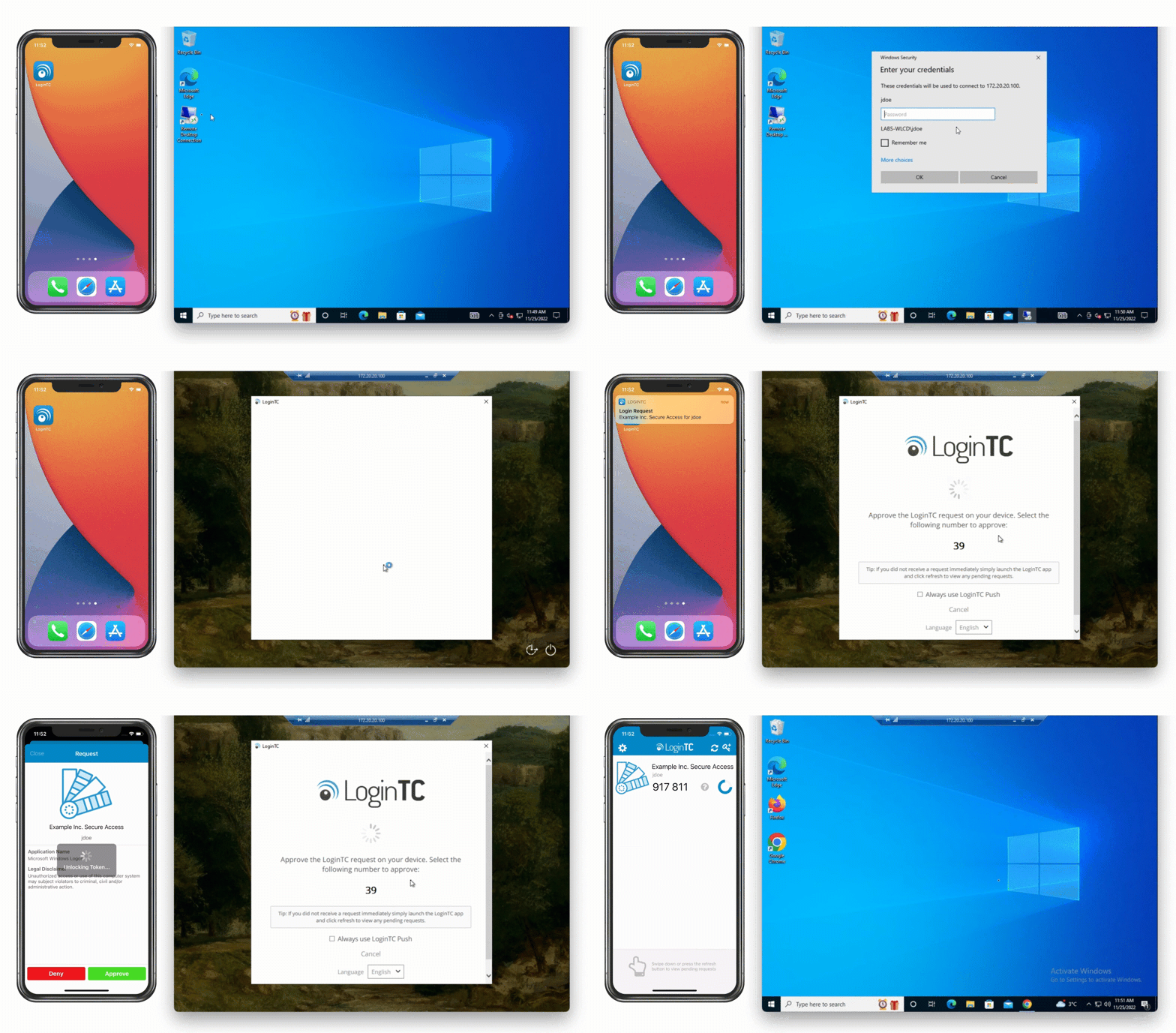
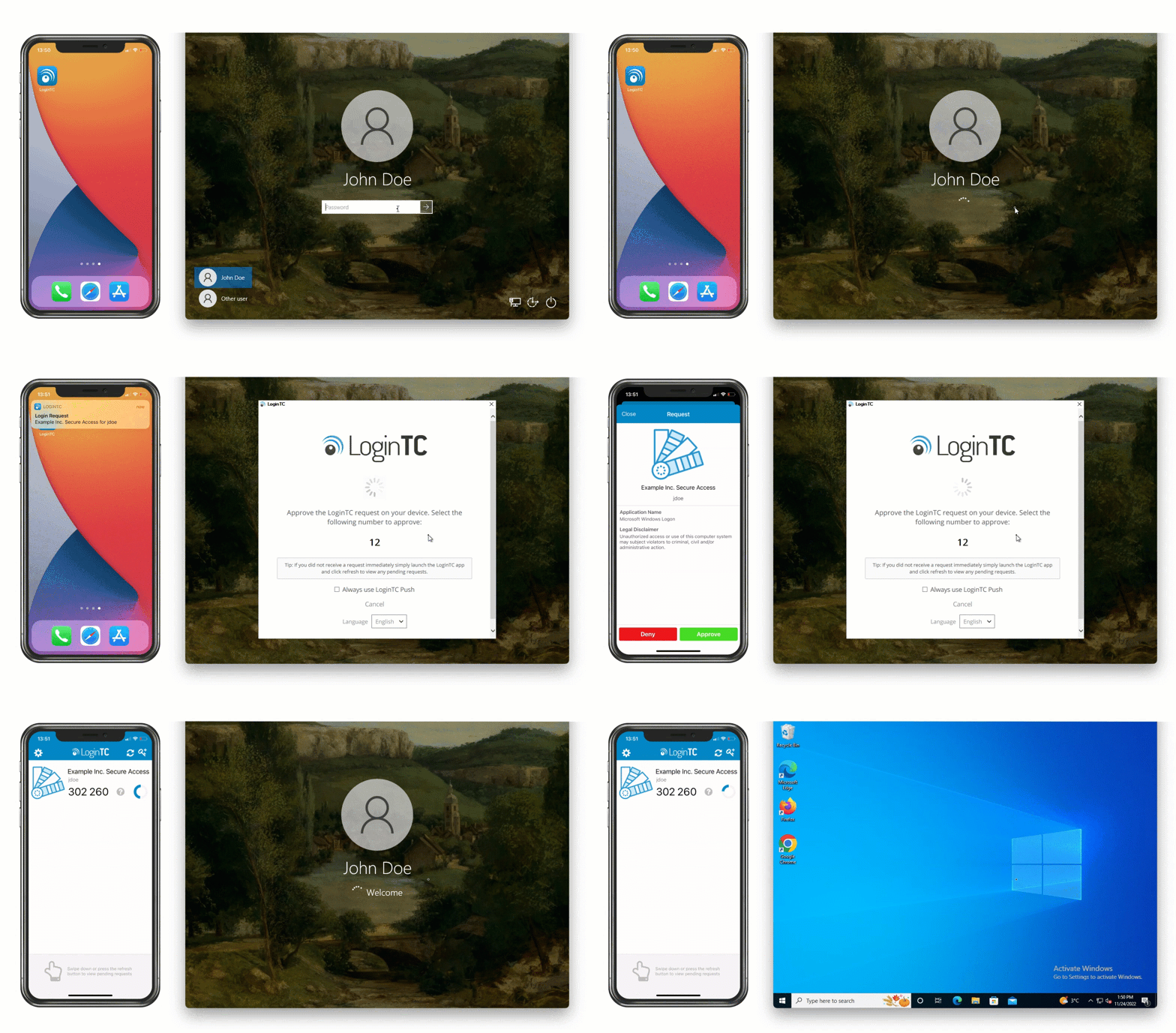
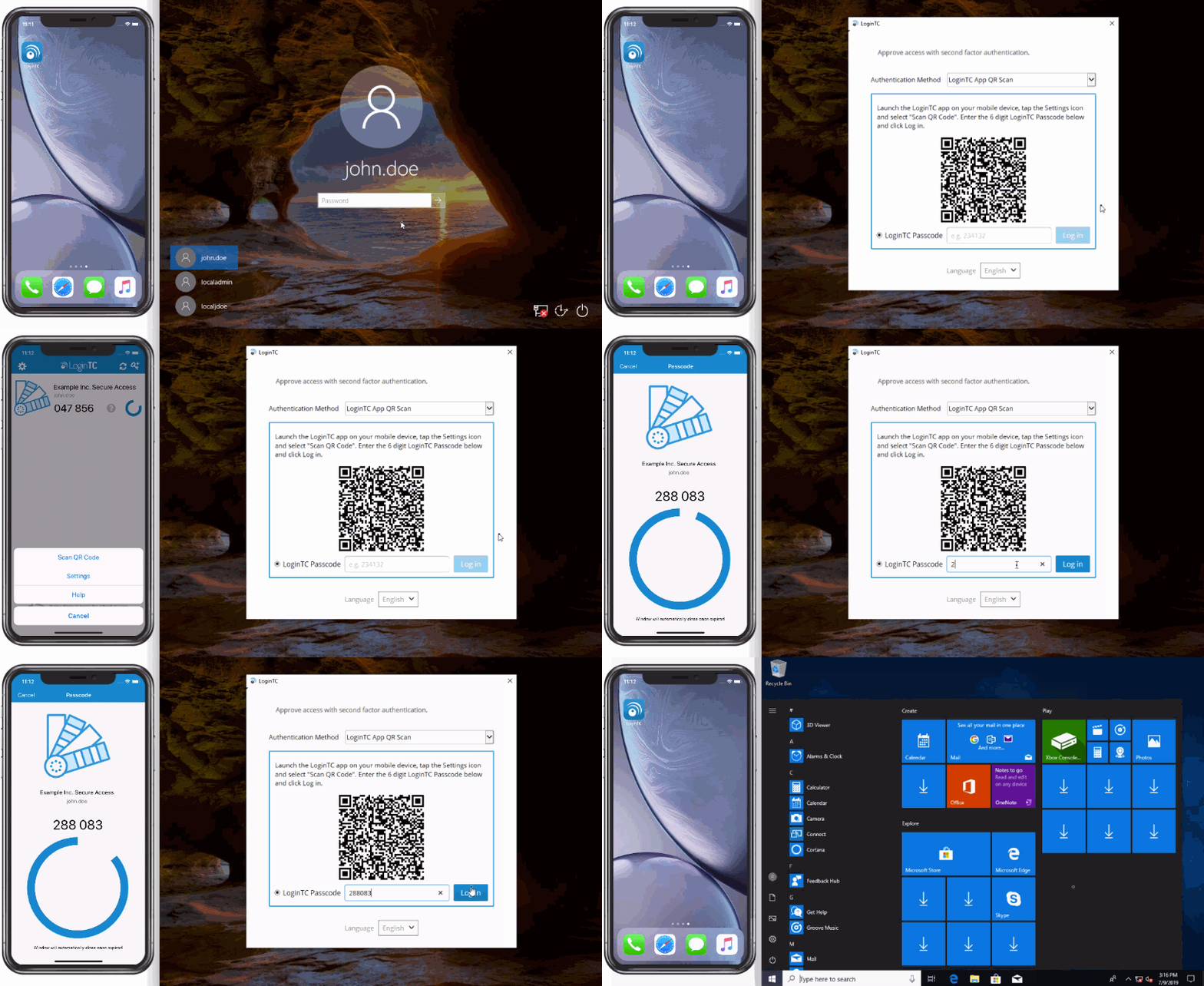
After entering the username and password, the user is shown a selection of second factor options. The user clicks a button to receive a LoginTC push notification, authenticates and is logged in.
Looking to protect other Microsoft services with MFA? See related connectors below.
How MFA for Windows Works Architecture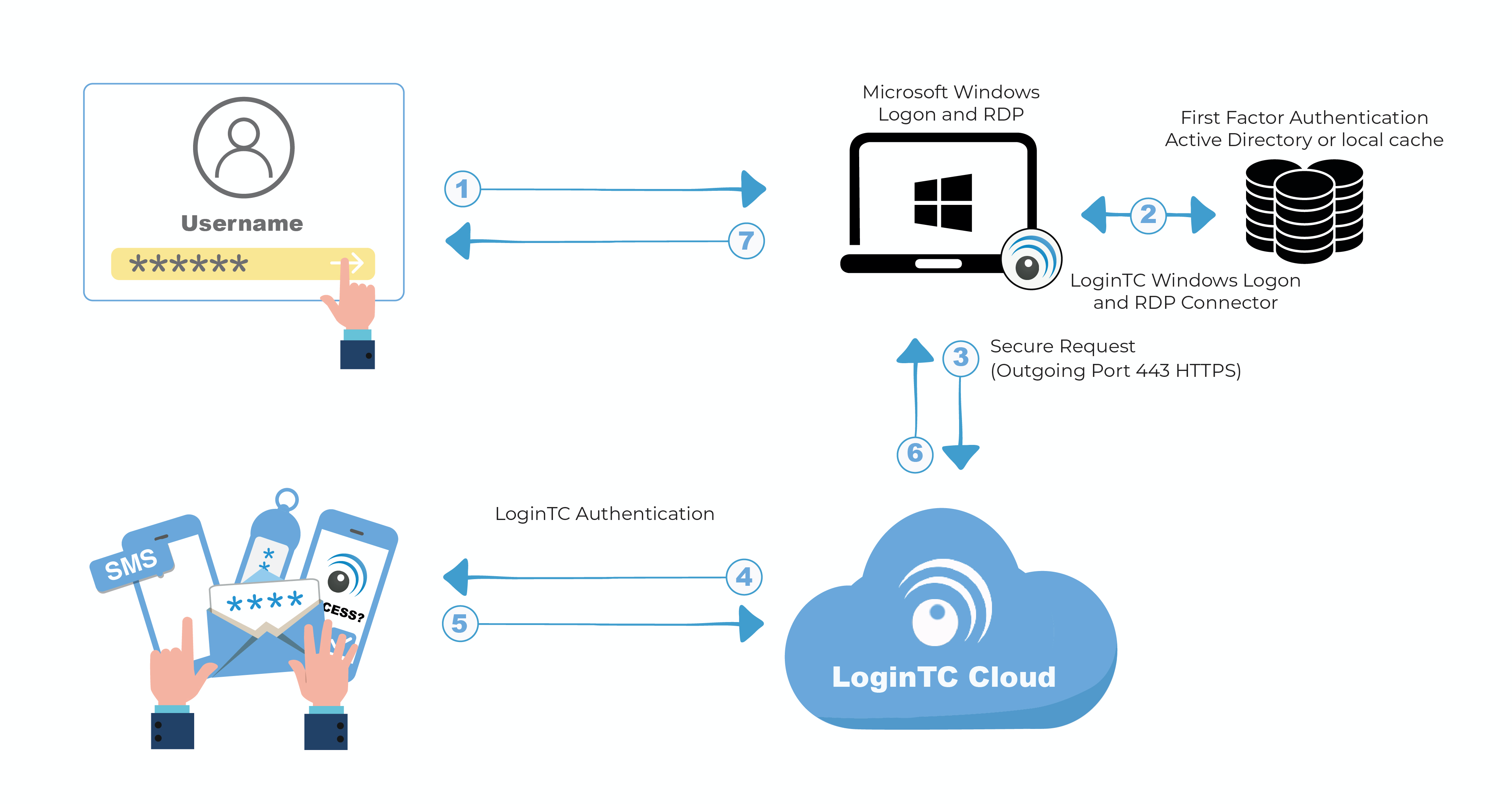
Windows 2FA/MFA Flow
- A user attempts access with username / password
- The username / password is verified against an existing first factor directory (i.e. Active Directory)
- An authentication request is made to LoginTC Cloud Services
- Secure push notification request sent to the user’s mobile or desktop device
- User response (approval or denial of request) sent to LoginTC Cloud Services
- The LoginTC Windows Logon and RDP Connector validates the user response
- User is granted access to Windows laptop / desktop
Prefer Reading a PDF?
Download a PDF file with configuration instructions:
Supported Windows Server versions:
- Windows Server 2016
- Windows Server 2019
- Windows Server 2022
- Windows Server 2025
Supported Windows Client versions:
- Windows 10 (version 1607 or later)
- Windows 11
Additional Requirements:
- LoginTC Admin account
- 64-bit operating system (x64 or ARM64 architecture)
ARM64 architecture
As of version 2.0.0 a dedicated native ARM64 installer is available. Install the MSI that matches the machine architecture (x64 or ARM64).
Older Operating Systems
Version 2.0.0 requires Windows Server 2016 / Windows 10 (version 1607) or later. Windows Server 2012 R2 and Windows 8.1 are supported by connector version 1.4.x and earlier only.
Start by creating a LoginTC Application for your Windows 2FA. An Application represents a service (e.g. RDP access to your Windows infrastructure) that you want to protect with LoginTC.
Create a LoginTC Application in LoginTC Admin, follow Create Application Steps.
If you have already created a LoginTC Application for your Windows 2FA, then you may skip this section and proceed to Installation.
Normalize Usernames
Windows usernames are in the form “CORP\john.doe”, while in the LoginTC Admin Panel it is generally more convenient to simply use “john.doe”.
Configure Normalize Usernames from the Application settings by navigating to Applications > Your Application > Settings.
Select Yes, Normalize Usernames scroll down and click Update.
Install the LoginTC Windows Logon and RDP Connector.
Internet Connection Required
LoginTC Windows Logon and RDP Connector requires an internet connection to communicate with LoginTC cloud services. For on-premises deployments using LoginTC Managed, the connection can be local. The installer validates the Application ID and API Key against the LoginTC API during installation, so the connection is also required at install time.
- Download the latest version of the LoginTC Windows Logon and RDP Connector x64 or ARM64
- Run the installer file as a privileged administrator user.
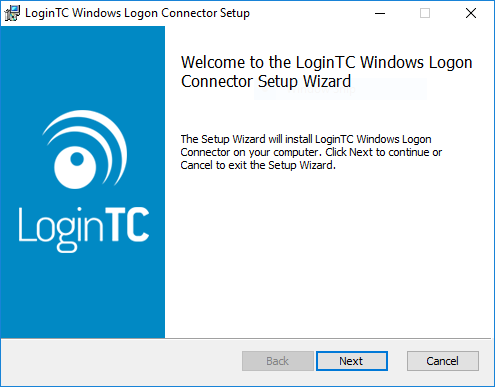
- Press Next.
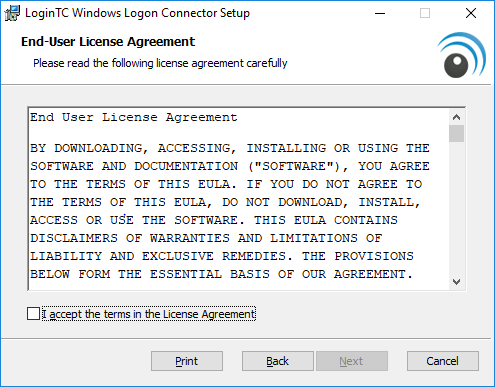
- Read the License Agreement and press Next if you accept the terms.
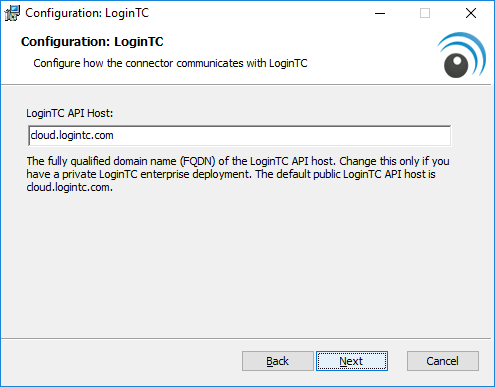
- Change the LoginTC API Host only if you have a private enterprise LoginTC deployment. Press Next:
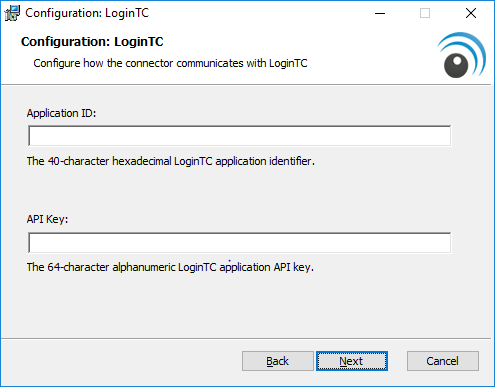
- Enter your LoginTC Application ID and Application API Key. These values are found on your LoginTC Admin Panel (see Managing your Application. Press Next.
- Choose which logon types should be prompted for LoginTC. Press Next.
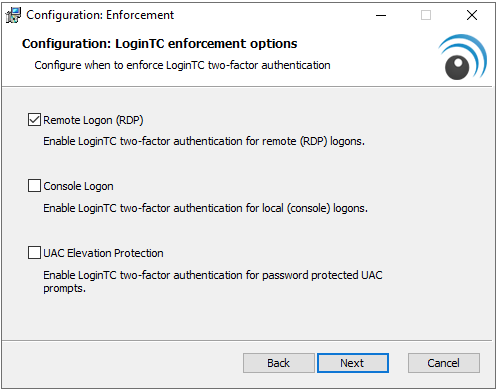
Protecting Local Logons
Note: The LoginTC Windows Logon and RDP Connector takes effect at the next sign-in — no restart of the Windows host is required. See Which Windows logon prompts does LoginTC protect? for more information. - Press Install.
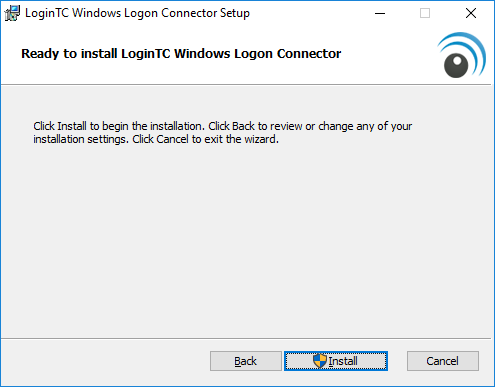
- Press Finish
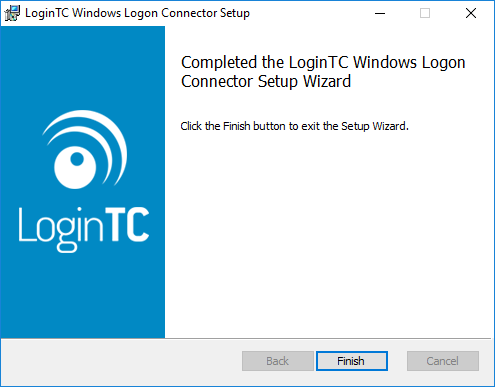
The LoginTC Windows Logon and RDP Connector is now installed. It starts protecting logins at the next sign-in — no restart is required.
UsageYour users may login in several ways. This chapter details the user experience for each interaction.
RDP Login
When a user launches their RDP client they will be presented with the standard login sequence. After successfully logging in with their username and password, they are shown the LoginTC login page on the remote host. Various login options for the second-factor LoginTC authentication are presented. Once successfully authenticated with LoginTC the user is logged into the host.
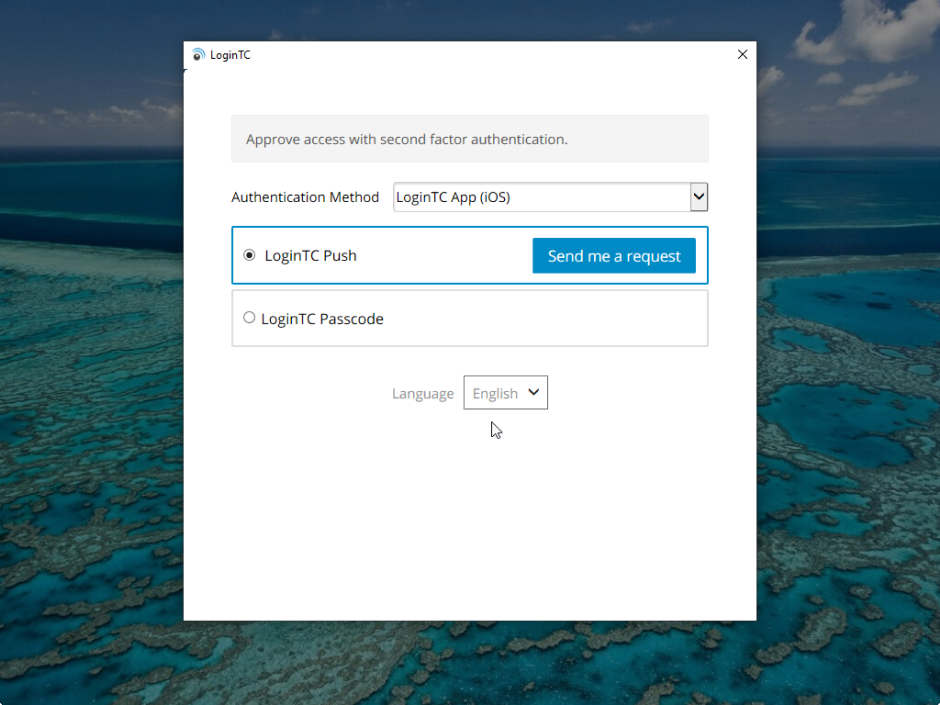
Local Logon
After successfully logging in with their username and password, they are shown the LoginTC login page on the local host. Various login options for the second-factor LoginTC authentication are presented. Once successfully authenticated with LoginTC the user is logged into the host.
Offline Logon
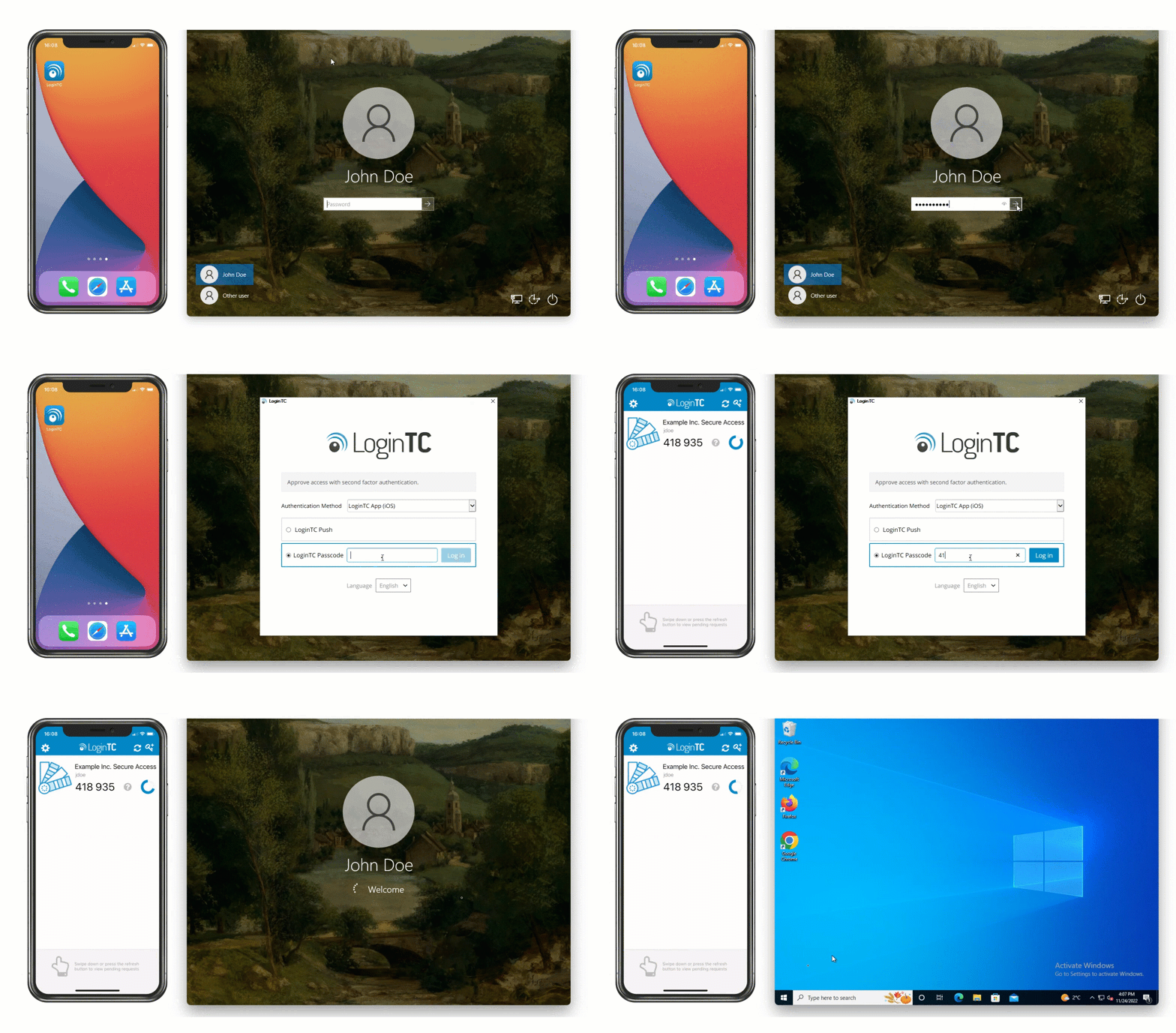
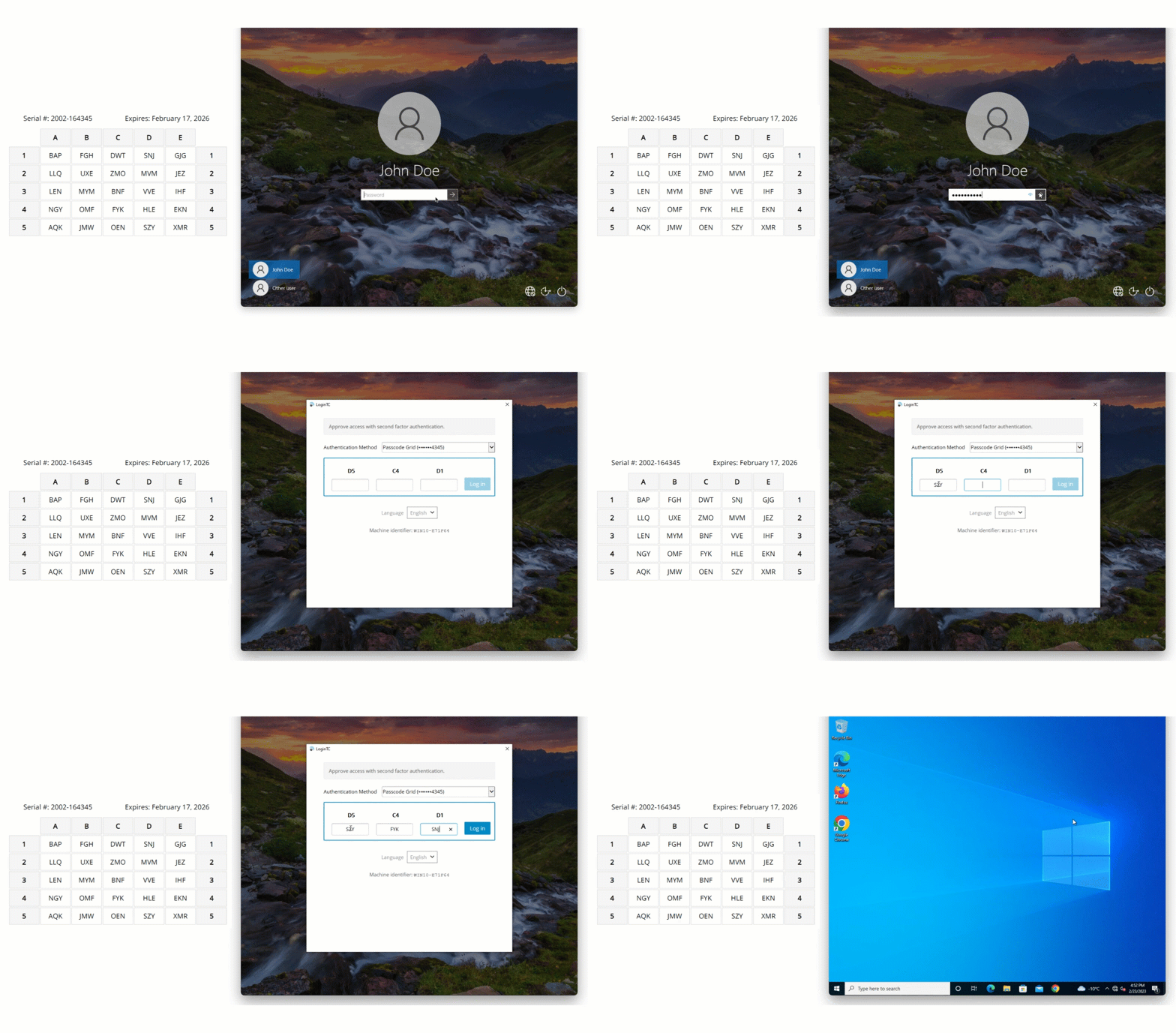
If the host does not have internet connectivity then after successfully logging in with their username and password, the user is shown options for logging in offline.
There are a few methods of offline authentication:
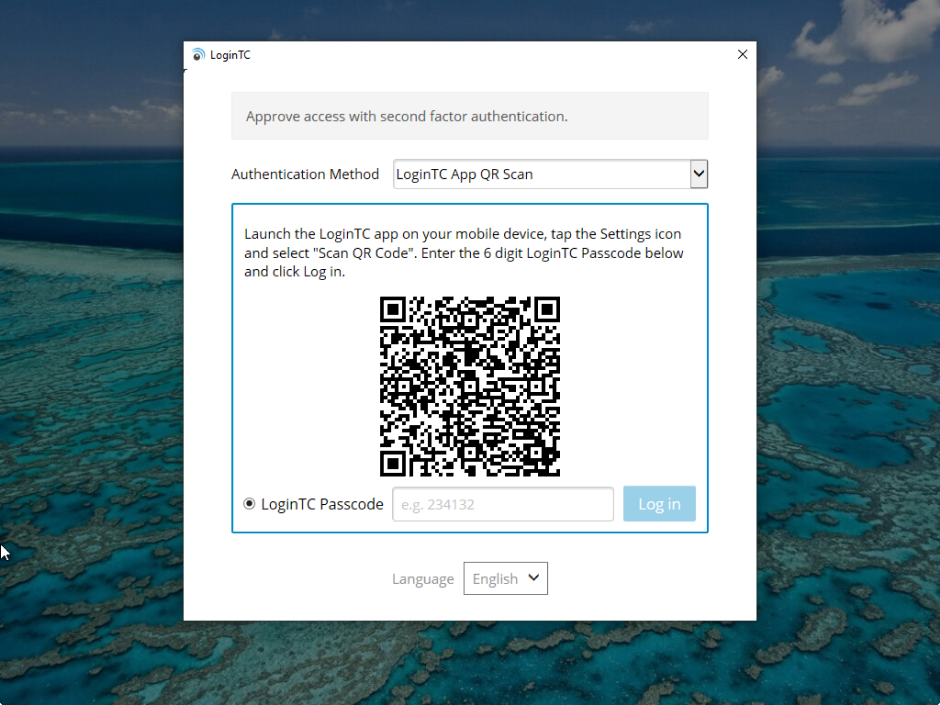
- QR Scan Authentication. The user launches the LoginTC App, select Settings > Scan QR Code and then scan the displayed QR Code. If the scan is successful a 6-digit code is displayed for the user to enter and authenticate. QR Scan Authentication is only supported for LoginTC iOS App and LoginTC Android App.
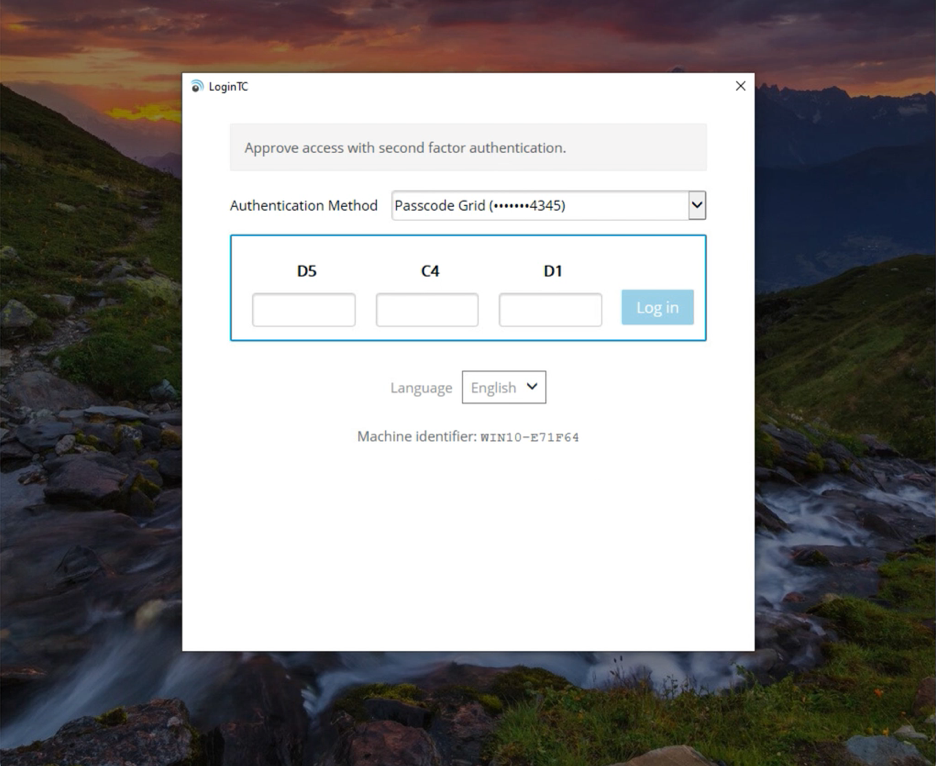
- Passcode Grid. The user enters the 3-letter tuples corresponding to their own passcode grid. If the response is accurate they are logged in. To learn more see: Passcode Grids.
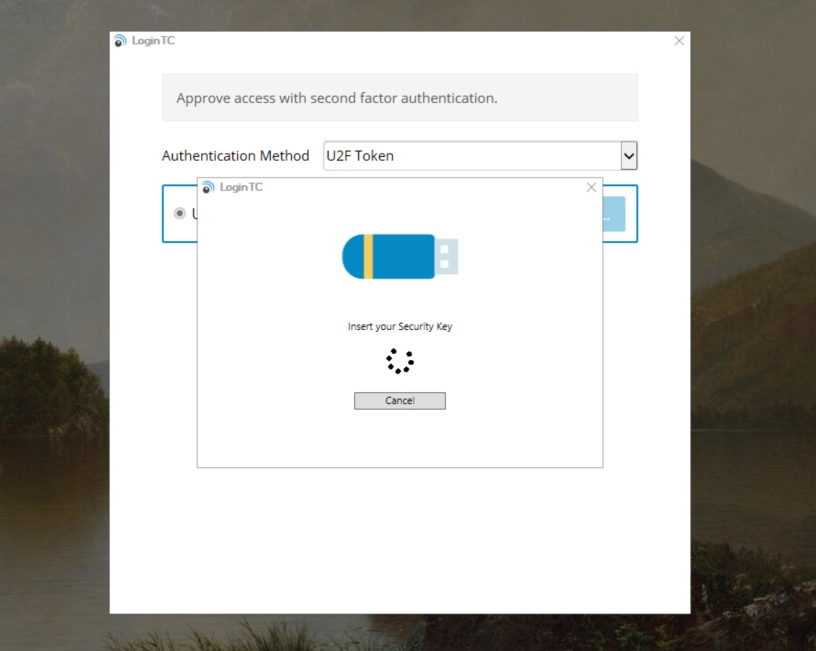
- Security Key. The user can insert a Security Key and press it to authenticate. If the security key is the right one they are logged in. To learn more see: Security Keys.
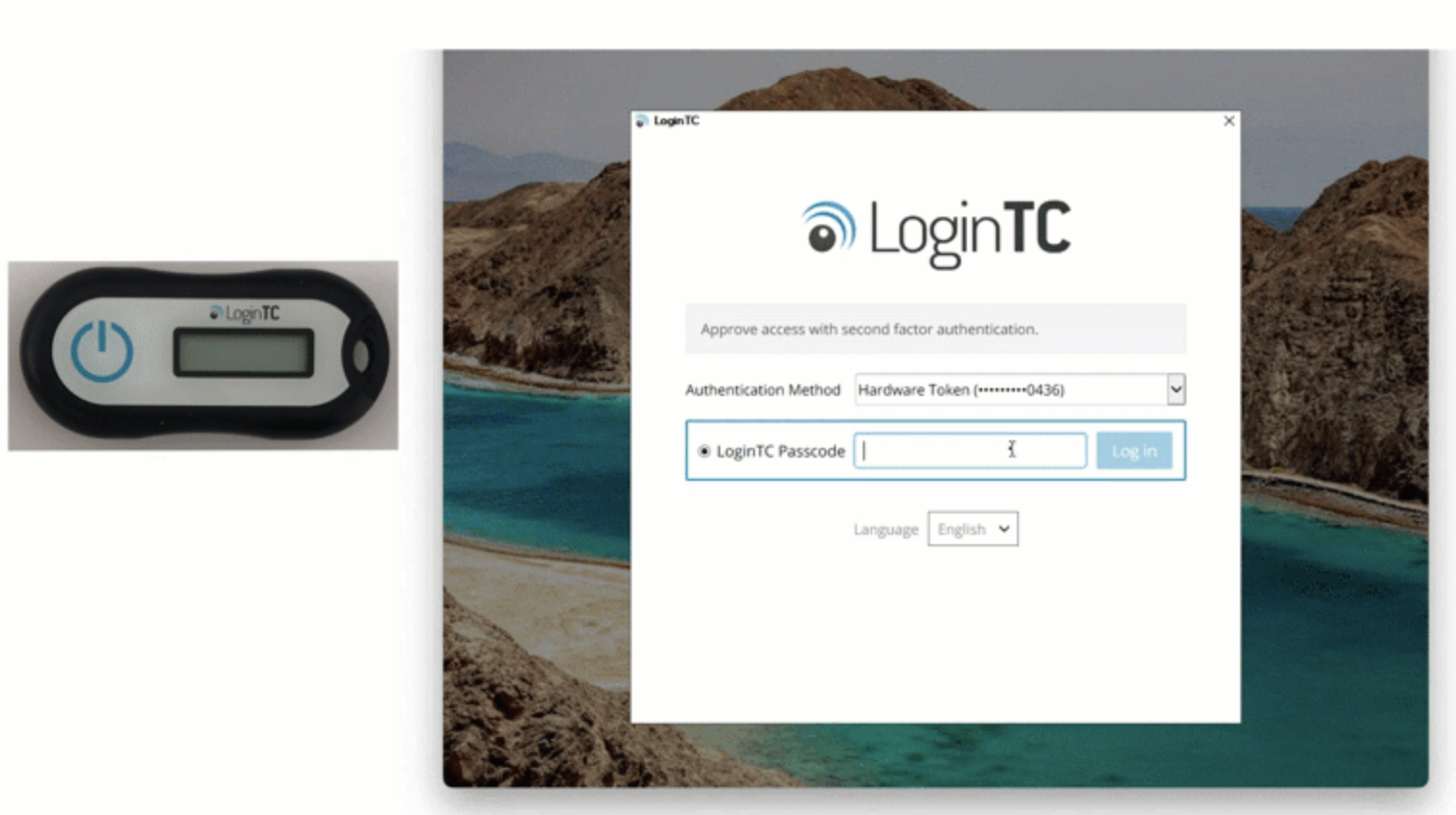
- Hardware Token. The user can use the same Hardware Token assigned to them to login offline. To learn more see: Hardware Tokens.
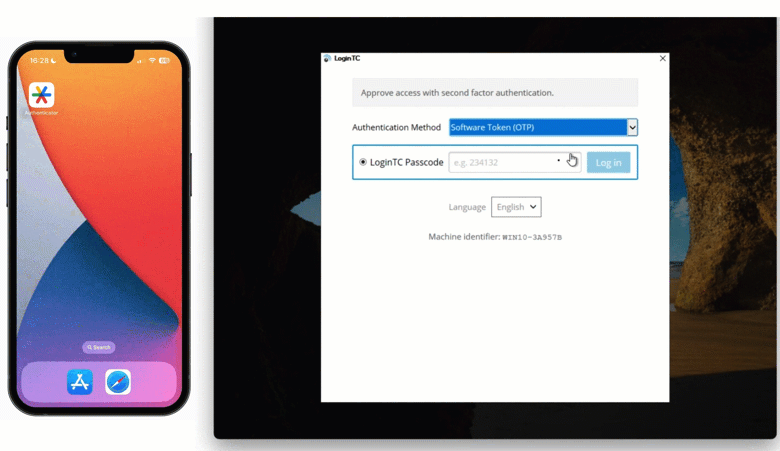
- Authenticator App. The user can use the same Authenticator App assigned to them to login offline. To learn more see: Authenticator App.
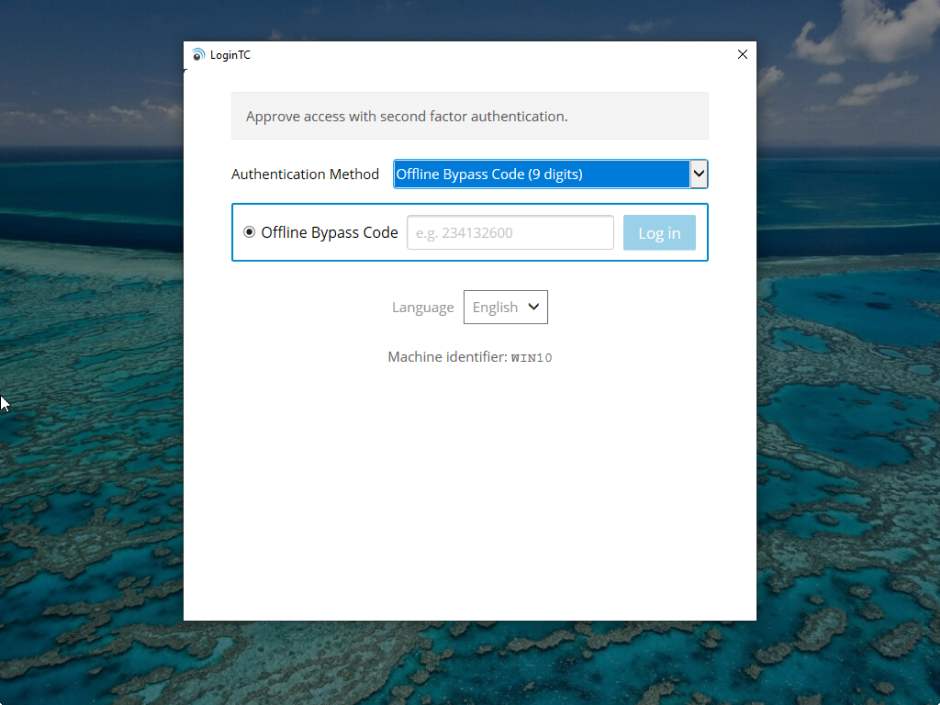
- Offline Bypass Code. The user must enter a 9-digit Offline Bypass Code which is provided to them by their support desk. Codes are regenerated each time the user logs in online and can be found on the users page in the LoginTC Admin Panel under Offline Bypass Codes.
Must login online prior to offline methods being available
Offline methods are only available if the user has logged in online at least once. For methods that have been revoked then re-issued, they will be usable once the user logs in at least once online.
Policies
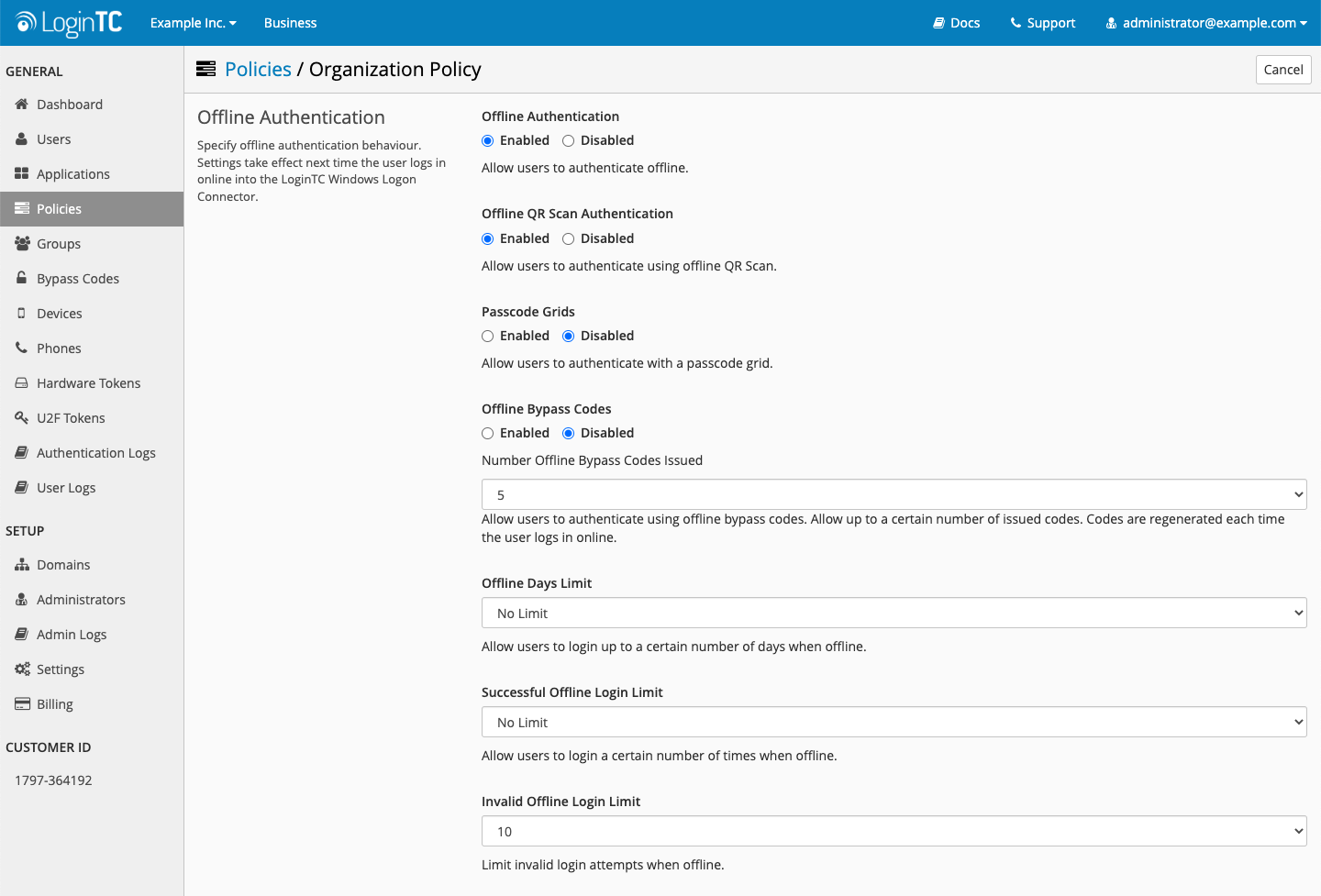
Offline authentication methods must be enabled in the relevant policy, see: Offline Authentication.
UAC (Run as administrator)
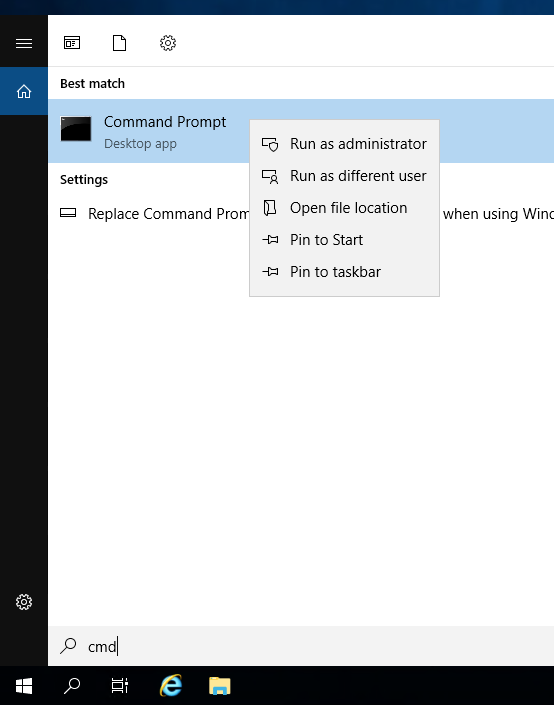
When LoginTC for UAC is enabled, the user requesting elevated privileges is prompted to authenticate with LoginTC:
- User right clicks on an application and clicks on Run as administrator
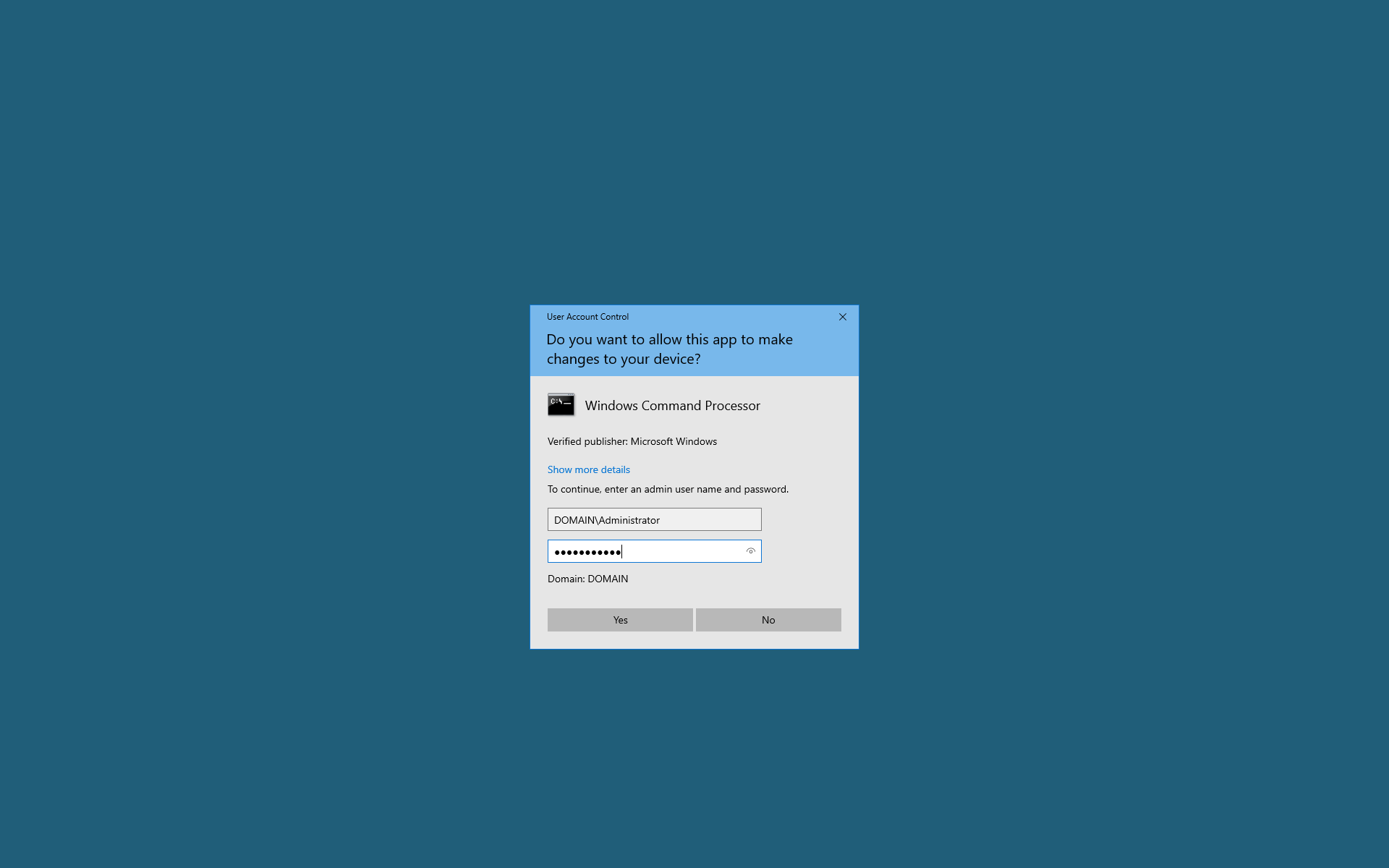
- User is prompted to enter the credentials of an administrator
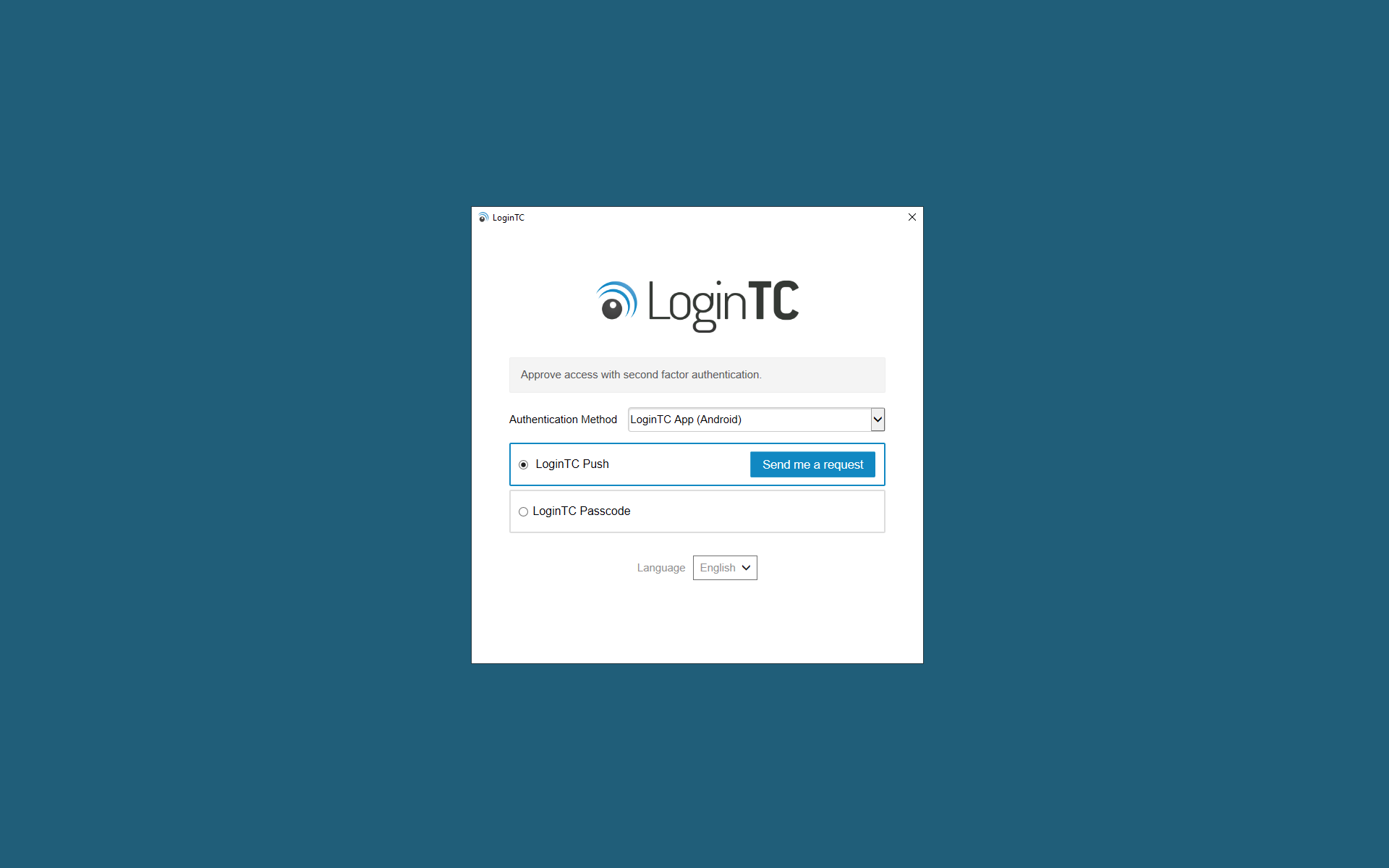
- User is prompted to perform LoginTC authentication for that particular administrator
UAC Limitations
A LoginTC prompt is not prompted for the following scenarios: Run as different user; commandlets such as Enter-PSSession, Invoke-Command, and Get-Credential. Security Keys are not a supported authentication method.
Remembered Devices
Enforce a policy to allow a Windows device to be remembered for specified duration until the user signs out of their machine, reboots, logs in offline or changes networks. This feature applies to console unlock logons.
Remembered devices also works for offline logons.
Policies
Remembered Devices must be enabled in the authentication Policy. Navigate to Policies then your policy (or Organization Policy for global coverage). Scroll down to Remembered Devices to enable.
You may also install the LoginTC Windows Logon and RDP Connector from the Command Prompt. This is particularly useful when deploying to a large number of machines.
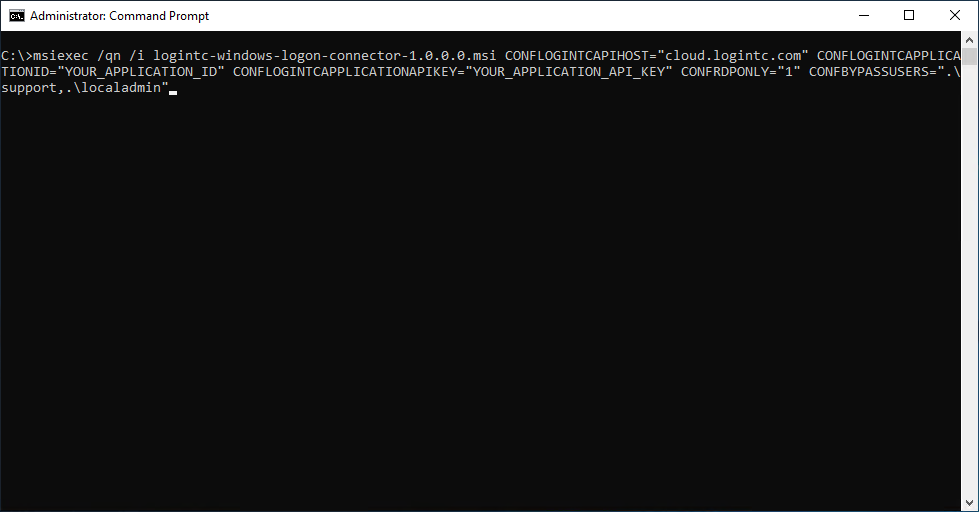
To install from the Command Prompt:
- Find the Command Prompt in the Start menu
- Right Click and select “Run as administrator”
- Enter the following command (refer to the table below for configuration options)
msiexec /qn /i logintc-windows-logon-connector-2.0.0.0-x64.msi ^
    LOGINTC_APPLICATION_ID="YOUR_APPLICATION_ID" ^
    LOGINTC_APPLICATION_API_KEY="YOUR_APPLICATION_API_KEY" ^
    /l*v logintc-windows-logon-install.log
Only the Application ID and Application API Key are required: the API host defaults to cloud.logintc.com and LoginTC is enforced for remote (RDP) logons by default. A complete example:
msiexec /qn /i logintc-windows-logon-connector-2.0.0.0-x64.msi ^
    LOGINTC_API_HOST="cloud.logintc.com" ^
    LOGINTC_APPLICATION_ID="YOUR_APPLICATION_ID" ^
    LOGINTC_APPLICATION_API_KEY="YOUR_APPLICATION_API_KEY" ^
    LOGINTC_ENABLE_RDP="1" ^
    LOGINTC_ENABLE_CONSOLE="0" ^
    LOGINTC_ENABLE_UAC="0" ^
    LOGINTC_BYPASS_USERS=".\support,.\localadmin"
Property names changed in version 2.0.0
The 1.x installer properties (CONFLOGINTCAPPLICATIONID, CONFENABLERDP, etc.) were renamed in version 2.0.0. Use the LOGINTC_* properties below — the old CONF* names are not recognized by the 2.0.0 installer.
Bypass Users
This example includes bypassing local accounts with usernames support and localadmin. Only include the LOGINTC_BYPASS_USERS option if the intent is to install the connector and have users be bypassed.
| Property | Meaning | Example |
|---|---|---|
LOGINTC_APPLICATION_ID |
The 40-character Application ID (found in the LoginTC Admin Panel) | 5de7c5b82a6972... |
LOGINTC_APPLICATION_API_KEY |
The 64-character Application API Key (found in the LoginTC Admin Panel) | 5R2EgzXBOHx3RN... |
LOGINTC_API_HOST |
(Optional) The LoginTC API host. Up to 4 comma-separated hosts can be configured for failover. Change only if you have a private enterprise LoginTC deployment. Default: cloud.logintc.com |
cloud.logintc.com |
LOGINTC_ENABLE_RDP |
(Optional) 1 to enable LoginTC for remote (RDP) logins, or 0 to disable. Default: 1 |
1 |
LOGINTC_ENABLE_CONSOLE |
(Optional) 1 to enable LoginTC for local console logins, or 0 to disable. Default: 0 |
0 |
LOGINTC_ENABLE_UAC |
(Optional) 1 to enable LoginTC for UAC elevation prompts, or 0 to disable. Default: 0 |
0 |
LOGINTC_CHALLENGE_GROUPS |
(Optional) Groups whose members will be challenged. Refer to Challenge Groups for more information. | *\support |
LOGINTC_BYPASS_GROUPS |
(Optional) Groups whose members will be bypassed. Refer to Bypass Groups for more information. | *\support |
LOGINTC_CHALLENGE_USERS |
(Optional) Users which will be challenged. Refer to Challenge Users for more information. | CORP\john.doe |
LOGINTC_BYPASS_USERS |
(Optional) Users which will be bypassed. Refer to Bypass Users for more information. | .\localadmin |
LOGINTC_CREDENTIAL_PROVIDER_ALLOWLIST |
(Optional) Comma-separated CLSID GUIDs of additional credential providers to keep enabled alongside LoginTC. | {D6886603-9D2F-4EB2-B667-1971041FA96B} |
LOGINTC_MACHINE_ID |
(Optional) Device identifier used for online and offline authentication. Generated automatically when omitted. On an upgrade the existing value is always kept. | 3f9a2c |
LOGINTC_FORCE_AUTO_PUSH |
(Optional) 1 to automatically send a push notification when the user reaches the LoginTC prompt. Default: 0 |
1 |
LOGINTC_DEBUG |
(Optional) 1 to enable verbose debug logging to the LoginTC event log. Default: 0 |
0 |
At least one of LOGINTC_ENABLE_RDP, LOGINTC_ENABLE_CONSOLE or LOGINTC_ENABLE_UAC should be enabled. Values containing spaces must be quoted.
The LoginTC Windows Logon and RDP Connector logs events to the Microsoft Event Viewer under Applications and Service Logs → LoginTC. LoginTC Windows Logon and RDP Connector event logs are helpful in debugging issues. Verbose debug logging can be enabled by installing with LOGINTC_DEBUG="1" (or by setting the Debug registry value to 1).
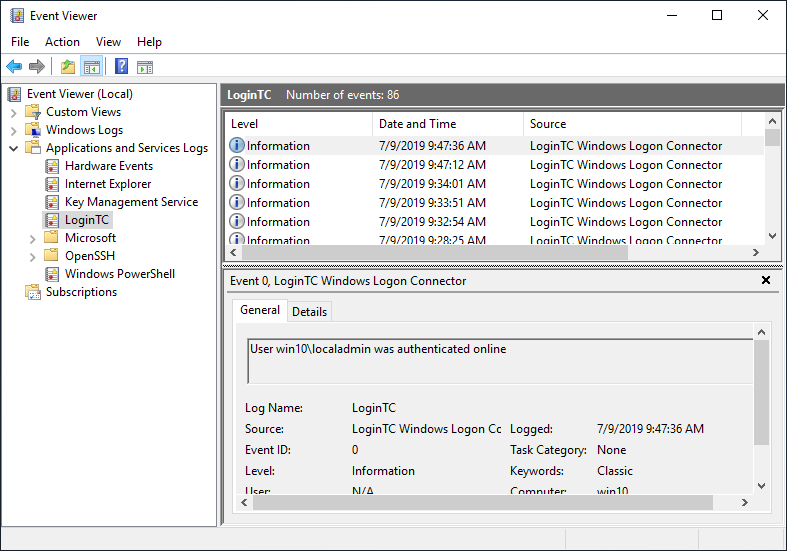
There are several ways to specify which set of users should be challenged with LoginTC second-factor authentication, and which ones will not. This is often useful when testing and when rolling out a deployment to minimize the impact on others or to maintain operational access to the hosts. Bypass settings are configured on each host where the LoginTC Connector is installed for your Windows multi-factor authentication (2FA/MFA).
Group Policy Overrides
As of version 2.0.0, connector settings can also be applied centrally with Group Policy under HKEY_LOCAL_MACHINE > SOFTWARE > Policies > Cyphercor > LoginTC Windows Logon Connector. A value present in this policy key takes precedence over the same value in the regular configuration key. The Debug and MachineID values are always read from the regular configuration key.
Challenge Groups
The ChallengeGroups attribute is a comma delimited list of groups for which all member users will be challenged with LoginTC second factor authentication. When either ChallengeGroups or ChallengeUsers is specified both BypassGroups and BypassUsers is ignored. If the user is not part of any challenge group, they are logged in without LoginTC two factor authentication (2FA/MFA).
Using Active Directory Groups
Note: Some groups cannot be retrieved by the LoginTC Windows Logon Connector like Remote Interactive Logon, High Mandatory Level and similar Special Identities and non-Active Directory based groups. Recommend using only groups defined and managed in Active Directory.
Offline Active Directory Groups
Note: Security identifiers (SIDs) should be used for Challenge and Bypass groups instead of group names when the machine is expected to be used offline (or when the Active Directory domain controllers are expected to be unreachable).
Instructions to set ChallengeGroups attribute:
- Launch regedit (Registry Editor).
- Navigate to HKEY_LOCAL_MACHINE > SOFTWARE > Cyphercor > LoginTC Windows Logon Connector
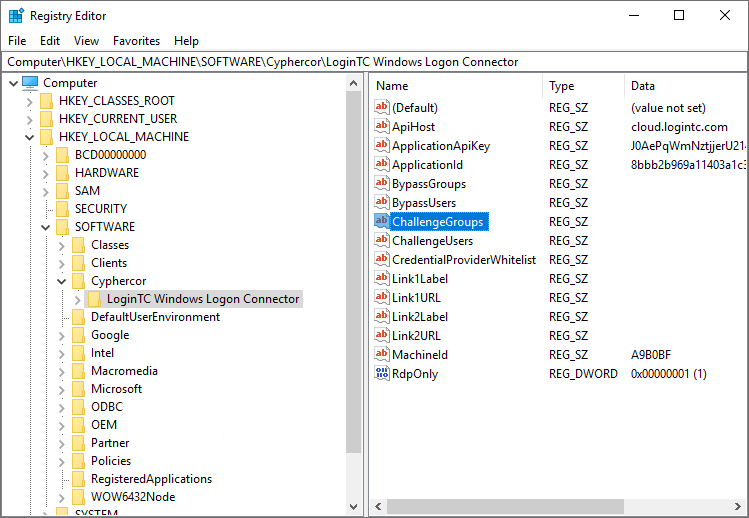
- Click to modify the ChallengeGroups field
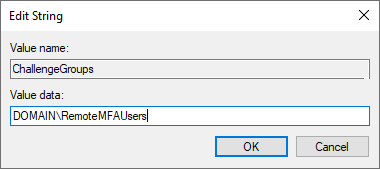
- Enter a comma delimited list of challenge groups, see format:
| Format | Meaning | Example |
|---|---|---|
*\groupname |
All groups part of any domain that have name groupname. | *\RemoteMFAUsers |
DOMAIN\groupname |
Groups with name groupname belonging to DOMAIN domain. | DOMAIN\RemoteMFAUsers |
groupname |
Local group with name groupname. | RemoteMFAUsers |
SID |
Group security identifiers (SIDs) | S-1-5-21-... |
- Click OK to save changes.
Bypass Groups
The BypassGroups attribute is a comma delimited list of groups for which all member users will not be challenged with LoginTC second factor authentication. When either ChallengeGroups or ChallengeUsers is specified both BypassGroups and BypassUsers is ignored. If the user is not part of any bypass group, they are challenged with LoginTC second factor authentication.
Using Active Directory Groups
Note: Some groups cannot be retrieved by the LoginTC Windows Logon Connector like Remote Interactive Logon, High Mandatory Level and similar Special Identities and non-Active Directory based groups. Recommend using only groups defined and managed in Active Directory.
Offline Active Directory Groups
Note: Security identifiers (SIDs) should be used for Challenge and Bypass groups instead of group names when the machine is expected to be used offline (or when the Active Directory domain controllers are expected to be unreachable).
Instructions to set BypassGroups attribute:
- Launch regedit (Registry Editor).
- Navigate to HKEY_LOCAL_MACHINE > SOFTWARE > Cyphercor > LoginTC Windows Logon Connector
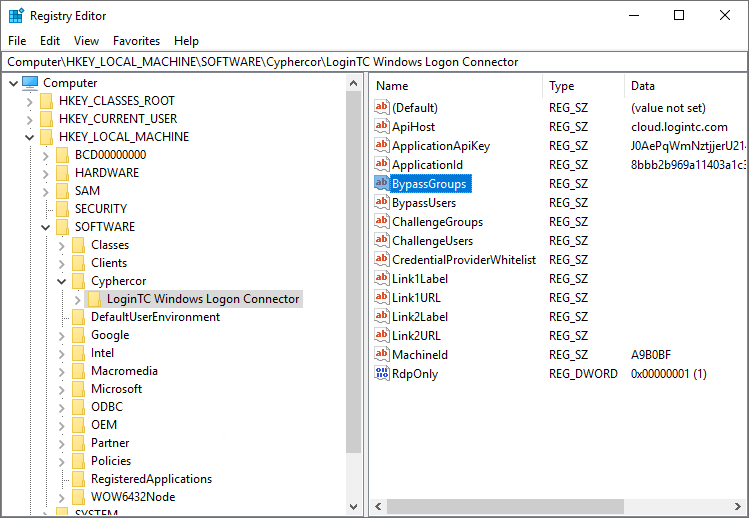
- Click to modify the BypassGroups field
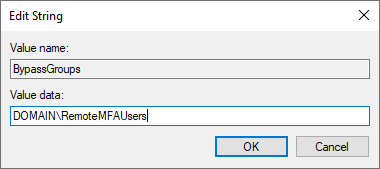
- Enter a comma delimited list of bypass groups, see format:
| Format | Meaning | Example |
|---|---|---|
*\groupname |
All groups part of any domain that have name groupname. | *\RemoteMFAUsers |
DOMAIN\groupname |
Groups with name groupname belonging to DOMAIN domain. | DOMAIN\RemoteMFAUsers |
groupname |
Local group with name groupname. | RemoteMFAUsers |
SID |
Group security identifiers (SIDs) | S-1-5-21-... |
- Click OK to save changes.
Challenge Users
The ChallengeUsers attribute is a comma delimited list of users which will be challenged with LoginTC second factor authentication. When either ChallengeGroups or ChallengeUsers is specified both BypassGroups and BypassUsers is ignored. If the user does not match any challenge user, they are logged in without LoginTC two factor authentication (2FA/MFA).
Instructions to set ChallengeUsers attribute:
- Launch regedit (Registry Editor).
- Navigate to HKEY_LOCAL_MACHINE > SOFTWARE > Cyphercor > LoginTC Windows Logon Connector
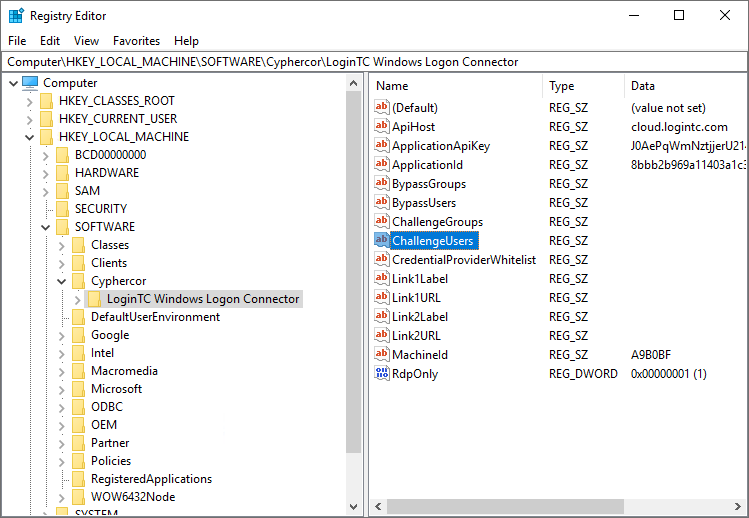
- Click to modify the ChallengeUsers field
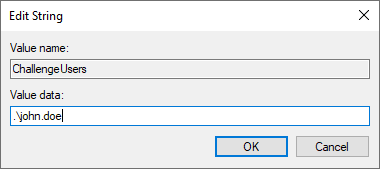
- Enter a comma delimited list of challenge users, see format:
| Format | Meaning | Example |
|---|---|---|
*\username |
All accounts, local or on any domain that have username username. | *\john.doe |
.\username |
Local account with username username. | .\john.doe |
DOMAIN\username |
Domain account with username username belonging to DOMAIN domain. | CORP\john.doe |
- Click OK to save changes.
Bypass Users
The BypassUsers attribute is a comma delimited list of users which will not be challenged with LoginTC second factor authentication. When either ChallengeGroups or ChallengeUsers is specified both BypassGroups and BypassUsers is ignored. If the user does not match any bypass user, they are challenged with LoginTC two factor authentication (2FA/MFA).
Instructions to set BypassUsers attribute:
- Launch regedit (Registry Editor).
- Navigate to HKEY_LOCAL_MACHINE > SOFTWARE > Cyphercor > LoginTC Windows Logon Connector
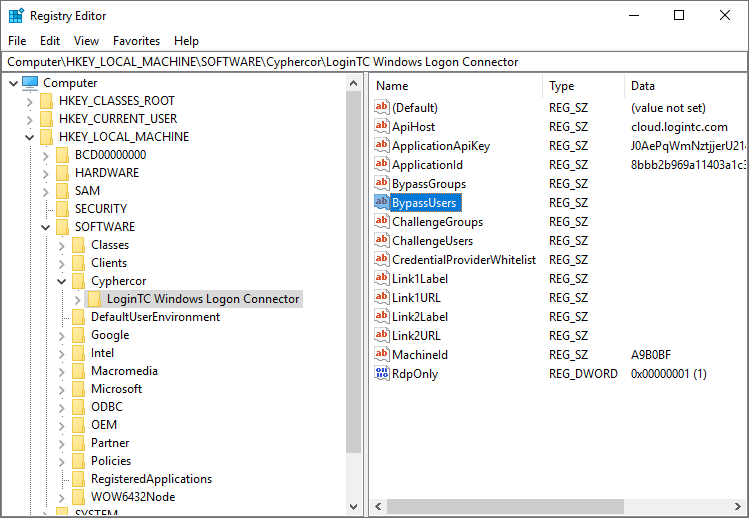
- Click to modify the BypassUsers field
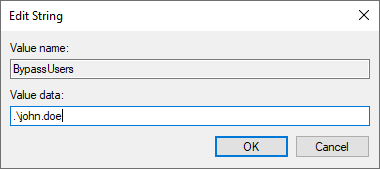
- Enter a comma delimited list of bypass users, see format:
| Format | Meaning | Example |
|---|---|---|
*\username |
All accounts, local or on any domain that have username username. | *\john.doe |
.\username |
Local account with username username. | .\john.doe |
DOMAIN\username |
Domain account with username username belonging to DOMAIN domain. | CORP\john.doe |
- Click OK to save changes.
Which Windows logon prompts does LoginTC protect?
The LoginTC Windows two factor authentication (2FA/MFA) protects:
- Remote Desktop Logins
- Local Logins
- Run as administrator
The LoginTC Windows two factor authentication (2FA/MFA) does not protect:
- “Run as different user”
- RDP Restricted Admin Mode
- Pre-Logon Access Providers (PLAPs) such as Always On VPN
- Noninteractive logins (e.g. batch process, mapping network drive, logon as a service, scheduled tasks)
- PowerShell cmdlets: “Get-Credential”, “Enter-PsSession”, “Invoke-Command”
Does Windows logon work in Safe Mode?
By default, Windows disables all credential providers except the built-in password credential provider when in Safe Mode. If you wish to enable LoginTC in Safe Mode, you can do so by following these instructions:
- Open the Registry Editor
- Navigate to HKEY_LOCAL_MACHINE > SOFTWARE > Microsoft > Windows > CurrentVersion > Authentication > Credential Providers
- Create a key DWORD entry named
ProhibitFallbackswith the value1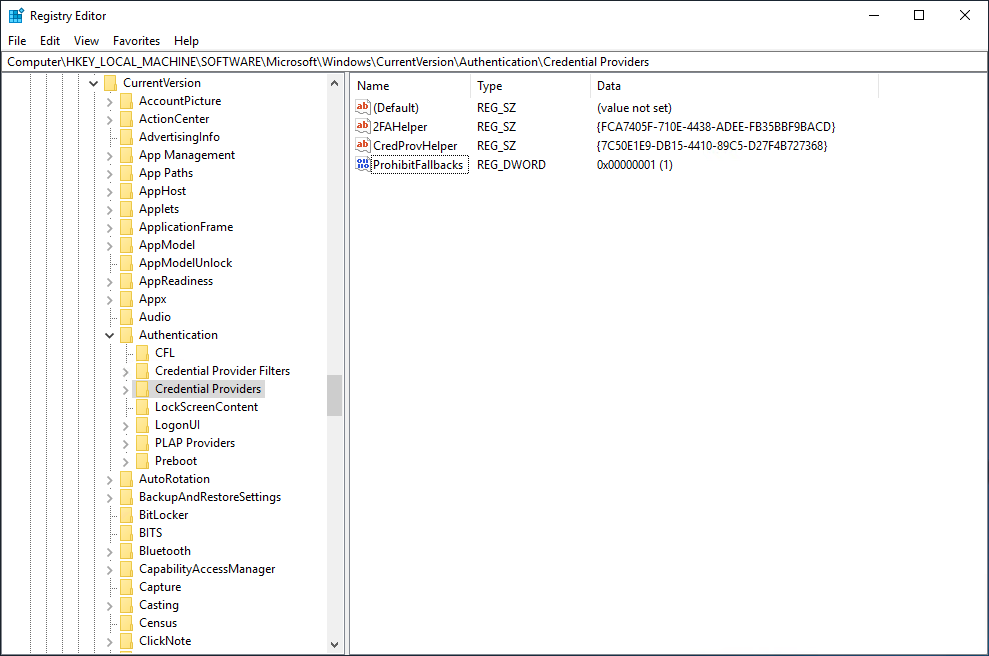
Does the LoginTC Windows Logon and RDP Connector support Microsoft/Live accounts?
No, the connector does not support Microsoft/Live accounts.
Can the installer be deployed automatically
Yes, commandline installation is supported: Command line installation
An end to end sample guide on deploying using Group Policy: Automatic LoginTC Windows Logon and RDP Connector Deployment.
UpgradeAs of version 2.0.0, the LoginTC Windows Logon and RDP Connector upgrades in place: run the newer installer on a host with an older version installed and follow the prompts. The existing configuration is preserved, including when upgrading from a 1.x version.
To upgrade silently from the Command Prompt:
msiexec /qn /i logintc-windows-logon-connector-2.0.0.0-x64.msiAny configuration property supplied on the command line is validated and applied; all other settings are preserved.
UninstallationTo uninstall the LoginTC Windows Logon and RDP Connector, simply navigate to the Add or remove programs in the Windows Control Panel, find LoginTC Windows Logon and RDP Connector in the list and follow the prompts.
You may also uninstall the LoginTC Windows Logon and RDP Connector from the Command Prompt. This is particularly useful when deploying to a large number of machines.
To uninstall from the Command Prompt:
- Find the Command Prompt in the Start menu
- Right Click and select “Run as administrator”
- Enter the following command
msiexec /x logintc-windows-logon-connector-2.0.0.0-x64.msi /qnNOTE: The msi file has to be the same version and architecture that’s installed (use the arm64 msi on ARM64 machines).
Troubleshooting
Email Support
For any additional help please email support@cyphercor.com. Expect a speedy reply.
You may also be interested in our:
- Remote Desktop Web Access (RD Web) 2FA Connector
- Remote Desktop Gateway (RD Gateway) 2FA Connector
- Office 365 2FA Connector
- Outlook Web App (OWA) 2FA Connector
- Windows Server 2012 2FA Connector
- Windows Server 2016 and 2019 2FA Connector