MFA for Windows Logon and RDP

Secure every Windows login with LoginTC multi-factor authentication (MFA). Whether users are logging into a local workstation, connecting over Remote Desktop Protocol (RDP), or working entirely offline, LoginTC adds a reliable second factor to every authentication event without replacing your existing Active Directory infrastructure.

Fast to deploy, simple to manage, and built for on-premises environments. Explore how LoginTC can work for your organization.
Why Windows Logon Needs MFA

The Windows logon screen is one of the most targeted entry points in enterprise environments. Credentials stolen through phishing, brute force, or data breaches can give attackers direct access to workstations and servers — and once inside, lateral movement is fast. Remote Desktop Protocol (RDP) in particular is a leading initial access vector in ransomware attacks, precisely because it is often left exposed with only a username and password standing between an attacker and full system access.

Active Directory does not provide native MFA at the Windows logon screen. Beyond smartcards, there is no built-in mechanism to require a second factor at login. This leaves a significant gap that attackers know how to exploit and that cyber insurers and compliance frameworks increasingly require organizations to close.

Adding MFA to Windows logon and RDP directly addresses this gap — requiring a verified second factor at the exact moment of authentication, before access is ever granted.

How LoginTC MFA for Windows Works

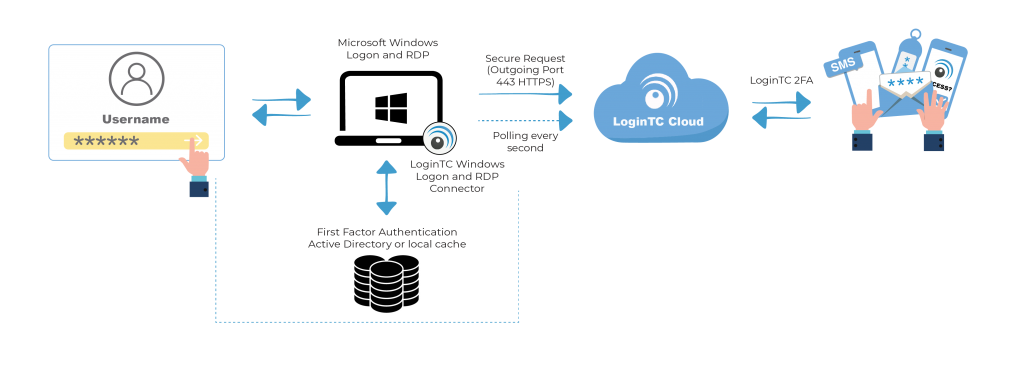
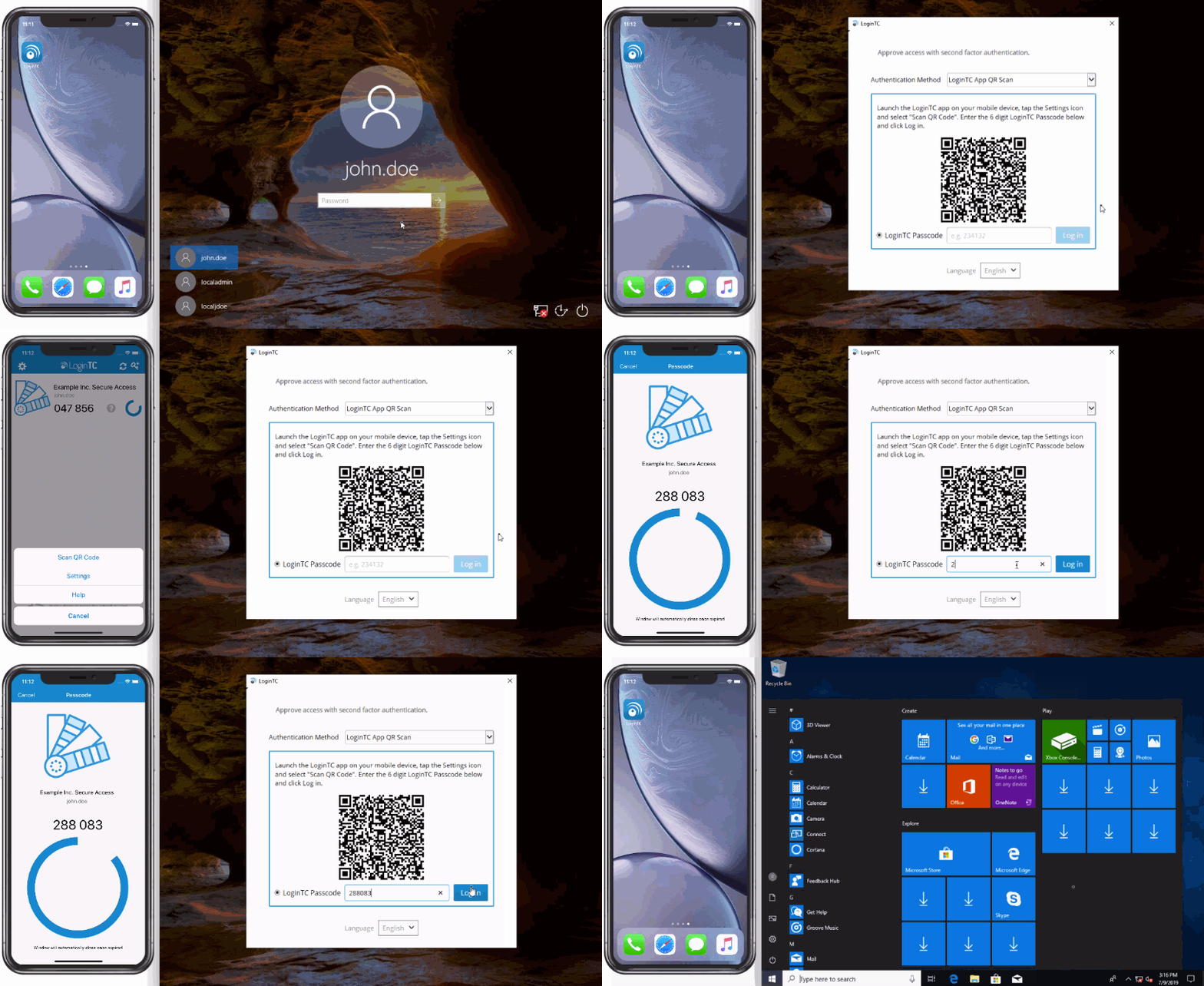
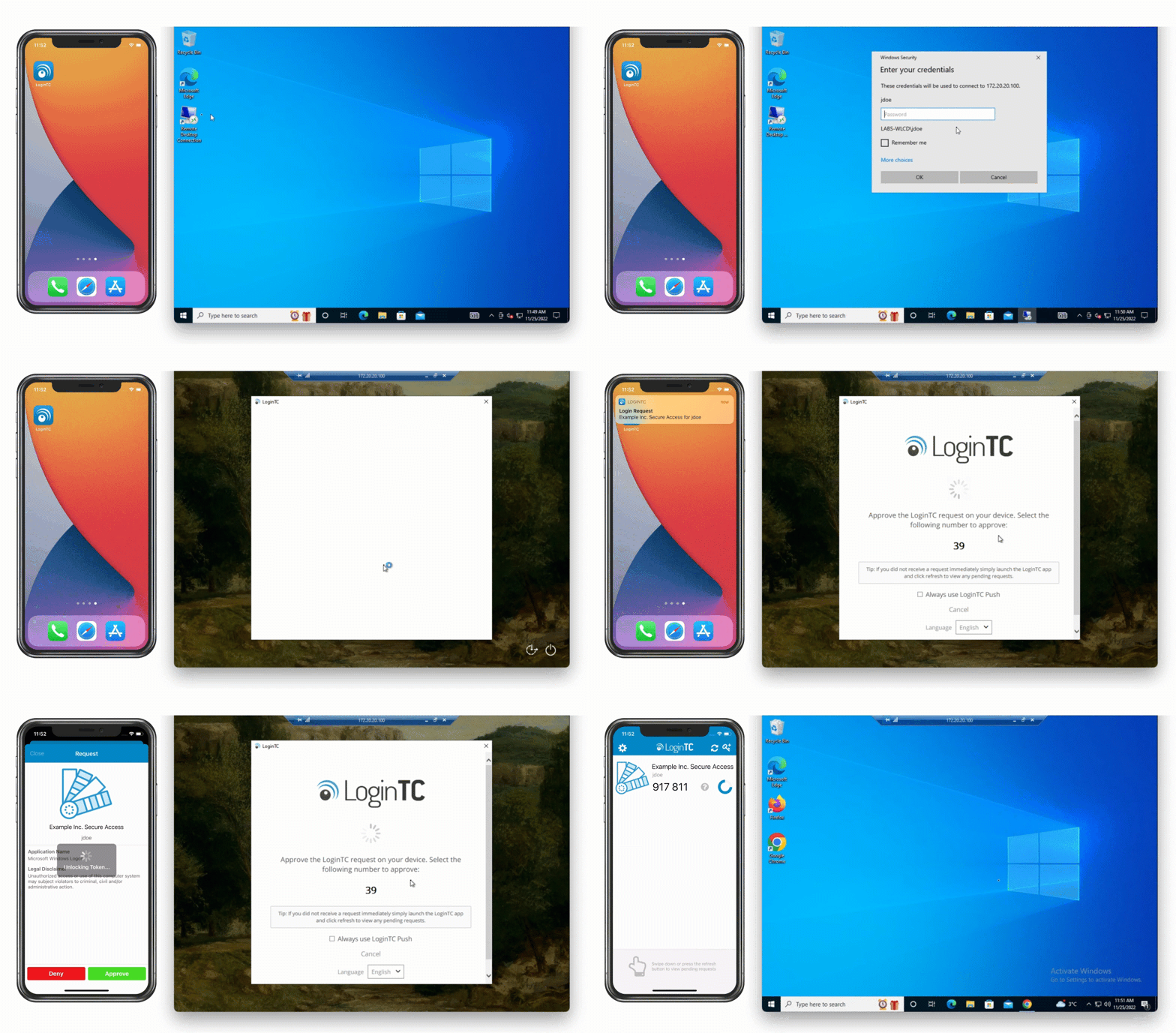
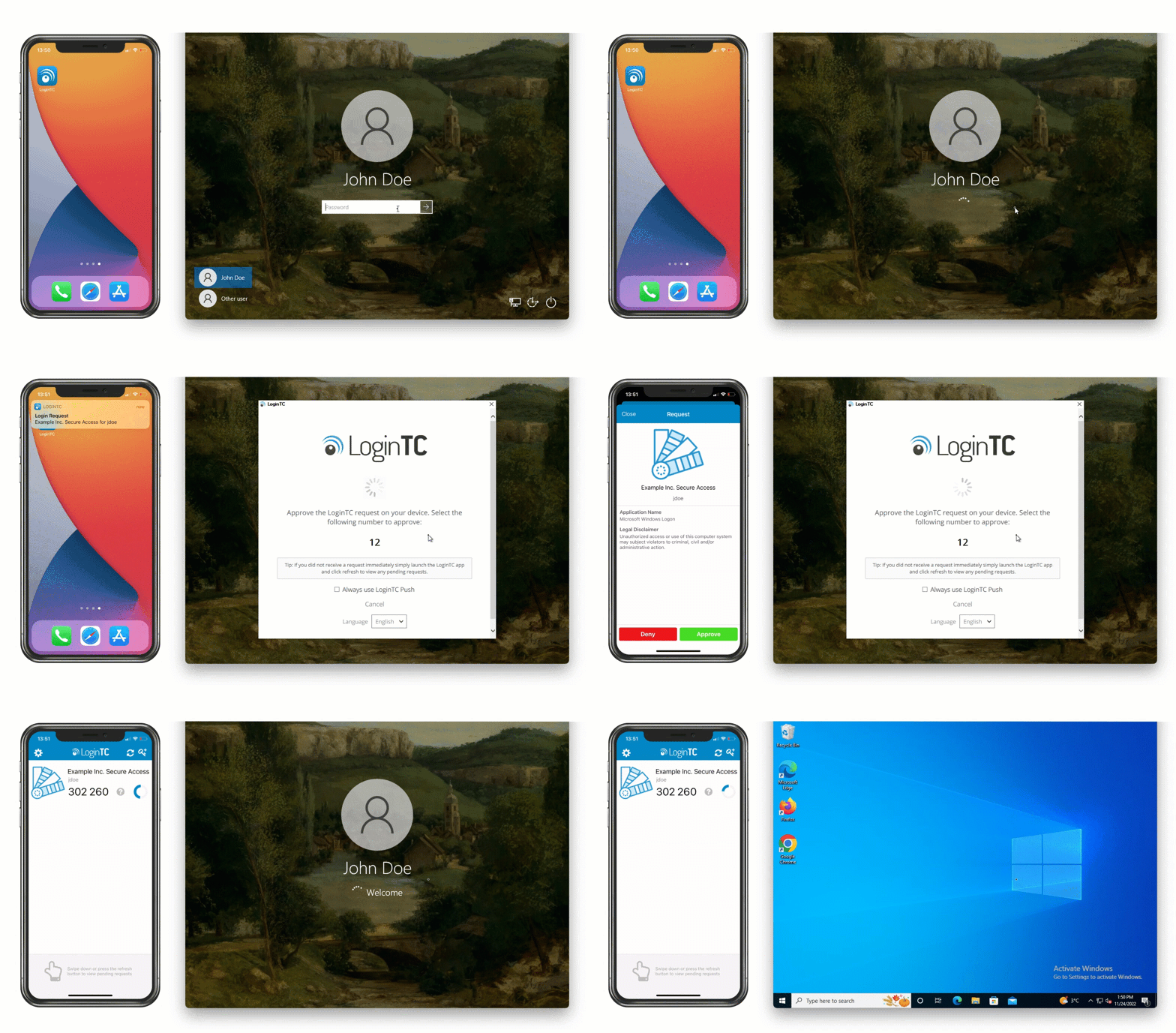
LoginTC secures Windows logon and RDP sessions through a lightweight Credential Provider that installs directly on your Windows machines. When a user attempts to log in, the LoginTC Credential Provider intercepts the authentication request and requires the user to complete a second factor before access is granted, whether that is approving a push notification, entering a one-time passcode, or presenting a hardware token.

The connector integrates directly with Active Directory. Your existing AD users, groups, and password policies remain unchanged. LoginTC sits alongside your current directory rather than replacing it, meaning there is no new identity provider to provision, no directory sync to configure, and no disruption to your existing authentication infrastructure.

The same connector covers both local console logon and Remote Desktop sessions, so you get consistent MFA enforcement across both access paths from a single deployment.

For a full step-by-step walkthrough, see the Windows Logon and RDP MFA setup guide, or watch the video. LoginTC can be configured end to end in under ten minutes.

Supported Authentication Methods

LoginTC supports a wider range of authentication methods for Windows logon than most MFA solutions, including options that work without a smartphone and without an internet connection. This is particularly valuable in environments with shared workstations, air-gapped networks, or users who do not carry personal devices.

Supported methods for Windows logon and RDP include:

authentication methods

 LoginTC Push

Get an authentication request directly to your smartphone. Approve with a single click and you’re in. A seamless experience that keeps the right people in and the wrong ones out. Policies allow administrators add contextual information, enforce PIN protection and more.

 LoginTC Desktop

Turn your desktop or laptop into a secure second factor authentication device. The LoginTC Chrome Extension installs directly anywhere Chrome is installed. Get the same experience as smartphone app from the convenience of a computer.

 LoginTC Passcode

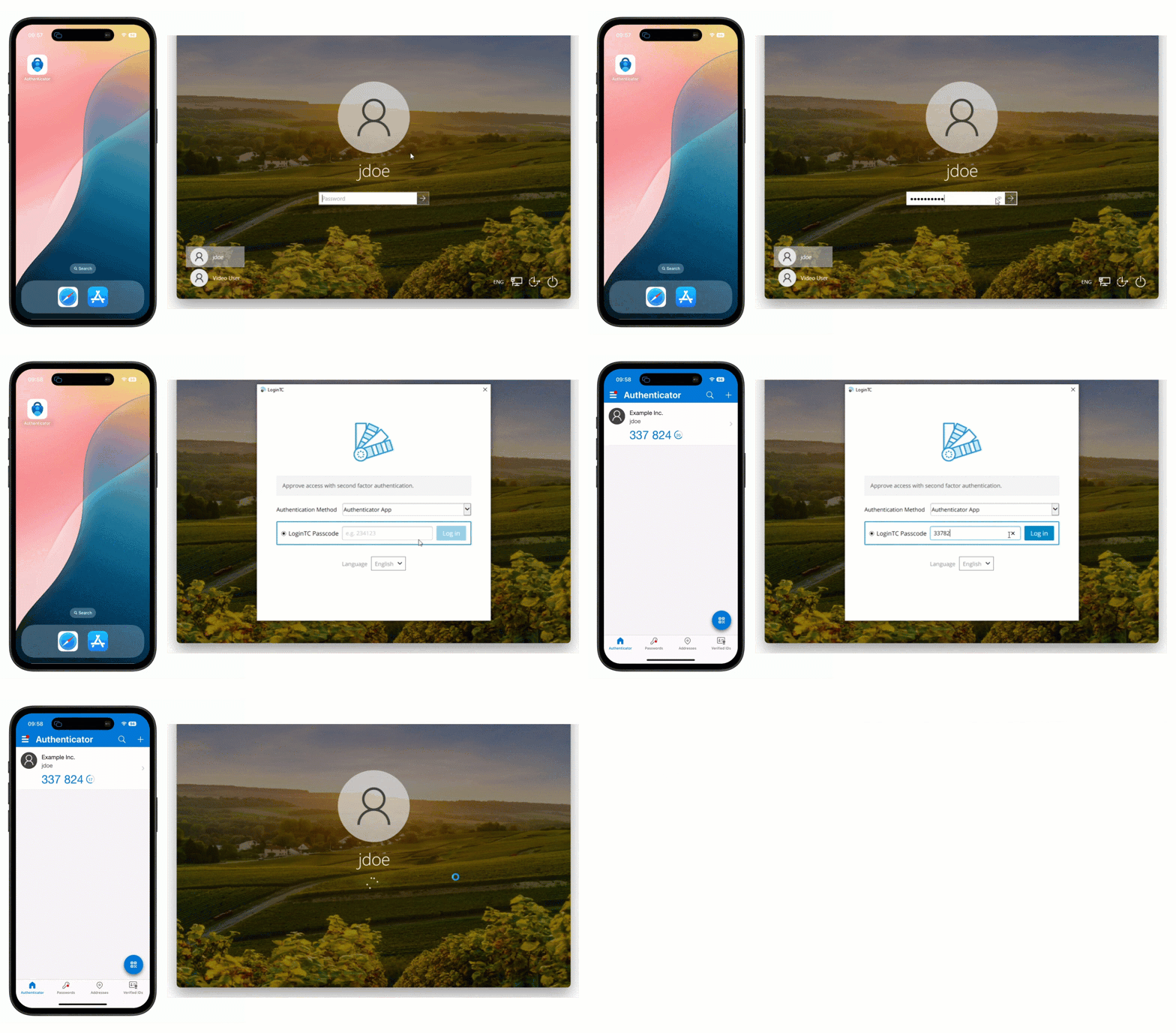
The LoginTC app also supports a 6-digit One-Time Password. Don’t have internet to receive a push? No problem. Launch the app and enter the code instead.

 SMS Passcode

Don’t always have a smartphone or internet connection? We’ve got you covered. Send a One-Time Passcode to your phone using SMS. Use the code to get in.

 Email Passcode

Have a large user base and can’t guarantee a certain type of technology of phone? Email is here. Send a One-Time Passcode to your email.

 Phone Call

Support teleworkers without mobile or smartphone access? Not a problem. LoginTC can call any phone number and authentication a user directly from the call.

 Security Keys

Phishing-resistant authentication at your fingertips. LoginTC supports a variety security keys that are FIDO2 and WebAuthn compliant.

 Hardware Token

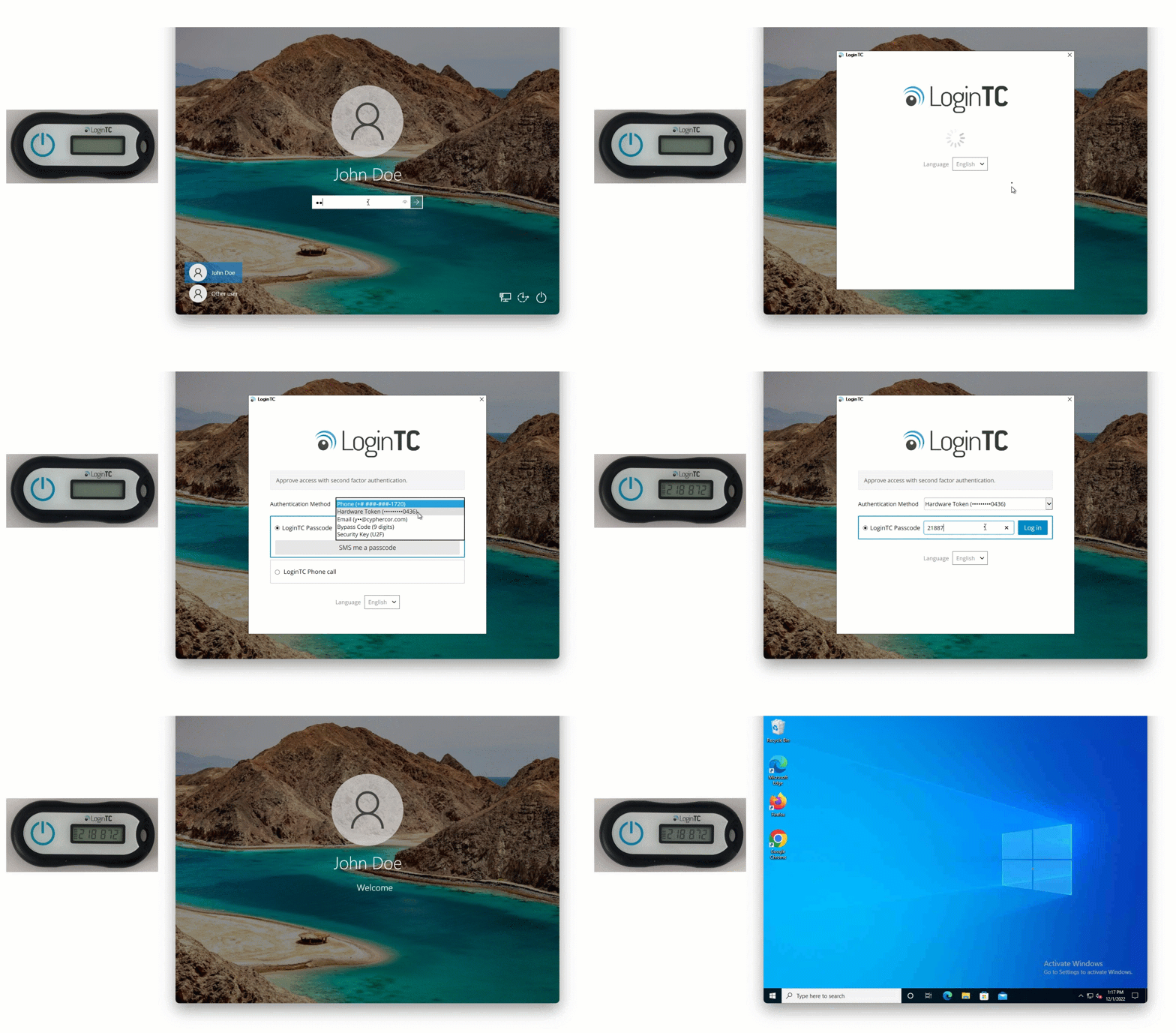
LoginTC supports OATH compliant Hardware Tokens. You can use your own and we even sell our own branded version.

 Bypass Codes

Need emergency access? Bypass codes are here. An administrator can create a one for users in a pinch. Each Bypass Code has a policy for number of times they can be used and for how long they are valid.

 Passcode Grid

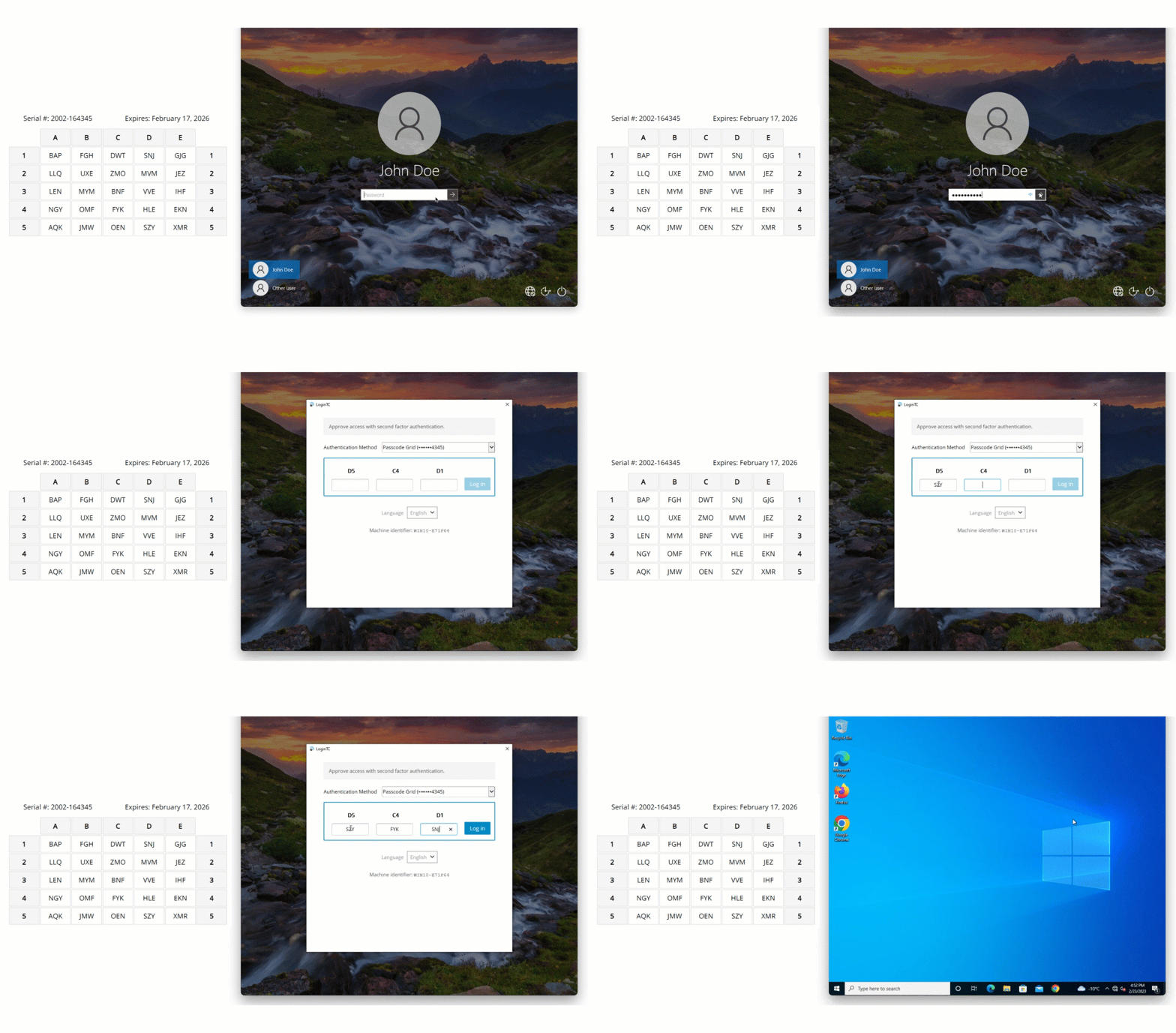
Need no additional cost authentication options? Look no further than the passcode grid. Print or save as PDF your uniquely generated grid to any device for simple authentication to any application or service.

 Push Number Matching

Number matching is your ticket to strong, user-friendly authentication. Ensure end-users know what requests they’re accepting without adding significant friction to the authentication process.

Phone Call OTP

Want secure authentication using existing phone devices? LoginTC has you covered. Send 6-digit one time passcodes to landlines, mobile phone, and smartphones with Phone Call OTP.

QR Scan

Need to authenticate offline with no external connections? Generate one-time-passwords by scanning a QR code with the LoginTC authenticator app.

Offline Bypass Code

Keep your users logged in even without a reliable internet connection using Offline Bypass Codes. Automatically generated and easy to use for admins and users alike.

Authenticator App

Already use an authenticator app? LoginTC integrates seamlessly with third-party authenticators like Microsoft and Google Authenticator.

Key Features
AD Integration AD Integration

LoginTC works with your existing on-premises Active Directory deployment without requiring any changes to your directory structure. Users are provisioned automatically from AD groups, with no manual enrollment process. Administrators can use AD group membership to define exactly which users are required to authenticate with MFA.

Offline MFA Offline MFA

LoginTC is an always-on MFA solution, which means authentication is never bypassed or skipped when a machine is offline or cannot reach the LoginTC service. Users log in online once to automatically register for offline authentication, no separate enrollment required.

Learn more about offline authentication.
Console & RDP Coverage Console & RDP Coverage

A single LoginTC connector deployment covers both local console logons (a user sitting at the machine) and Remote Desktop Protocol (RDP) sessions (a user connecting remotely). Both authentication paths are protected consistently, with no need for separate connectors or configurations for each access type.

Granular Access Policies Granular Access Policies

Administrators have precise control over who is challenged with MFA and under what conditions. Policies can be applied to specific AD users or groups, allowing organizations to roll out MFA incrementally, exclude non-interactive accounts, or enforce different authentication methods for different user populations.

Fast Deployment Fast Deployment

The LoginTC Windows Logon Connector installs in minutes with no changes to your existing network infrastructure. There is no new identity provider to stand up, no firewall rules to reconfigure, and the MFA prompt appears as a natural extension of the standard Windows login flow. Most organizations deploy in under an hour.

MFA Cannot Be Bypassed MFA Cannot Be Bypassed

LoginTC is designed so that MFA cannot be circumvented, not by an attacker exploiting a service outage, and not by misconfiguration. If the LoginTC service cannot be reached, authentication still enforces the second factor using offline methods. There is no fail-open condition that an attacker could exploit by disrupting connectivity.

Compliance and Cyber Insurance Requirements

MFA for Windows logon is no longer optional for many organizations. Cyber insurers now routinely require MFA on all privileged and remote access as a condition of coverage, and major security frameworks mandate it explicitly. LoginTC helps organizations satisfy these requirements with audit-ready logs of every authentication event and support for the authentication assurance levels required by leading frameworks.

LoginTC MFA for Windows supports compliance with:

  • HIPAA: access controls and audit controls under the Security Rule (45 CFR 164.312)
  • CJIS Security Policy: advanced authentication requirements for access to criminal justice information
  • PCI DSS: multi-factor authentication requirements for remote access to the cardholder data environment
  • NIST SP 800-63B: authentication assurance levels for government and enterprise identity systems
  • SOC 2 Type II: logical access controls and monitoring requirements
  • Cyber Insurance: satisfies MFA mandates commonly required by insurers for workstation and remote access

LoginTC’s centralized admin console provides a full audit log of authentication events, which can be used to demonstrate compliance during audits or insurance reviews.

Frequently Asked Questions

Does LoginTC MFA work with Active Directory?

Yes. LoginTC integrates directly with on-premises Active Directory. Users and groups sync from your existing AD, and you can use AD group membership to control which users are required to complete MFA. No new identity provider or directory changes are required.

Can users authenticate offline without an internet connection?

Yes. LoginTC is an always-on MFA solution that never bypasses authentication, even when a device is offline or cannot reach the LoginTC service. Users who log in online once are automatically enrolled in offline authentication. Supported offline methods include QR scan, passcode grid, hardware tokens, FIDO2 keys, and offline bypass codes. See the offline authentication page for full details.

Can I use the Windows Logon and RDP Connector offline?

Yes, you can use the LoginTC Windows and RDP connector to securely login offline. Contact us to learn more.

Does LoginTC MFA for Windows also cover RDP sessions?

Yes. The same LoginTC Windows Logon Connector protects both local console logon and Remote Desktop Protocol (RDP) sessions. Both access paths are covered from a single deployment with no additional configuration required.

Does LoginTC MFA work with Windows Server?

Yes. The LoginTC Windows Logon Connector supports Windows Server environments in addition to Windows desktop operating systems. This includes protecting RDP access to Windows Server hosts, which is a common ransomware entry point. See the Windows Server MFA setup guide for details.

What authentication methods are supported for Windows login?

LoginTC supports push notification with number matching, software OTP, hardware OTP tokens, FIDO2 security keys, email OTP, SMS passcode, QR scan, passcode grid, offline bypass codes, and desktop authentication. Multiple methods can be enabled simultaneously, and administrators can restrict available methods by policy.

Does MFA still apply if the LoginTC service is unreachable?

Yes. LoginTC cannot be bypassed, even if the authentication service is temporarily unreachable. Rather than failing open, LoginTC requires users to authenticate using an offline method. This means an attacker cannot circumvent MFA by disrupting connectivity to the authentication server.

Can I control which users are required to use MFA?

Yes. Administrators can define MFA policies based on AD group membership or static user lists, allowing for incremental rollouts and exclusions for service accounts or non-interactive users. Per-user bypass codes are also available for temporary access exceptions.

How long does it take to deploy LoginTC for Windows?

Most deployments are completed in under ten minutes. The LoginTC Windows Logon Connector installs directly on the target Windows machines with no infrastructure changes required. A full video walkthrough of the setup process is available here.

Is LoginTC MFA compatible with Windows Hello?

Windows Hello is a Microsoft-native authentication mechanism tied to the Windows Hello for Business infrastructure, which requires Azure AD or Hybrid Azure AD joined devices and relies on Microsoft’s cloud identity stack. LoginTC is an independent MFA layer that operates at the credential provider level and is designed for organizations using on-premises Active Directory, including environments that do not use or cannot use Windows Hello for Business. The two serve different use cases: Windows Hello for Business is Microsoft’s cloud-first option, while LoginTC is built for on-premises and hybrid environments that need MFA without cloud identity dependencies.

How does LoginTC compare to Microsoft Entra ID MFA for Windows logon?

LoginTC integrates with Microsoft Entra ID as an External Authentication Method (EAM), allowing organizations to use LoginTC as their MFA provider for Office 365 and Microsoft online services. This means LoginTC and Entra ID work together rather than as alternatives — you keep Entra ID managing identity while LoginTC handles the second factor, with support for push notification, FIDO2, software OTP, passcode grid, and email OTP.

For organizations running on-premises Active Directory alongside Microsoft cloud services, LoginTC can protect both Windows logon (via the Windows Logon Connector) and Entra ID-managed applications (via EAM) from a single platform. See the Entra ID EAM page for full details.

Can a user use one token to login to every application?

Yes. A single LoginTC authentication token can be used to login to all your connected applications and services — not just Windows logon and RDP. This means users enroll once and are covered across every LoginTC-protected resource in your environment.

Simple for end users

Easy Deployment Process

Utilize existing devices

Standardized for compliance

Trusted Worldwide

65+

Countries Served

10K+

Use Cases

2013

Year Released

Start your free trial today. No credit card required.

Sign up and Go